
Save time and reduce errors by automatically syncing your Shopify customer data with your quote form. When a logged-in customer opens the quote form, their details are pre-filled — and when the quote converts to a draft order, all that data carries over automatically. This feature is available exclusively on the Premium Plan.
Why Use This Feature? #
Manually entering customer details during every quote request is time-consuming and error-prone. With Customer Data Sync, you can:
- Automate order notes — Map form fields directly to Shopify’s Order Notes section
- Save time — No more manually entering customer info during quote-to-order conversion
- Reduce errors — Auto-filled data means fewer typos or mismatched information
- Improve customer experience — Logged-in customers get a seamless, pre-filled form
- Centralize data — Keep everything synced across the customer profile, quote form, and draft order
How It Works — Seamlessly, on Both Sides #
On the Storefront: When a logged-in customer opens your quote form, any fields you’ve linked to Shopify customer data will be automatically pre-filled. For example, if your form has a “Name” field linked to the Shopify Customer Name field, it will populate instantly — no typing needed.
On the Admin Side (Draft Order): Once a quote is converted to a draft order, all synced customer fields are automatically carried over into the order — including personal details, address, and any custom notes. No double entry, no missing data.
How to Set It Up: Step-by-Step Guide #
Setting up this powerful feature is easy and only takes a few minutes. Here’s how you can enable and configure customer data sync:
- Go to Quotes Guru in your Shopify admin
- Navigate to Enquiry Forms and open the form you want to configure
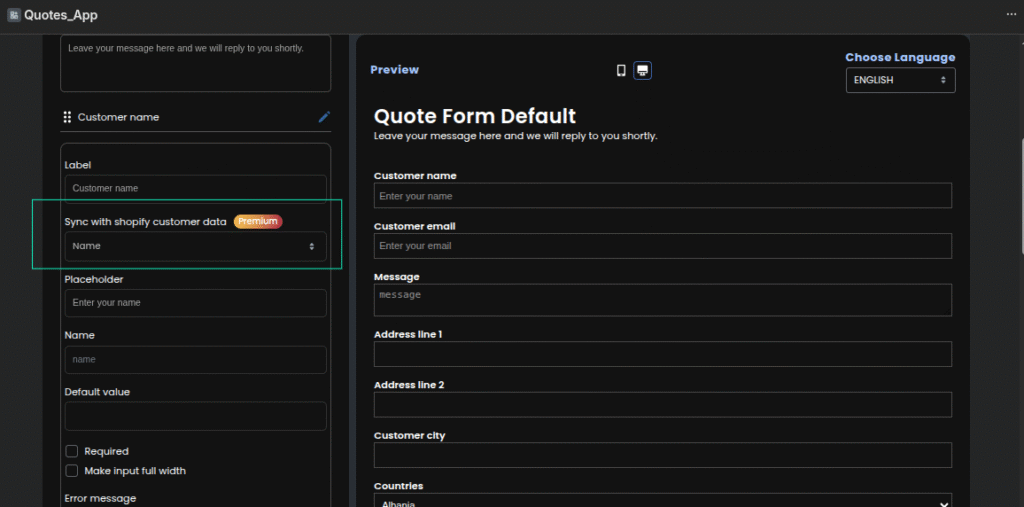
- Click Edit on any form field you want to sync
- In the field settings, find the “Shopify Customer Data Field” dropdown
- Select the Shopify customer field you want to link to this form field
- Repeat for as many fields as needed
- Click Save to apply your changes
Supported Fields #
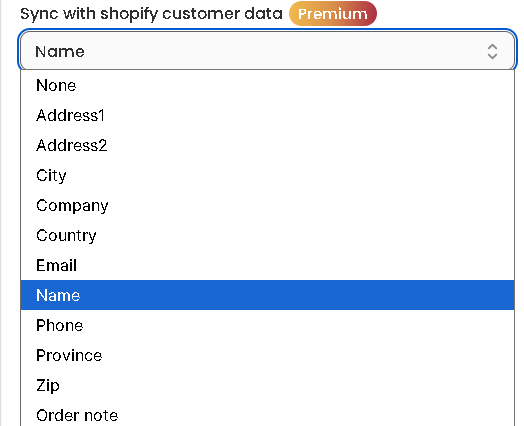
For personal details, you can use: #
name→ Customer’s nameemail→ Customer’s emailphone→ Customer’s phone
For address fields (shipping or billing), use the following mappings: #
address1andaddress2→ Customer’s address (multi-line address like street, colony, sector, phase)city→ Cityprovince→ District or Statecountry→ Countryzip→ PIN or ZIP codecompany→ Company (organization name)
ORDER NOTES #
In the dropdown, you can allow syncing data directly to the Note section of a draft order. You can now link this option to any field(s) in the quote form—multiple fields are supported—and the values from those fields will be automatically included in the draft order’s notes.
Here is the detailed video that explains how to use this Sync Shopify Customer data with Quote form feature : #
How to Create and Edit Quote Form Click here


