
Our app automatically supports all popular themes and auto-injects icons. However, if you want to place the quote icon or button in a specific section or page, you can do so by adding custom code directly to the respective file. This integration will work seamlessly, and we’re here to assist if needed.
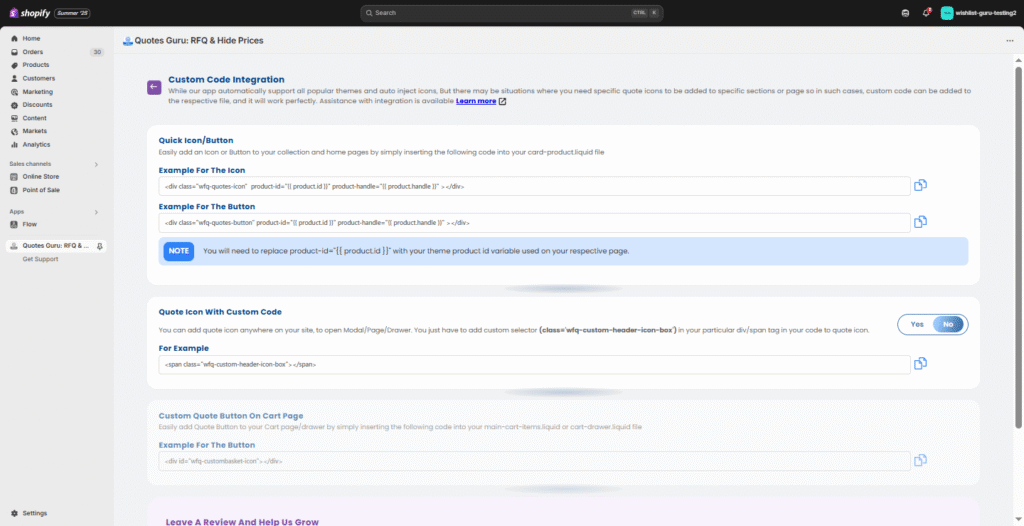
1. Quick Icon/Button Integration #
Add a quote icon or button to your collection or home pages by inserting the following code into your card-product.liquid file:
- Quote Icon Example
<div class="wfq-quotes-icon" product-id="{{ product.id }}" product-handle="{{ product.handle }}"></div>
- Quote Button Example
<div class="wfq-quotes-button" product-id="{{ product.id }}" product-handle="{{ product.handle }}"></div>
Note: Replace
{{ product.id }}with your theme’s product ID variable as required.
2. Add Quote Icon Anywhere #
You can place the quote icon in any location (like the header) to trigger a Modal, Page, or Drawer. Just add the custom selector class below to your desired tag:
<span class="wfq-custom-header-icon-box"></span>
3. Add Quote Button to Cart Page #
To include a quote button on the cart page or drawer, insert the following code in either main-cart-items.liquid or cart-drawer.liquid:
<div id="wfq-custombasket-icon"></div>4. How to Open Quote List Using a Custom Button or Icon #
To trigger the quote list view from a custom element, add the following onclick event to your button or icon’s HTML code:
wfqButtonHandle()
Important: This will only work if you have already enabled the Quote List option in your app settings. If this option isn’t selected, the button won’t have anything to open!


