How to Add Custom Products to a Quote in Quotes Guru (Admin & Customer)
4 min read
If your store handles custom, made-to-order, or non-catalog items, the Add Custom Products feature in Quotes Guru is a game-changer. It allows both admins and customers to add products that aren’t listed in your Shopify catalog directly to a quote — complete with title, price, and quantity.
In this guide, you’ll learn how to enable this feature and how both admins and customers can use it.
Important Note: The customer-facing “Add Custom Products” feature is only available when using the Quote List Button — it does not work with the Quick Quote button. The admin can add custom products to any quote regardless of button type.
Once a custom product is added to the quote, click the three-dot (⋯) Actions menu next to it to access additional options:
Duplicate — Copy the product line and add it again to the quote
Add Discount — Apply a specific discount to that individual product
Edit Properties — Add or update custom specifications or notes
Link to Store Product — Connect the custom product to an actual Shopify product in your catalog
Delete — Remove the custom product from the quote
How to Automatically Enable Shipping and Taxes for New Quotes #
To save time, you can now set custom products to be shippable and taxable by default. This ensures that when a customer requests a quote from your storefront, the shipping and tax charges are automatically calculated and ready for the Shopify draft order.
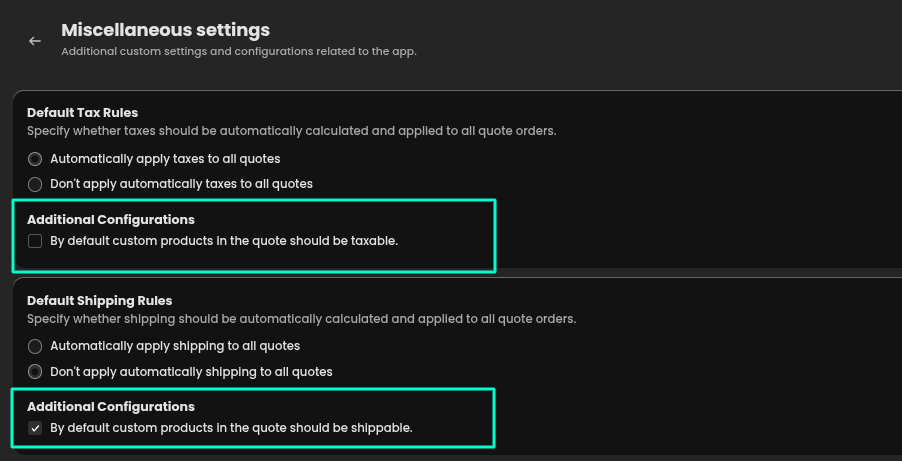
Navigate to General Settings in the Quotes Guru app.
Scroll down to the Miscellaneous settings section.
Under Additional Configurations, toggle the following options:
By default, custom products in the quote should be taxable.
By default, custom products in the quote should be shippable.
Click Save.
Important Note for Admin Quotes:
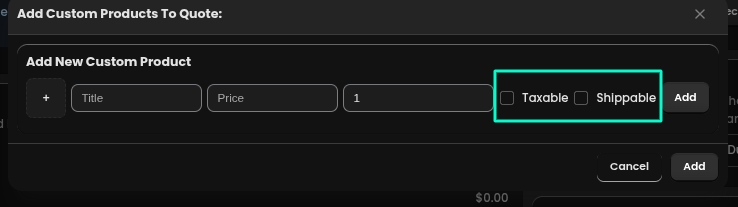
Admin-Created Quotes: If you create a quote manually from the Quotes Guru Admin side, you will still need to manually check the Shippable and Taxable boxes for each custom product to ensure accuracy.
Storefront Quotes: Once enabled, all quotes created by customers on your website will automatically have these settings applied.