
Once a customer submits a quote and you’ve reviewed it, the next step is converting it into a Shopify draft order so you can send a payment link and close the sale. With Quotes Guru, you can do this with just one click — directly from the Quote Listing page.
This guide covers the manual conversion process, where you decide exactly when each quote gets converted to a draft order.
Note: Manual draft order conversion is available on the Pro Plan and above. If you want quotes to convert automatically without any manual action, see 👉 How to Automatically Convert a Quote to a Draft Order in Quotes Guru
When Would You Use Manual Conversion? #
Manual conversion gives you full control over the process. It’s the right choice when:
- You need to review and adjust the quote before it becomes an order — pricing, shipping, discounts, or products
- You want to negotiate with the customer before committing to a draft order
- You’re handling high-value or complex quotes where every detail needs to be double-checked before sending a payment link
- You only want to convert quotes that the customer has explicitly approved
How to Convert a Quote to a Draft Order #
Step 1: Go to Quote Listing
- Open Quotes Guru: RFQ & Hide Prices in your Shopify admin
- Click Quote Listing in the left sidebar
- Find the quote you want to convert
Step 2: Open the Quote Click on the quote to open it, or click Edit Quote to review the details first — products, pricing, shipping, and customer information.
Step 3: Create the Draft Order Once you’re happy with the quote details:
- Click the “Create Draft Order” button
- The quote is instantly converted to a Shopify draft order
- The quote status automatically changes to “Draft Order”
That’s it — the draft order is now created in Shopify and ready for the next step.
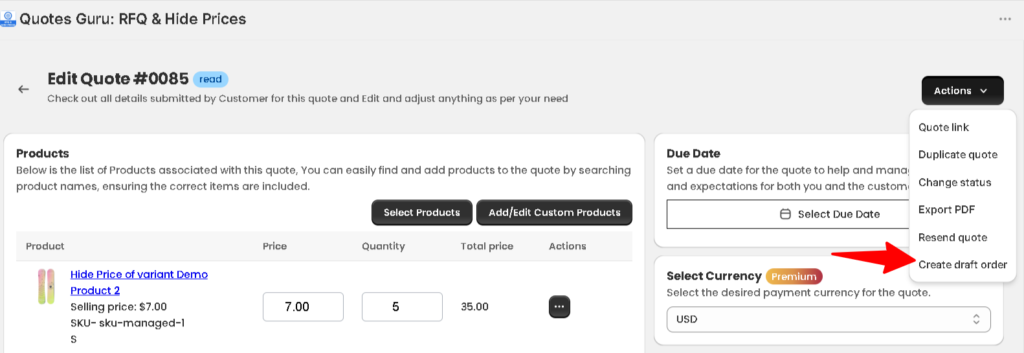
From the Quote Listing page:
- Go to Quotes Guru: RFQ & Hide Prices in your Shopify admin
- Click Quote Listing in the left sidebar
- Find the quote you want to update
- Click the Create Draft Order Button next to the quote
- quote convert to draft order immediately

What Happens After Conversion #
Once the quote is converted to a draft order, a few things happen automatically:
- The quote status updates to “Draft Order” in your Quote Listing
- A “View Draft Order” button appears next to the quote — click it to open the draft order directly in Shopify
- The draft order appears in your Shopify Admin → Orders → Drafts section
- All quote details — products, pricing, customer information, and shipping — carry over to the draft order automatically
Shopify automatically adds tags to the draft order:
- “Created by Admin” — Shows the draft order was created from the admin side
- “QG-XXXX” — The unique Quotes Guru quote reference number linked to this order
- “Quotes Guru” — Identifies that this draft order was created through the Quotes Guru app
In the Shopify Timeline, you’ll also see a clear activity log entry:
“Quotes Guru: RFQ & Hide Prices created this draft order.”
This makes it easy to track exactly where every draft order came from — especially useful if you’re managing a mix of regular Shopify orders and quote-based orders in the same store.
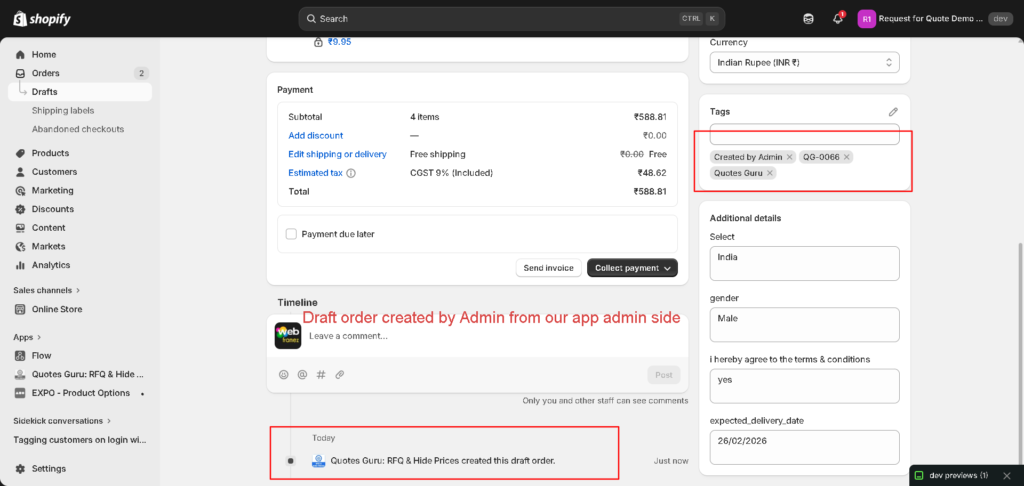
How to Send the Payment Link to the Customer #
Once the draft order is created, you need to send the customer a link so they can complete payment. Here’s how:
- From the Quote Listing page, find the quote marked “Draft Order”
- Click “Send Invoice URL”
- A pop-up will appear — select the language you want to send the email in
- Click “Send Invoice Automatically” to email the payment link to the customer
Alternatively, you can copy the invoice URL from the popup and share it manually via WhatsApp, email, or any other channel.
The customer receives an email with a direct checkout link — pre-filled with all their quote details. One click and they’re at the Shopify checkout page ready to pay.
Difference Between Manual and Automatic Conversion #
| Manual Conversion | Automatic Conversion | |
|---|---|---|
| How it works | Admin clicks “Create Draft Order” | Happens instantly on quote submission |
| Plan required | Pro | Premium |
| Best for | Complex or high-value quotes needing review | High-volume stores wanting full automation |
| Admin control | Full control over when conversion happens | Quotes convert without any manual action |


