
Negotiations are a natural part of B2B sales. The Quotes Guru app allows you to easily edit submitted quotes—adjusting pricing, taxes, shipping, and discounts to match your discussions with the buyer. You can also add special remarks or set a due date to create a sense of urgency. In this guide, you’ll learn how to use the ‘Edit Quote’ feature to refine your offers and provide a seamless, professional quoting experience.
How to Access the Edit Quote Page #
- Go to Quotes Guru: RFQ & Hide Prices in your Shopify admin
- Click on Quote Listing from the left sidebar
- Find the quote you want to edit and click the Edit Quote button
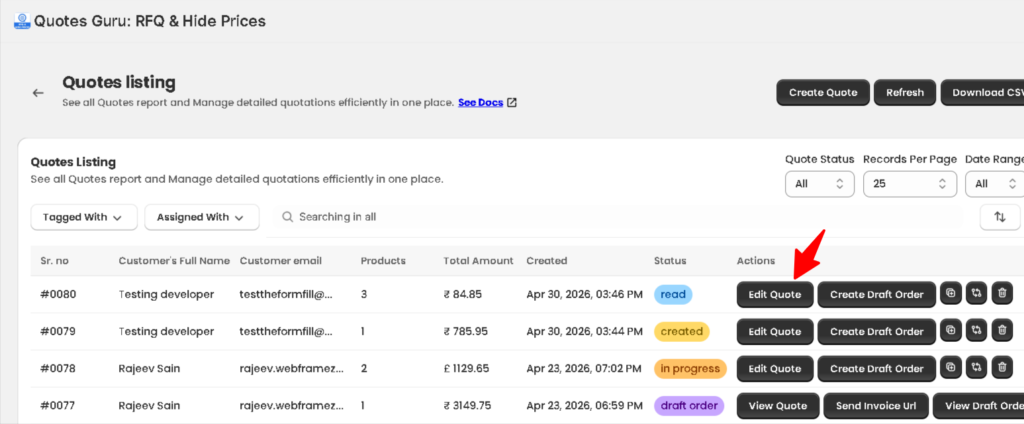
You can easily edit the Quote by simply clicking on the “Edit Quote Button” as shown above in the image.
What You Can Edit #
1. Products #
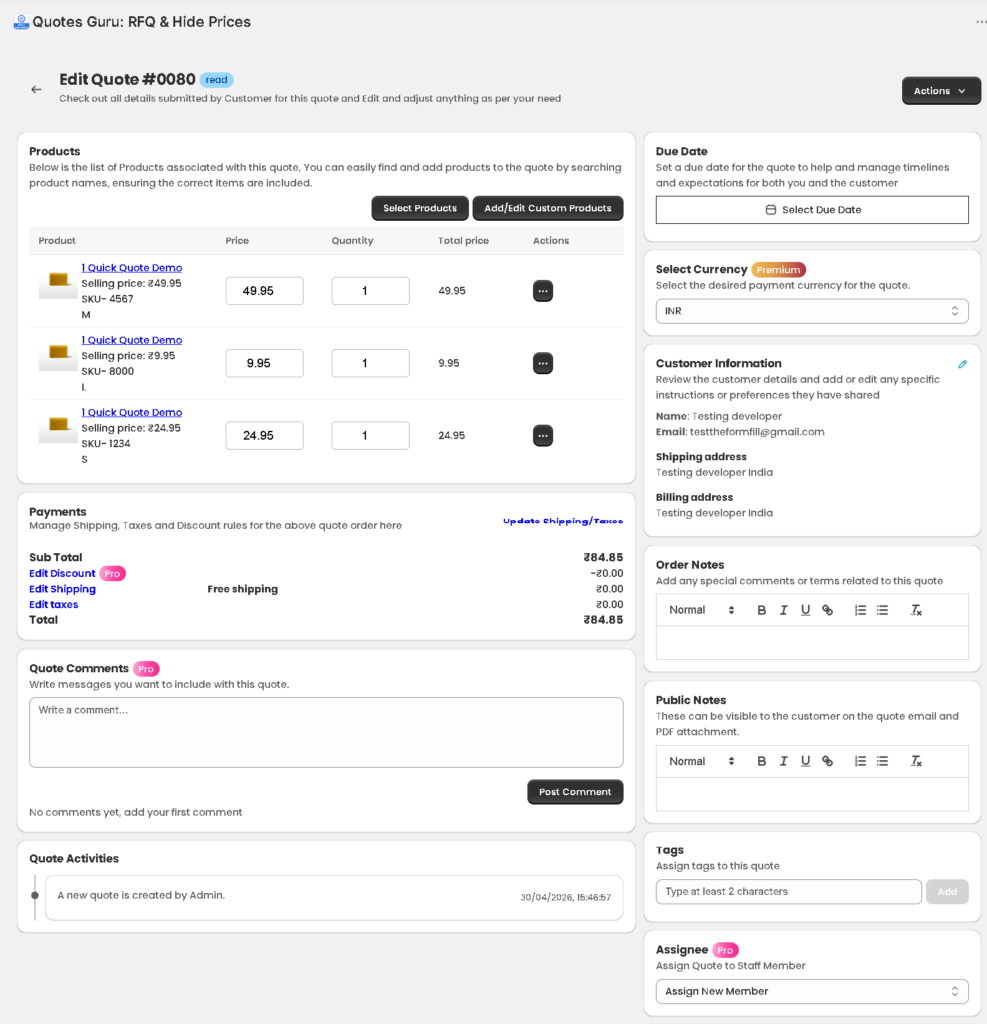
Below is the list of products associated with the quote. You can easily find and add products by searching product names, ensuring the correct items are included.
To add products, use the two buttons at the top:
- Select Products — Browse your store catalog and add or swap products
- Add/Edit Custom Products — Add custom line items for products not listed in your catalog
For each product in the list you can:
- Edit Price — Directly update the price of any product in the quote
- Edit Quantity — Update the quantity of any product directly in the quote
Additionally, click the three-dot (⋯) Actions menu next to any product to access:
- Duplicate — Copy the product line and add it again to the quote
- Add Discount — Apply a specific discount to that individual product
- Edit Properties — Add or update custom properties such as specifications, size notes, or special requirements
- Delete — Remove the product line from the quote entirely
2. Pricing and Payments #
The Payments section lets you configure all cost-related settings:
- Shipping — Apply no shipping, a custom shipping charge, or Shopify’s automatic shipping rates
- Taxes — Apply store tax settings, adjust tax amounts, or exclude taxes as needed
- Discounts (Pro) — Apply a discount directly to the quote
The Sub Total and Total fields update automatically as you make changes.
👉 Learn how to apply shipping charges to a quote 👉 Learn how to manage taxes in a quote
3. Customer Information #
Update or reassign the customer linked to the quote:
- Select Shopify Customer — Choose an existing customer from your Shopify database
- Create Customer — Add a new customer profile if the customer doesn’t exist yet
Keeping accurate customer information ensures smooth communication and correct order processing.
4. Order Notes #
Add internal notes about the quote — such as special instructions, follow-up reminders, or negotiation details. These notes are for your team’s reference and help keep all quote-related context in one place.
5. Public Note #
Add a message that will be visible to the customer on the quote email and PDF attachment. Use this to communicate special terms, offer explanations, or add a personal touch to the quote.
6. Remarks #
Add specific comments or conditions related to the quote — such as payment terms, validity period, or any special agreements made with the customer.
7. Due Date #
Set a due date for the quote to manage timelines and expectations for both your team and the customer. Use the calendar picker to select the appropriate date.
8. Add or Edit Line Item Properties #
Capture additional product details for any item in the quote — such as specifications, customisation notes, or special requirements.
To use this:
- Go to the Edit Quote page
- Find the product you want to add properties to
- Click the Add/Edit button next to the delete icon for that product
- Enter your custom properties and save
9. Quote Status #
Update the current status of the quote to reflect where it is in your sales workflow — for example, In Progress, Sent, Accepted, or Rejected.
Note: Status cannot be changed for quotes that have already been converted to a Draft Order or where an order has been placed.
10. Tags #
Add or remove tags to categorize and organize the quote for easier filtering and follow-up. Tags help your team segment quotes by priority, sales stage, or customer type.
11. Quote Comments #
Add internal or customer-facing comments directly on the quote to keep all communication organized in one place.
👉 Learn more about Quote Comments
12. Resend Quote Email #
After making changes to a quote, you can resend the updated quote email to the customer — with an updated PDF, adjusted pricing, and a custom message if needed.
👉 Learn how to resend a quote email
13. Sync Quote (Send Quote Data to Third-Party Apps) #
Use Sync Quote to push this quote’s details to a connected third-party app, such as Klaviyo or Zapier. This is useful when you want to trigger a marketing flow, automation, or workflow in another platform based on quote activity — for example, sending a follow-up email sequence in Klaviyo, or kicking off a custom automation in Zapier.
To sync a quote:
- Open the quote you want to sync from the Quote Listing page
- Click the Actions dropdown at the top right
- Select Sync Quote
- In the Choose third party app for quote syncing popup, select one or more connected apps (Klaviyo, Zapier)
- Click Send
Once sent, the quote data (such as customer details, products, pricing, and status) is shared with the selected app(s), allowing you to build automated workflows around your quotes outside of Shopify.
Note: You must first connect Klaviyo and/or Zapier to Quotes Guru before this option will work. If an app isn’t connected, it won’t be able to receive the synced data.
👉 Learn how to connect Zapier with Quotes Guru
👉 Learn how to connect Klaviyo with Quotes Guru
Remind merchants that editing a quote does not automatically notify the customer. They need to click “Resend Quote” or “Update Quote” after making changes so the customer receives the new PDF/email with the updated terms.


