Sometimes a customer misses your quote email, or you’ve updated the pricing and need to send a revised version. Maybe they’ve asked for it in a different language, or you want to attach extra documents this time. Whatever the reason, Quotes Guru makes it easy to resend a quote email — and gives you full control over what gets sent before it goes out.
When Would You Use This? #
Here are some common situations where resending a quote comes in handy:
- Your customer says they never received the original email
- You’ve updated the price, quantity, or products on the quote
- The customer needs the quote in a different language
- You forgot to attach the PDF the first time
- You want to loop in another team member via CC or BCC
- The customer’s email address was wrong and needs to be corrected
How to Resend a Quote Email #
Step 1: Open the Quote
- Go to Quotes Guru: RFQ & Hide Prices in your Shopify admin
- Click Quote Listing in the left sidebar
- Find the quote you want to resend and click Edit Quote
Step 2: Click “Email Quote”
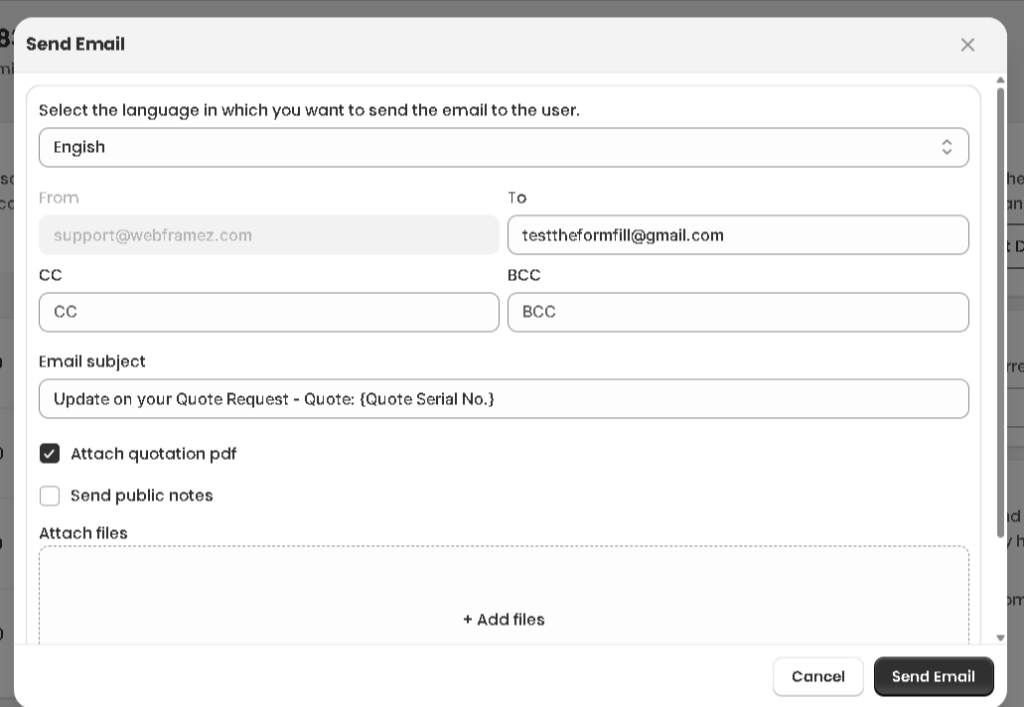
You’ll find the Email Quote button on the Edit Quote page. Click it and a popup will appear where you can review and adjust everything before sending.
Step 3: Customize Your Email Settings
Before you hit send, here’s what you can change inside the popup:
- Change Client Email If the customer gave you the wrong email address the first time, you can update it here before resending. This won’t change the customer’s profile — it only affects this email send.
- Attach Quotation PDF Toggle this on if you want to include the quote as a PDF attachment. This is handy for customers who prefer to download and share the quote internally with their team.
- Send Public Notes If you’ve added a public note to the quote — such as a special message, payment terms, or delivery conditions — turn this on to include it in the email.
- Attach Extra Files Need to send along a spec sheet, terms and conditions, or a product brochure? You can attach additional files here so everything the customer needs arrives in one email.
- Change Email Subject The default subject line works for most situations, but if you’ve updated the quote or are following up after a conversation, changing the subject line makes the email feel more personal and relevant.
- Manage CC and BCC Want to keep a colleague in the loop? Add them as CC so they can see the email too. Use BCC if you want to copy someone without the customer seeing it — useful for account managers or sales teams tracking quotes.
- Select Email Language If your customer is based in a different country, you can switch the email language here so they receive it in their preferred language. This works alongside your multilanguage email settings.
Step 4: Send the Email Once everything looks good, click Send Email. The quote goes out immediately with all your selected settings.