
When a customer browses your store in French and submits a quote request, they should receive their confirmation email in French — not English. Quotes Guru’s Multilanguage Emails feature handles this automatically. Once you’ve set up your languages and customized the email templates, the right language is sent to the right customer every time, with no manual switching required.
Note: Multilanguage Emails are available on the Premium Plan only.
How It Works #
Once multilanguage emails are configured, here’s what happens automatically:
- A customer browses your store in French and submits a quote
- Quotes Guru detects the language they used on the storefront
- The quote confirmation email is sent to them in French — using the template you configured for that language
- No manual action needed from you
Every customer gets their email in the language they’re most comfortable with — making your store feel truly local to them no matter where they are.
Before You Start #
Before setting up multilanguage emails, make sure these are in place:
- Languages are added in Quotes Guru — Go to General Settings → Language & Translation and add all the languages you want to support
- Your Shopify storefront supports multiple languages — Make sure your store is already set up to display in those languages
If you haven’t added languages yet, start here: 👉 How to Add and Configure Multiple Languages for Your Store
How to Set Up Multilanguage Email Templates #
Step 1: Add Your Languages #
- Go to Quotes Guru: RFQ & Hide Prices in your Shopify admin
- Click General Settings in the left sidebar
- Click Language & Translation
- Click Add Language and select all the languages you want to support
- Save your changes
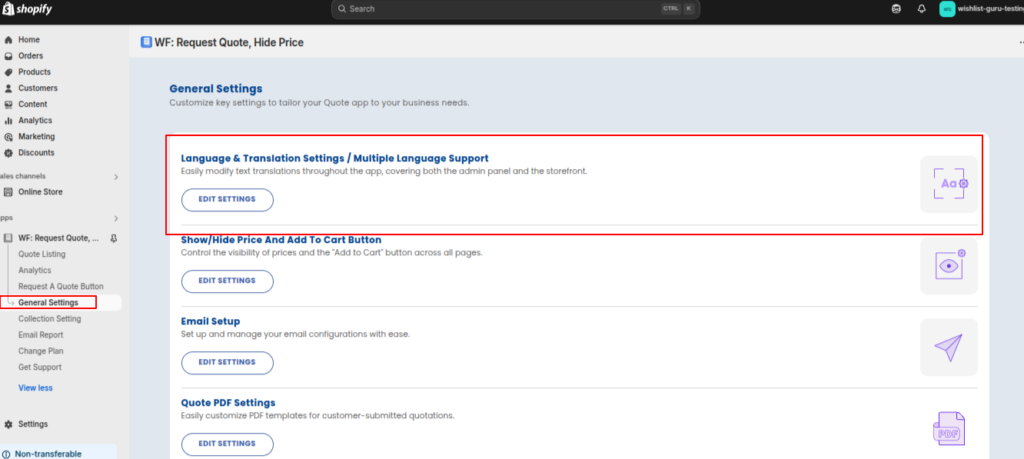
Each language you add here will become available in the email template editor.
Step 2: Open the Email Template Editor #
- Stay in General Settings
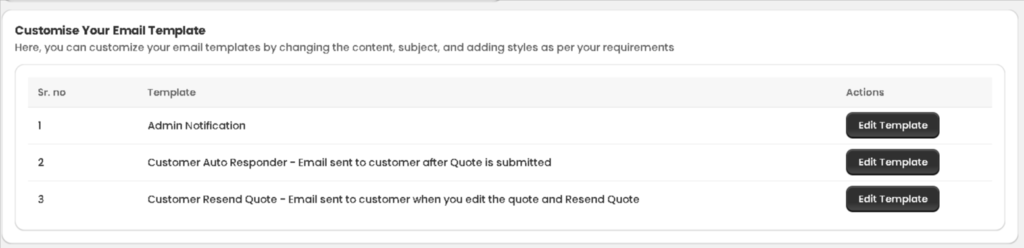
- Click Email Settings
- Find the email template you want to customise — Admin Notification, Customer Auto Responder, or Customer Resend Quote
- Click Edit Template
Step 3: Switch to a Different Language #
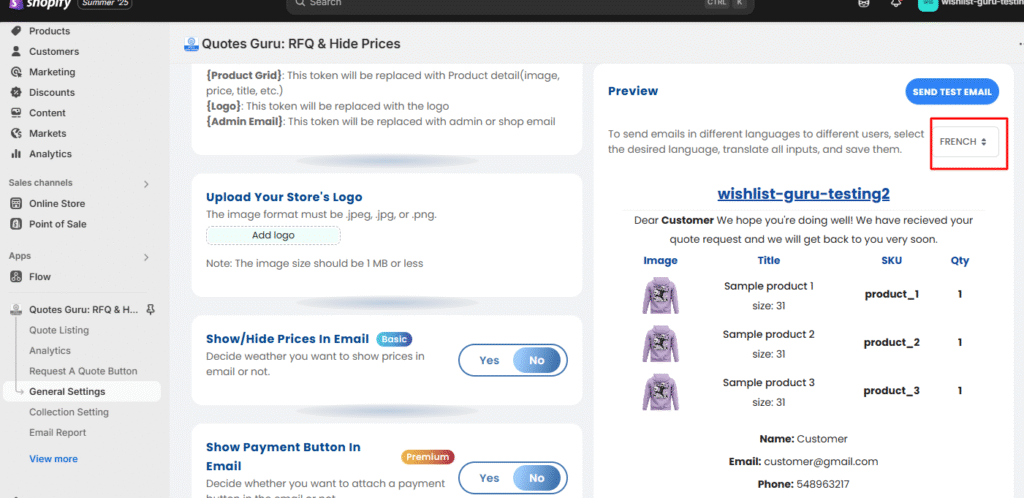
- Inside the email template editor, look for the language dropdown in the top right corner of the email preview panel
- By default it shows English
- Click the dropdown and select the language you want to configure — for example, French
- The editor will switch to that language — any changes you make here will only apply to emails sent in French
Step 4: Customise the Email for That Language #
With the language selected, customise the email template as needed:
- Email Subject — Write the subject line in the selected language
- Email Body — Write the main message in the selected language. Use tokens like {Customer Name} and {Quote Serial No.} — these work across all languages
- Footer Content — Update the footer text in the selected language if needed
Important: Click Save after finishing each language before switching to the next one. If you switch languages without saving, your changes will be lost.
Step 5: Repeat for Every Language #
Go back to the language dropdown and repeat Steps 3 and 4 for every language your store supports. Each language needs its own configured template before it will work automatically.
Which Emails Support Multiple Languages? #
All three email templates in Quotes Guru support multilanguage configuration:
| Template | When It’s Sent |
|---|---|
| Admin Notification | When a customer submits a new quote |
| Customer Auto Responder | Automatically sent to the customer after quote submission |
| Customer Resend Quote | When the admin edits and resends a quote to the customer |
Configure each template separately for every language you support.
What Happens If a Language Isn’t Configured? #
If a customer submits a quote in a language that you haven’t set up a template for, Quotes Guru will automatically fall back to the English template. This ensures no customer ever receives a blank or broken email — even if their language isn’t fully configured yet.
Tips for Best Results #
- Configure all three templates for each language — Not just the Auto Responder. If you only set up one template, the other two will still send in English for that language
- Always click Save before switching languages — This is the most common mistake. Unsaved changes are lost as soon as you switch to another language in the dropdown
- Test each language after setting it up — Submit a test quote from a storefront set to that language and check that the correct email arrives in the right language
- Use tokens in every language — Tokens like {Customer Name} and {Quote Serial No.} work the same way in every language — they’ll be replaced with the real values regardless of which language template is used
- Keep your message consistent across languages — The tone and information in each language template should match — just translated, not rewritten with different content
Related Articles:
👉 How to Customise Quote Email Templates in Quotes Guru
👉 How to Send Quote PDFs in Multiple Languages in Quotes Guru
👉 How to Add and Configure Multiple Languages for Your Store


