
If you sell to customers in different countries, offering your storefront in their language makes a real difference — it builds trust and makes it easier for them to complete a quote request. Quotes Guru supports multiple languages right out of the box, and setting it up takes just a few minutes.
How to Add a New Language #
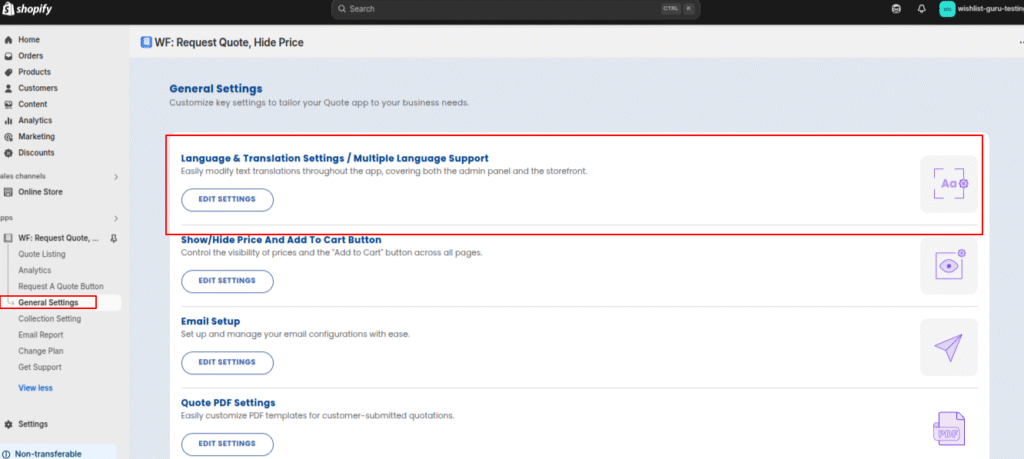
Step 1 — Open Language Settings #
- Go to General Settings or the Dashboard Page
- Navigate to Language Settings/Multiple Language Support
- Click Edit Settings
Step 2 — Open the Language Management Page #
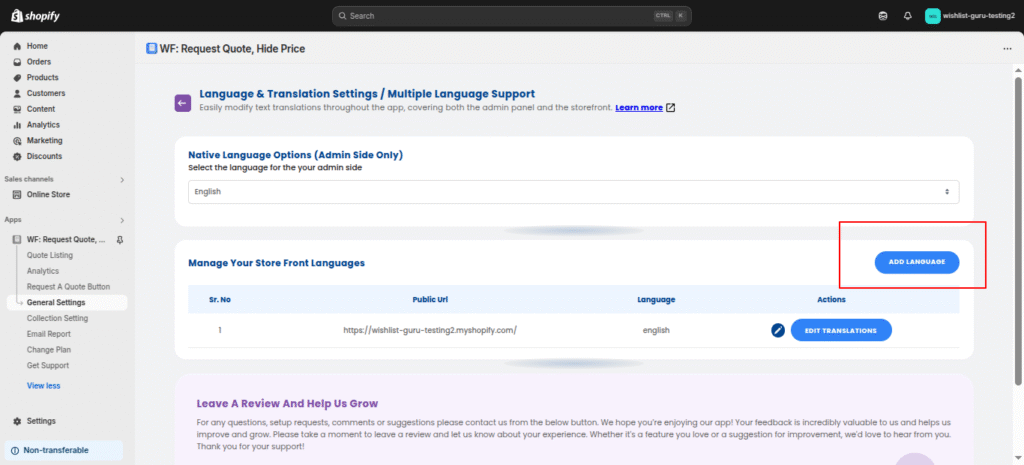
You’ll land on the Language Management Page. This is your central hub for everything language-related — you can add new languages, edit existing translations, and manage your admin-side language all from here.
Click the Add Language button to get started.
Step 3 — Choose Your URL Format #
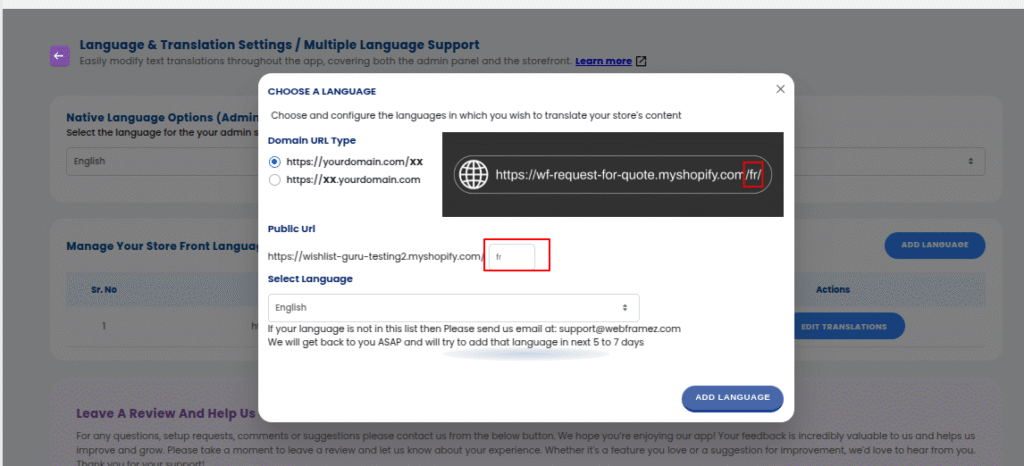
A small pop-up will appear asking how your language switcher structures its URLs. Different apps handle this differently, so pick the format that matches yours:
| Format | Example |
|---|---|
| Slug at the end of the URL | https://yourdomain.com/fr |
| Subdomain at the start | https://fr.yourdomain.com |
| Custom domain | Your own URL entirely |


Step 4 — Enter the Language Slug #
In the text box provided, type in the language slug — the short code that identifies the language in the URL.
For example, if you’re adding French, the slug is typically fr. So your URL would look like https://yourdomain.com/fr.
Common slugs for reference: de for German, es for Spanish, it for Italian, nl for Dutch, ja for Japanese.
Step 5 — Select the Language and Save #
Use the Select Language dropdown to choose the language you’re adding (e.g., French), then click Add Language.
That’s it — Quotes Guru will automatically load the right translations whenever a customer visits your store in that language.
How to Edit or Update an Existing Language #
No problem. If you picked the wrong URL format or need to update the slug, just head back to the Language Management Page and click the Edit icon next to the language you want to change. Update your settings and hit Save.
What Happens After You Add a Language? #
Once a language is added, Quotes Guru detects the active language based on the URL and displays your quote button, form, and related text in that language automatically. You can also customize the translated text to match your brand’s voice for each language — see Manage Storefront Text and Language Translations for how to do that.
Related Articles #
How to Translate and Edit Quote Forms in Multiple Languages


