
If you’re selling to customers in different countries, sending a quote PDF in English to someone who speaks French, Spanish, or German feels impersonal — and can create confusion. With Quotes Guru’s Multilanguage Quote PDFs feature, you can translate every part of the PDF — from column headings to footer text — so each customer gets a quote that feels native to their language.
Once it’s set up, the right language is sent automatically based on the customer’s storefront language. No manual switching, no extra steps.
Before You Start #
Make sure these are in place before configuring multilanguage PDFs:
- Languages must be added first in General Settings → Language & Translation
- Your Shopify storefront must be set up for multiple languages
- Each language needs to be configured separately in the PDF settings
👉 Learn how to add languages to your store
How to Get to Quote PDF Settings #
To set up quote PDFs in multiple languages:
- Go to Quotes Guru: RFQ & Hide Prices in your Shopify admin
- Click General Settings in the left sidebar, and find Quote PDF Settings
- Click Edit Settings
You’ll land on a page where you can fully customize and translate every part of your quote PDF.
👉 Learn how to customise the PDF
How to Set Up PDFs for Multiple Languages #
Once you’ve customized the PDF for your default language, here’s how to set it up for additional languages:
- Go to Quote PDF Settings
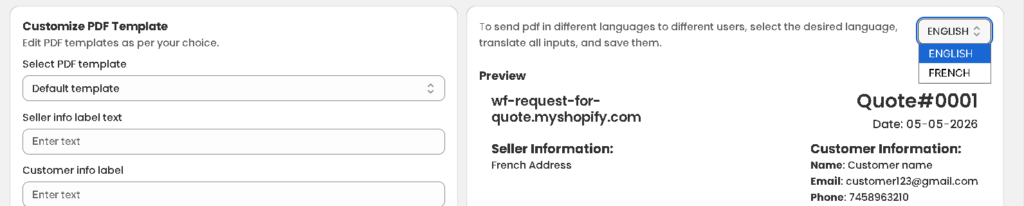
- In the top right corner, click the language dropdown (e.g., ENGLISH)
- Select the language you want to translate into
- Translate all the visible input fields into that language
- Translate each field into your chosen language:
- Table heading text
- Image, Title, SKU, Quantity, Price column labels
- Sub total column name
- Total amount text
- Text for shipping, discount, tax, due date, and date
- Click Save
- Repeat this process for every language your store supports
That’s it. From now on, when a customer submits a quote in French, they’ll automatically receive their PDF in French — with all the headings, labels, and notes in the right language.
What Gets Translated #
Every visible label and heading on the PDF can be translated including column headings, totals, shipping, tax, discount labels, due date text, and date labels. This means the entire PDF reads naturally in your customer’s language — not just partially translated.
How It Works Automatically #
Once all your languages are configured:
- A customer browses your store in French and submits a quote
- Quotes Guru detects their storefront language
- The quote PDF is automatically generated in French using your translated labels and content
- No extra action needed from you — it just works
Frequently Asked Questions #
What if I leave some fields untranslated? Those fields will fall back to English. For a professional experience, translate every field for each language you support.
Can I preview the PDF before saving? Yes — use the live PDF preview on the right side of the settings page to see how it looks before you save.
How do I test that the right language is being sent? Submit a test quote from your storefront while browsing in a specific language, then check the PDF attached to the confirmation email to confirm it’s in the correct language.
Does this work for all quote statuses? Yes — the language is applied based on the customer’s storefront language at the time of submission, regardless of quote status.
Tips for Best Results #
- Translate every field — Leaving some fields in English while others are in French looks unprofessional
- Preview as you go — Use the live PDF preview on the right side of the settings page to check how things look before saving
- Test with a real quote — Submit a test quote in each language to confirm the correct PDF is being sent


