
When you’re creating a quote from the admin side, you’ll almost always want to connect it to a real customer in your Shopify store. Without this link, you’d have to type in the customer’s name, email, and contact details every single time — which is slow and easy to get wrong.
Quotes Guru lets you search and fetch any existing Shopify customer directly from the Create Quote page. Their details load automatically, the quote gets linked to their profile, and when you convert it to a draft order later, everything carries over without any extra work.
When Would You Use This? #
This comes up more often than you’d think:
- A returning customer calls or emails to request a custom quote — you want to create it on their behalf without asking them to fill in a form
- Your sales team is putting together quotes for wholesale accounts and needs to assign each one to the right customer
- You’re following up on a previous conversation and want the new quote tied to the same customer record
- A customer’s details have changed and you want to make sure the quote uses their latest information
How to Search and Select a Shopify Customer #
- Go to Quotes Guru: RFQ & Hide Prices in your Shopify admin
- Click Quote Listing in the left sidebar
- Click Create Quote at the top right
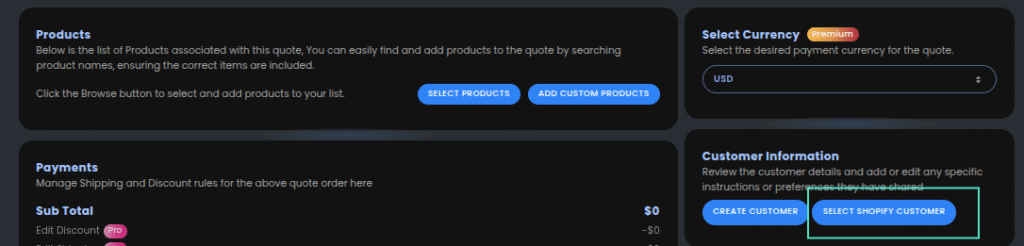
- Scroll to the Customer section
- Click Select a Shopify Customer
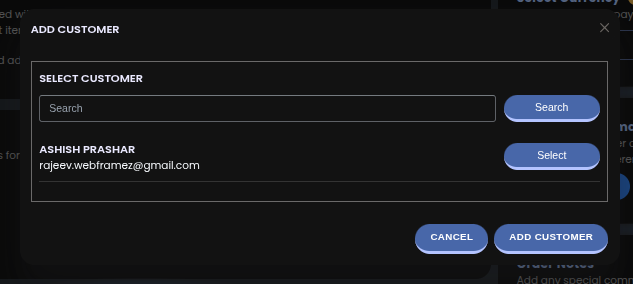
- A search box will appear — type the customer’s name, email address, or phone number to find them
- Select the correct customer from the search results
- Their details will load automatically into the quote
From here, continue filling out the rest of the quote as you normally would — products, pricing, shipping, and any notes.
What Gets Pulled In Automatically #
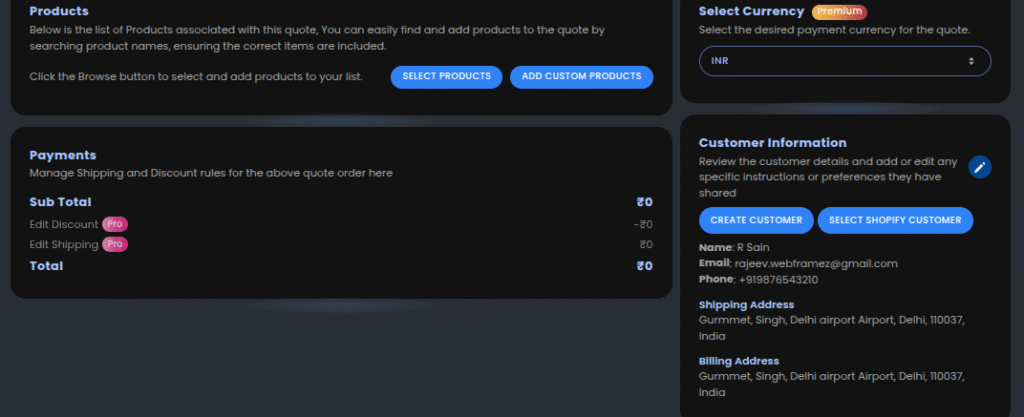
Once you select a customer, Quotes Guru pulls in their details from Shopify including:
- Full name
- Email address
- Phone number
- Billing and shipping address
This means you don’t have to type anything manually — it’s all there as soon as you select them.
What Happens After You Select the Customer #
After selecting the customer, their information appears in the Customer section of the quote. You’ll see a clear summary of their details — name, email, and contact information — all linked to their Shopify profile.
From this point, the quote is officially tied to that customer. When you later convert the quote to a draft order, Shopify already knows who the order belongs to — no re-entry needed, no risk of mismatched records.
Can You Edit the Customer Details? #
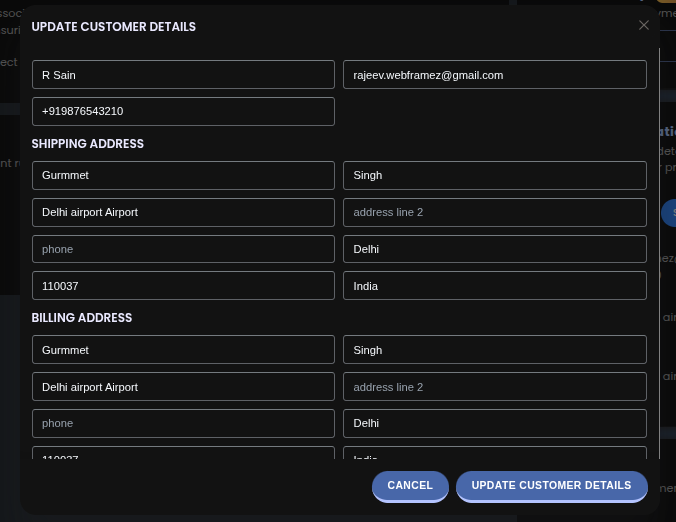
Yes. Even after selecting a customer, you can edit their details directly on the quote if needed. This is useful when:
- The customer has a new shipping address for this particular order
- You need to update a phone number or contact detail
- You’re creating the quote on behalf of a department or branch that has different contact info
Important: Any edits you make here only affect this specific quote — they won’t update the customer’s profile in Shopify. If you need to permanently update their details, do that separately in Shopify Admin → Customers.
What If the Customer Doesn’t Exist Yet? #
If the customer is brand new and doesn’t have a Shopify profile yet, you have two options:
- Create the customer in Shopify first — Go to Shopify Admin → Customers → Add Customer, save their details, then come back and create the quote
- Use the Create Customer option — Inside the quote, you can create a new customer profile on the spot without leaving the page
Once created, the new customer will be linked to the quote automatically.
Example in action #
Say a wholesale customer, John Doe, reaches out via phone asking for a quote on 50 units of a product. Instead of typing all his details in from scratch, you open Create Quote, search for “John Doe” in the customer field, and select him from the results. His name, email, and address load instantly.
You add the products, set the pricing, and send the quote. Later, when John approves it and you convert it to a draft order, his customer profile is already linked — the order goes straight into Shopify under his account, exactly where it belongs.
✅ Note: This feature is part of the standard Quotes Guru workflow, so you don’t need any extra setup.
A Few Tips #
- Always link quotes to a customer — It keeps your records clean and makes it much easier to track quotes by customer when you need to look them up later
- Search by email for the most accurate results — If a customer has a common name, searching by email ensures you pick the right person
- Check the address before sending — If a customer has multiple saved addresses, make sure the right one is selected before you finalize the quote


