
Enhance your store’s user interface by customizing the appearance and functionality of the quote list icon. The Quotes Guru: RFQ & Hide Prices app offers flexibility in how you display the quote list icon. Below are the options and settings you can adjust:
Important: These customization options are available only if you have enabled the “Quote List” in the button settings and are using a paid plan.
Go to General Settings>Header/Floating icon and Menu settings
1. Select Quote Quote List Icon Location
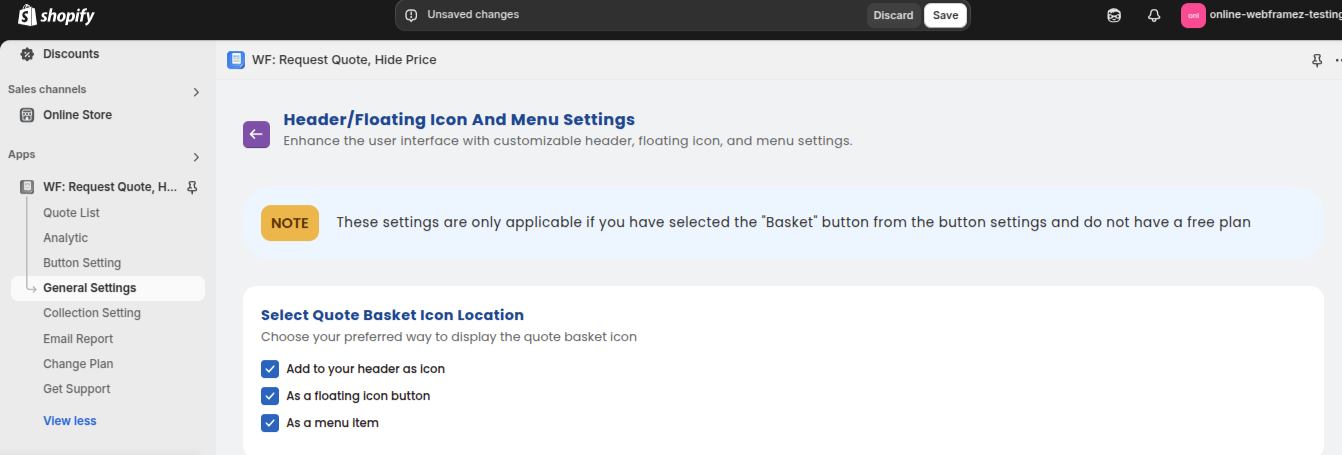
Choose one of the following options to display the quote list icon:
- Add to your header as an icon: The icon will be placed in the header for easy access as customers navigate your site.
2. Customization Options for Header Icon #
If you choose to place the quote list as an icon in the header, you can adjust the following settings:
- Margin left and right: Adjust the space around the icon to fit your design needs.
- Header Icon type : As a outline or as solid
- Icon Size: Set the size of the icon in the header.
- Icon Color: Choose the color for the icon.
- Icon Background Color: Set the background color behind the icon.
- Icon Bubble Count Background Color: Customize the background color for the bubble that shows the item count in the quote list.
- Icon Bubble Count Color: Set the color for the number inside the bubble.
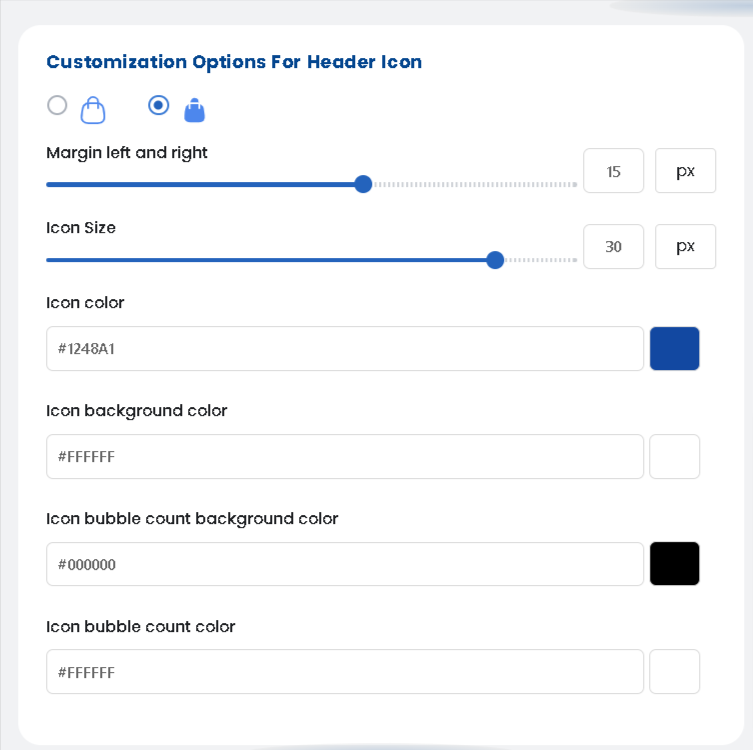
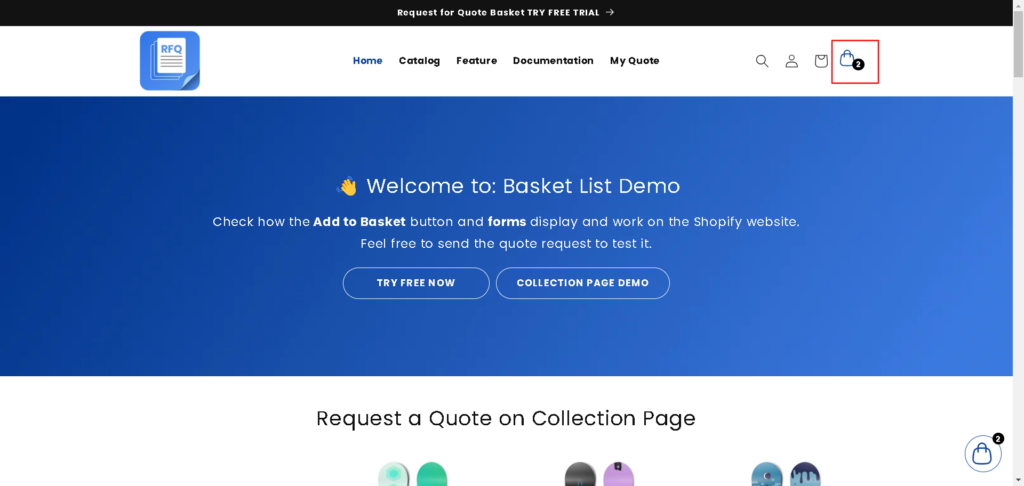
We provide different type of icons which you can choose as per your aesthetics : According to the styles mentioned below, after choosing the particular style it will be displayed in the icon location as a header after the cart icon.

You can see how it is shown in the front end in the image below :
Add Quote Icon Anywhere by Custom Code: #
You can place the quote icon in any location (like the header) to trigger a Modal, Page, or Drawer. Just add the custom selector class below to your desired tag:
<span class=”wfq-custom-header-icon-box”></span>


