
If you’re handling quotes regularly, you know how much time goes into the back-and-forth — creating the quote, sending it, waiting for approval, converting it to an order, and then chasing the customer for payment. Quotes Guru’s complete automation takes all of that off your plate.
Once it’s set up, here’s what happens automatically: a customer submits a quote, a draft order is created instantly, a payment email goes out with a checkout button, the customer pays, and the order lands in Shopify — all without you having to do anything manually.
Note: This feature is available on the Premium Plan only.
How the Full Process Works #
Here’s the complete flow from start to finish:
Customer submits quote → Draft order created automatically → You send invoice URL → Customer clicks Pay Now → Order placed in Shopify → Quote status updates to Order Placed
Every step happens automatically once the setup is complete. You step in only if you need to review or adjust a quote before it goes out.
What You Need to Set Up First #
This automation has two parts that both need to be enabled:
- Auto-Convert to Draft Order — So every new quote automatically becomes a draft order
- Payment Button in Quote Email — So the customer receives a checkout link without you having to send it manually
If you haven’t set up auto-conversion yet, start here: 👉 How to Automatically Convert a Quote to a Draft Order in Quotes Guru
Once that’s done, come back and follow the steps below to enable the payment button.
How to Enable the Payment Button in Quote Emails #
- Go to Quotes Guru: RFQ & Hide Prices in your Shopify admin
- Click General Settings in the left sidebar
- Find the Email Settings section and click Edit Settings
- Scroll down to Customise your email template and click Customer Auto Responder Template
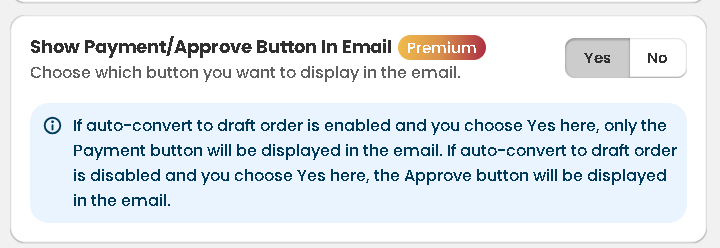
- Scroll down to find the “Show Payment/Approve Button in Email” option
- Toggle it to Yes
- Click Save
That’s it. From this point on, every quote email sent to a customer will include a Pay Now button that takes them directly to Shopify Checkout — with all their quote details already filled in.
What the Customer Experiences #
Once the automation is fully set up, here’s exactly what your customer sees:
Step 1 — They submit a quote The customer fills in your quote form on the storefront and submits their request.
Step 2 — They receive a payment email Once the draft order is created, you send the payment link to the customer. Here’s how:
- Go to Quote Listing in Quotes Guru
- Find the quote marked “In Draft Order”
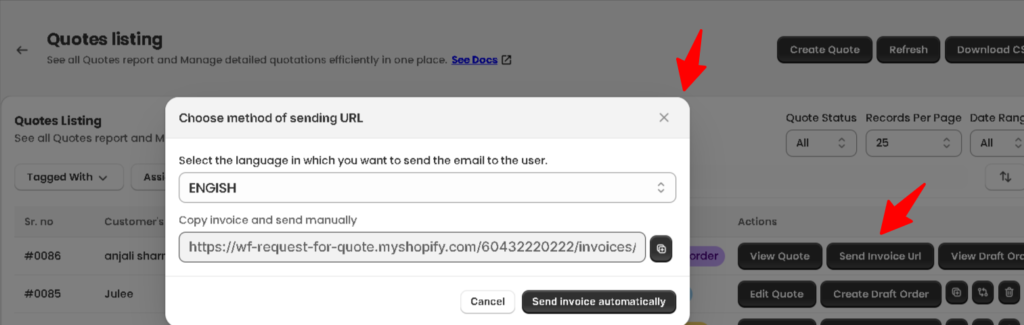
- Click the “Send Invoice URL” button next to the quote
- A popup will appear with two options:
- Select the language — Choose the language in which you want to send the email to the customer
- Copy invoice and send manually — Copy the invoice URL and share it yourself via email, WhatsApp, or any other channel
- Click “Send Invoice Automatically” to send the payment email directly to the customer
The customer receives an email in their preferred language with all the quote details — products, pricing, shipping, and a clear Pay Now button.
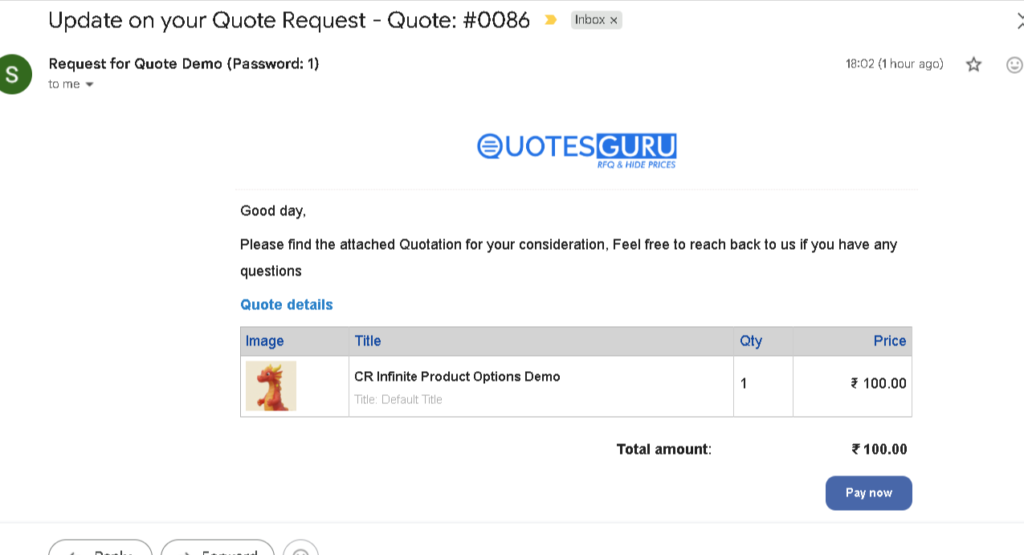
Step 3 — They click the payment button One click takes them to the Shopify Checkout page, pre-filled with everything from their quote. They don’t have to re-enter any details.
Step 4 — They complete payment The customer pays using any payment method available on your store — credit card, PayPal, or whatever you have set up.
Step 5 — The order is placed As soon as payment goes through, the order appears in your Shopify Admin → Orders — ready to fulfill like any regular order.
What You See on the Admin Side #
Once a customer completes payment, your Quote Listing page updates automatically:
- The quote status changes from “In Draft Order” to “Ordered”
- A button appears next to the quote letting you View Order Details directly from the quote page
- The order also appears in your regular Shopify Orders report
No manual status updates needed — everything syncs on its own.

Can You Still Review Quotes Before They Go Out? #
Yes — but there’s an important thing to know. Once a quote has been automatically converted to a draft order, it is locked for editing by default. You’ll see this message at the top of the quote:
“This quote has already been converted into a draft order. To make any changes, please change the status of this quote by clicking on the Change Status button.”
So if you need to make changes before sending the payment link, here’s what to do:
- Open the quote from Quote Listing
- Click the “Change Status” icon next to it.
- Change the status back to “In Progress”
- Make your changes — adjust pricing, update products, add discounts, edit shipping
- Once you’re happy with the quote, convert it back to a draft order
- Then click “Send Invoice URL” to send the updated payment link to the customer
This gives you full control to review and adjust any quote before the customer receives the payment link — even with automation enabled.
Frequently Asked Questions #
What if the customer doesn’t click the payment button? The quote stays in “In Draft Order” status until they pay. You can follow up by clicking Send Invoice URL again from the Quote Listing page to resend the payment link.
Can I send the invoice in a different language? Yes — when you click Send Invoice URL, a popup lets you select the language before sending. The customer receives the email in their preferred language.
Can I share the payment link manually? Yes — in the same popup, you can copy the invoice URL and share it yourself via email, WhatsApp, or any other channel you prefer.
Does the order go to Shopify automatically after payment? Yes. As soon as the customer completes checkout, the order is created in Shopify just like any regular order — no manual steps required on your end.
What if I need to update the quote after sending the payment email? Edit the quote and change the status in Quotes Guru, make changes then click Send Invoice URL again. The customer will receive an updated version with the new details and a fresh payment link.
Can I use this with custom products? Yes — as long as the custom products are added to the quote before it converts to a draft order, they’ll be included in the checkout.
Why This Makes a Big Difference #
For stores that handle a high volume of quotes, this automation is a genuine game-changer. Think about what you’re saving:
- No more manually converting quotes to draft orders
- No more copying and pasting payment links into emails
- No more chasing customers with follow-up emails
- No more manually updating quote statuses after payment
The whole process runs on its own — from the moment a customer submits a quote to the moment the order lands in your Shopify dashboard.


