
When you send a quote to a customer, the PDF they receive is often the first formal document they see from your business. It should look professional, carry your branding, and show exactly the information you want — nothing more, nothing less.
Quotes Guru gives you full control over how your quote PDF looks and what it contains. From your store logo and custom fonts to column visibility and footer text — everything can be configured to match your brand and workflow.
This guide walks you through every setting available in the Quote PDF Settings page.
Note: PDF customization is available from the Pro Plan onwards.
How to Get to Quote PDF Settings #
To set up quote PDFs in multiple languages:
- Go to Quotes Guru: RFQ & Hide Prices in your Shopify admin
- Click General Settings in the left sidebar,
- Scroll down to find Quote PDF Settings
- Click Edit Settings
You’ll land on a page where you can fully customize and translate every part of your quote PDF.

What You Can Customize #
The Quote PDF Settings page is packed with options. Here’s a breakdown of everything you can configure:
Show/Hide Prices in PDF (Pro) #
Decide whether product prices appear on the PDF or not.
- Toggle Yes to show prices on the PDF
- Toggle No to hide them
This is useful when you want to send a quote without revealing pricing — for example, when pricing is still being negotiated or needs to be discussed separately.

PDF File Settings #
Control how the PDF is named when it’s sent to customers:
- PDF name when sent automatically via email — Set a custom file name for the automatically sent PDF
- PDF name when resent from Quote Listing — Set a different file name when you manually resend from the admin
- Date format — Choose how the date appears on the PDF (e.g., DD-MM-YYYY)

Keeping file names clear and consistent — like “Quote-0078-YourStore” — makes it easier for customers to find the file in their inbox later.
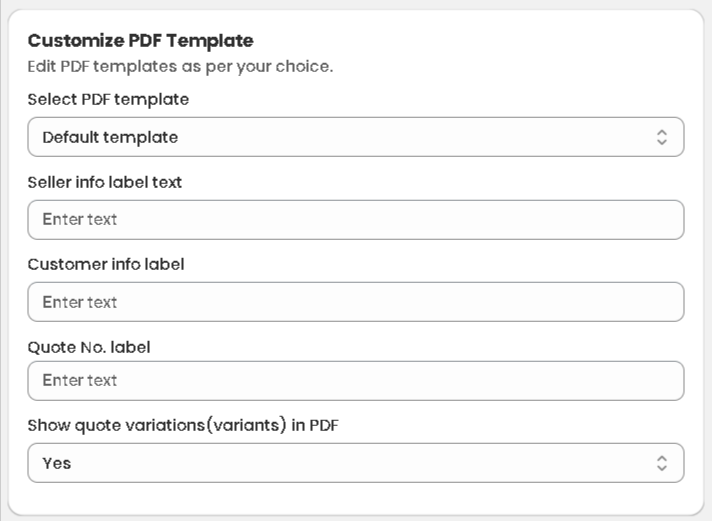
Customize PDF Template #
This is where you control the look and content of the PDF:
- Select PDF Template — Choose from available templates (e.g., Default Template)
- Seller info label text — The heading that appears above your store’s details
- Customer info label — The heading that appears above the customer’s details
- Quote No. label — Customize what the quote number field is called
- Show quote variations/variants in PDF — Choose whether product variants (size, color, etc.) appear on the PDF
Upload Your Store’s Logo #
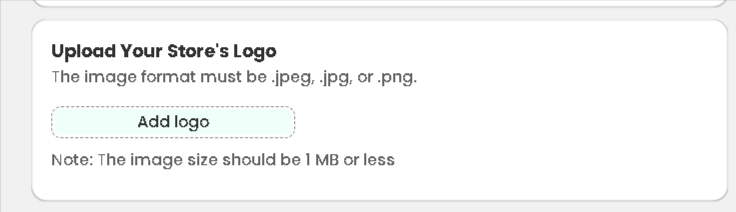
Add your store logo to the PDF to give every quote a professional, branded look.
- Accepted formats: .jpeg, .jpg, .png
- Maximum file size: 1 MB
A clean, high-resolution logo makes a big difference in how professional your quotes feel to customers.
Translations #
This is the heart of the multilanguage feature. You can translate every visible label and heading on the PDF into your chosen language. Here are all the fields you can translate:
- Table heading text — The main heading of the product table
- Image column label — Heading for the product image column
- Title column label — Heading for the product name column
- SKU column label — Heading for the SKU column
- Quantity column label — Heading for the quantity column
- Price column label — Heading for the price column
- Sub total column name — Label for the subtotal column
- Total amount text — Label for the total amount
- Text for total — Label for the total field
- Text for shipping — Label for the shipping field
- Text for discount — Label for the discount field
- Text for additional files — Label for any attached files
- Text for tax — Label for the tax field
- Text for due date — Label for the due date field
- Text for date — Label for the quote date
Fill in each field in the language you want — for example, if you’re setting up French, enter the French translation for each label.
Hide Table Columns #
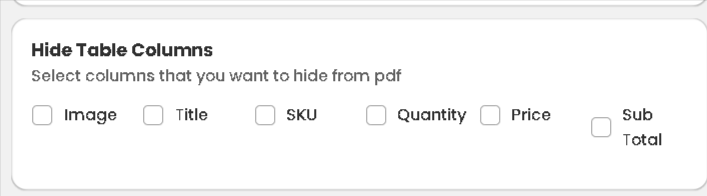
Choose which columns you want to hide from the PDF. You can hide any of the following:
- Image
- Title
- SKU
- Quantity
- Price
- Sub Total
This is useful when you want a cleaner, simpler layout — for example, hiding the SKU column for customers who don’t need that level of detail.
Store Address #
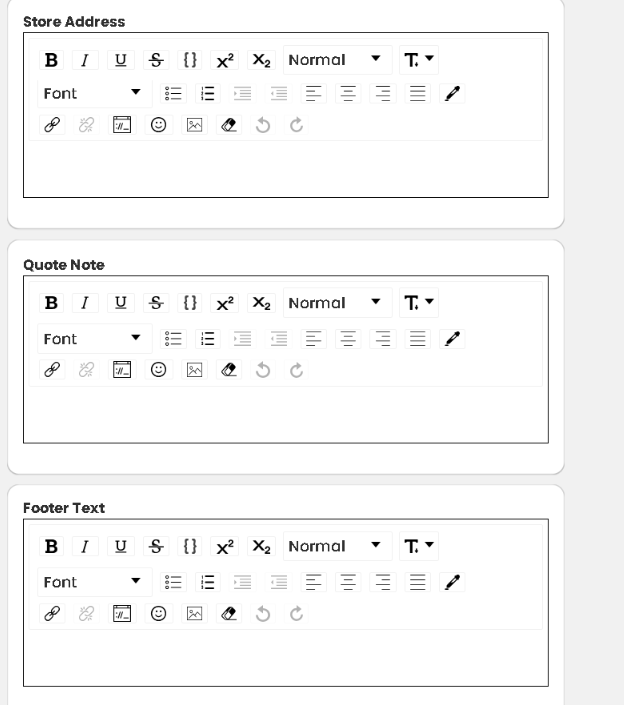
Add your store’s address that appears on the PDF. You can format it using the built-in rich text editor — bold, italic, alignment, and more.
Quote Note #
Add a default note that appears on every PDF. This is a great place to include:
- Payment terms (e.g., “Payment due within 30 days”)
- Quote validity period (e.g., “This quote is valid for 14 days”)
- A personal thank-you message
- Any special conditions or agreements
The rich text editor lets you style the note however you like.
Footer Text #
Add custom text that appears at the bottom of every PDF. Common uses include:
- Website or social media links
- Legal disclaimers
- Return or refund policies
- Contact information
PDF Fonts #
Want to use a custom font that matches your brand? You can apply any Google Font to your PDF:
- Font Family CDN link — Paste your Google Fonts CDN link (format:
https://fonts.googleapis.com/css2?family=...) - Font Family — Enter the exact font family name as it appears on Google Fonts (case-sensitive)
Example: If you’re using Roboto, your CDN link would be
https://fonts.googleapis.com/css2?family=Roboto:wght@400,700&display=swapand your font family name would beRoboto.

Need to Send PDFs in Multiple Languages? #
If you sell to customers in different countries and want to send PDFs in their local language, check out the dedicated guide:
👉 How to Send Quote PDFs in Multiple Languages in Quotes Guru
Tips for Best Results #
- Always preview before saving — Use the live PDF preview on the right side of the settings page to check how things look before clicking Save
- Keep your logo under 1MB — Large image files can slow down PDF generation or fail to upload altogether
- Test with a real quote — After making changes, export a real quote to PDF and check how it looks in full before sending it to a customer
- Use the Quote Note for terms — Instead of sending a separate terms document, include your payment terms and validity period directly in the Quote Note field so customers always see them


