
When you’re negotiating a quote with a customer, the last thing you want is a messy email thread running alongside it. Quote Comments in Quotes Guru lets you and your customer communicate directly inside the quote itself — so every question, update, and reply stays in one place, attached to the right quote.
This is especially useful for B2B stores where quotes go through multiple rounds of discussion before the customer is ready to buy.
Note: Quote Comments is a Pro Plan feature.
When Would You Use This? #
Here are some real situations where Quote Comments come in handy:
- A customer asks about delivery timelines or product specifications before approving the quote
- You want to let the customer know you’ve updated the pricing or added a discount
- The customer needs to share additional requirements that weren’t in the original form
- You want to follow up on a quote without sending a separate email
- Your team needs a full conversation trail attached to the quote for reference later
How Quote Comments Work #
Quote Comments work like a simple messaging thread inside each quote. Both you (the admin) and your customer can leave comments, and each one is timestamped and clearly labeled with who wrote it — so there’s never any confusion about who said what.
By default, you control who can see comments and whether both sides get notified when a new comment is posted. All of this is managed from your General Settings.
How to Add a Comment as an Admin #
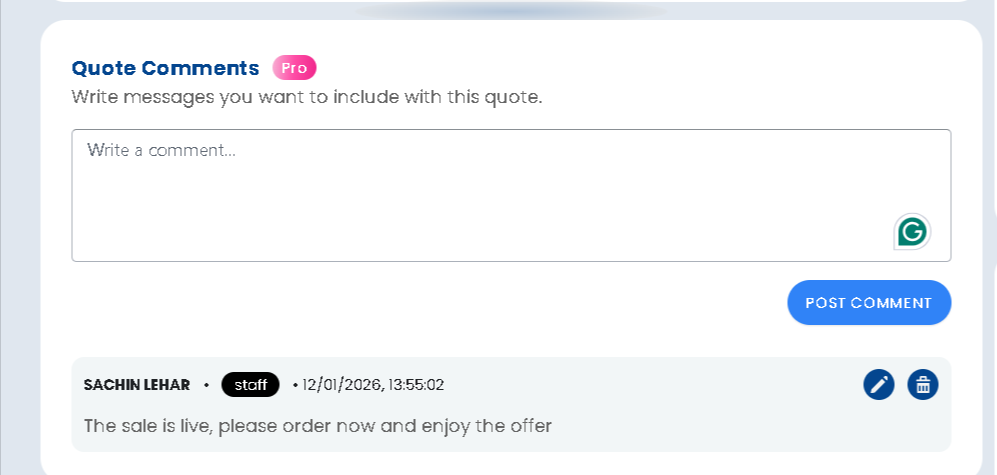
- Go to Quotes Guru: RFQ & Hide Prices in your Shopify admin
- Click Quote Listing in the left sidebar
- Open the quote you want to comment on by clicking Edit Quote
- Scroll down to the Quote Comments section
- Type your message in the comment box
- Click Post Comment to publish it
Your comment will appear instantly on the customer’s quote details page on the storefront — as long as comments are set to visible in your settings.
You can also:
- Edit a comment — If you made a typo or need to update your message
- Delete a comment — If something was posted by mistake
How a Customer Adds a Comment (Storefront) #
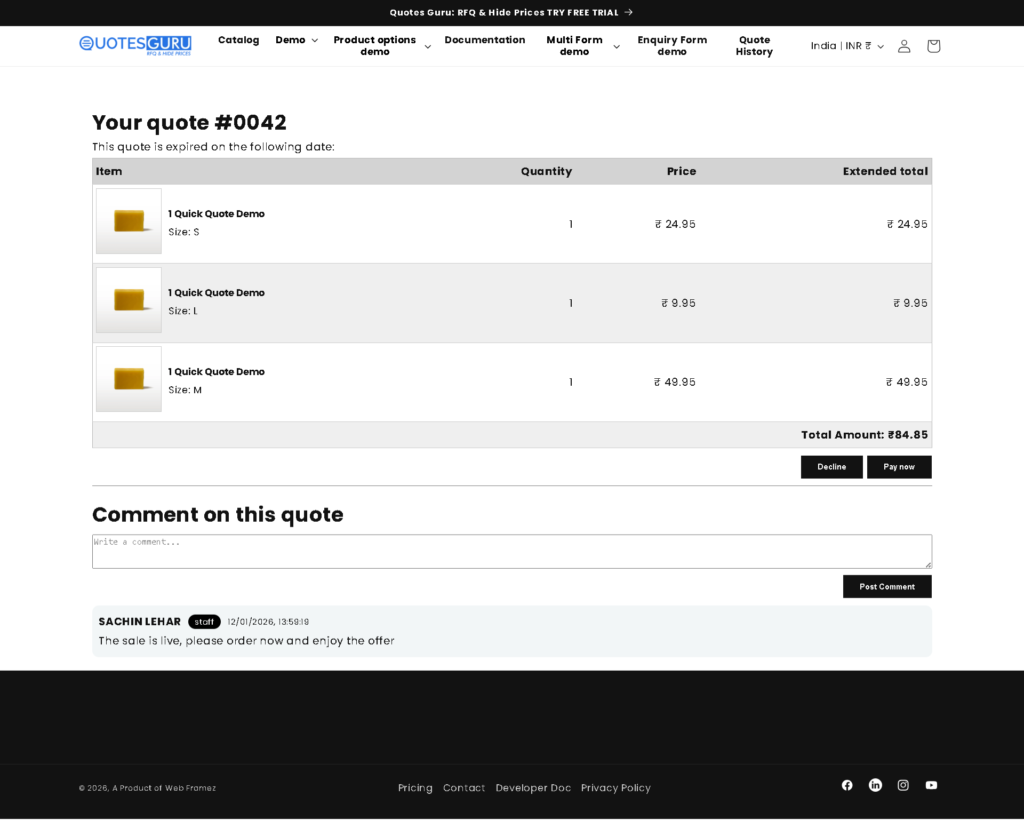
On the customer side, it’s just as simple. When a customer visits their quote details page on your storefront, they can:
- Read all comments you’ve posted on the quote
- Type their own reply or question in the comment box
- Post it and wait for your response — all without leaving the quote page
This keeps the entire conversation tied to the quote, so nothing gets lost in an inbox.
Setting Up Quote Comment Preferences #
You can control exactly how comments work from your General Settings. Here’s how to get there:
- Go to Quotes Guru → General Settings
- Click on Miscellaneous Settings
- Scroll to the Quote Comments section
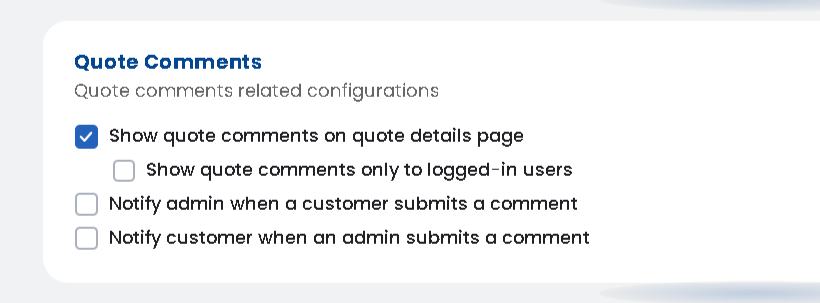
You’ll find four options to configure:
- Show quote comments on quote details page Turn this on to make comments visible to your customers on the storefront. If this is off, only you can see the comments in the admin panel — customers won’t see anything.
- Show quote comments only to logged-in users If you only want registered customers to see and leave comments, enable this. Guest visitors who haven’t logged in won’t be able to view or post comments. This is a good option if your store is B2B and you only deal with account holders.
- Notify admin when a customer submits a comment When a customer posts a comment on a quote, you’ll get an email notification so you can respond quickly. This is highly recommended — the faster you reply, the more likely the customer is to move forward with the order.
- Notify customer when an admin submits a comment When you post a comment on a quote, your customer gets an email letting them know there’s a new update waiting for them. This keeps the conversation moving without the customer having to check back manually.
A Few Tips #
- Always turn on admin notifications — You don’t want to miss a customer question that could have closed the sale
- Use comments for negotiation — Instead of going back and forth over email, keep all price discussions and special requests inside the quote where everything is documented
- Check old comments before editing a quote — Sometimes customers leave important details in comments that affect pricing or delivery


