
The Quote Details Page gives customers a complete view of their quote, including the products, pricing, quote information, and available actions.
Customers can open the page from their Customer Portal, or you can share a direct link to a specific quote with them.
Depending on your Customer Portal settings, customers can also approve and pay, decline the quote, and post comments to communicate directly with your store.
How Customers Access the Quote Details Page #
There are two ways a customer can access their quote details.
Option 1: From the Customer Portal #
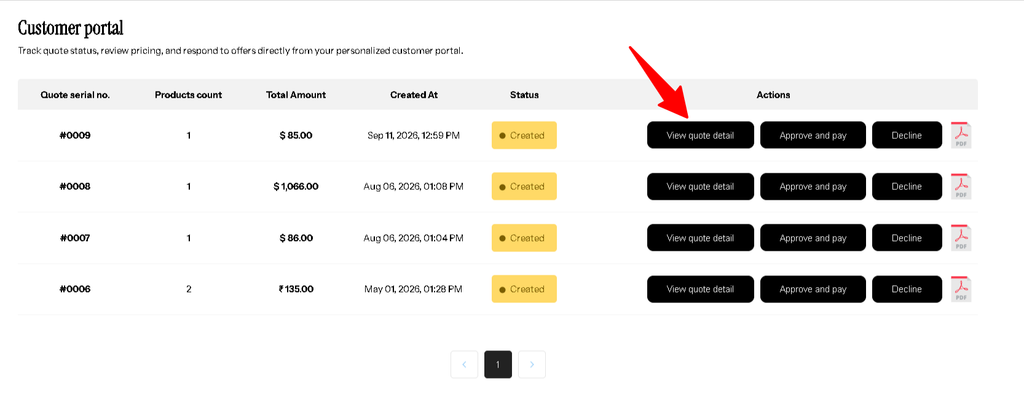
When a customer opens the Customer Portal, they can find their submitted quotes.
To view a quote:
- Open the Customer Portal.
- Find the quote you want to view.
- Click View quote detail.
- The customer will be taken to the Quote Details Page.
From this page, the customer can review the quote and use the available actions.
Option 2: Share a Direct Quote Link #
You can also share a direct link to a specific quote with your customer.
This is useful if you want to send the customer the quote link directly, instead of asking them to find the quote through the Customer Portal.
How to copy the Quote Link #
- Go to Quotes Guru → Quote Listing.
- Open the quote you want to share by clicking Edit Quote.
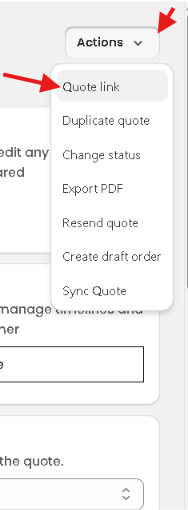
- Click the Action button in the top-right corner.
- Select Quote Link.
- Click Copy.
- Share the copied link with your customer.
The customer can open the shared link to access the Quote Details Page.
Tip: The Quote Link is useful when you want to include the quote directly in an email, message, or other customer communication.
Review Quote Details #
The Quote Details Page gives customers a complete overview of the quote before they decide what to do next.
Customers can review:
- Products included in the quote
- Product variants such as size, color, or other selected options
- Quantity of each product or variant
- Product price and the quoted price
- Discounts applied to the quote
- Shipping charges
- Taxes applied to the quote
- Total quote amount
- Other quote-related information provided by the store
This allows customers to review the complete pricing breakdown and make sure all quote details are correct before approving or declining the quote.
Customer Actions on the Quote Details Page #
After reviewing the quote, customers can take different actions depending on the options enabled in the Customer Portal settings.
Approve and Pay #
If Enable Payment Button is enabled, customers will see the Approve and pay button.
Customers can use this option to:
- Review the quoted products and pricing.
- Approve the quote.
- Proceed to payment for the quoted amount.
This allows customers to complete the quote process directly without contacting the store separately.
Decline #
If Allow Customer To Decline Quote is enabled, customers will see the Decline button.
Customers can use this option if they do not want to proceed with the quote. The quote can be declined directly from the Quote Details Page.

You can manage these settings from: Quotes Guru → General Settings → Customer Portal
Note: The Approve and pay and Decline buttons are controlled from the Customer Portal settings. If these options are disabled, the corresponding actions will not be shown to customers.
Comment and Communicate #
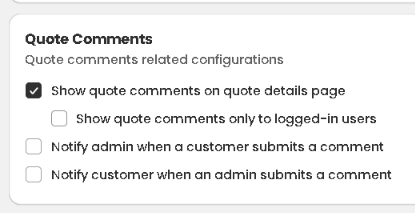
If Quote Comments are enabled, customers can post comments directly from the Quote Details Page.
This allows customers to ask questions, request changes, or provide additional information about the quote. Store owners can also reply to these comments, keeping the conversation connected to the specific quote.
You can control exactly how comments work from your General Settings. Here’s how to get there:
- Go to Quotes Guru → General Settings
- Click on Miscellaneous Settings
- Scroll to the Quote Comments section
Learn more: For complete information about setting up and using Quote Comments, see our dedicated Quote Comments article.


