
If you sell to customers in different countries, sending a quote in USD to a customer in the UK or Australia can feel off-putting. They have to do the conversion themselves, and that friction can cost you the sale.
With Quotes Guru’s Multi-Market Support, your customers see quotes in their own local currency — automatically. No manual conversions, no extra setup, no confusion. The quote feels local to them, while your payments still come through in your store’s base currency.
Note: Multi-Market Support is available on the Premium Plan only. Your Shopify store must also have multiple markets and currencies configured before this feature will work.
Before You Start #
Make sure the following are in place before using this feature:
- Shopify Markets is enabled on your store — go to Shopify Admin → Settings → Markets to check
- Multiple currencies are added in your Shopify Markets settings for the regions you sell to
- You are on the Quotes Guru Premium Plan
Once these three things are set up, the feature works automatically — there’s nothing extra to configure inside Quotes Guru.
What This Feature Does #
Here’s what changes once Multi-Market Support is active on your store:
- Customers from different markets see product prices and quotes in their own local currency
- When a customer requests a quote, it’s stored in their currency — not your base currency
- You view and manage those quotes in the same currency the customer used
- When you send the quote email or PDF, the customer sees prices in their local currency
- Payments still arrive in your store’s base currency — Shopify handles the conversion automatically
So as a merchant, you get the best of both worlds — your customers get a localized experience, and your accounting stays clean in your main currency.
How to View and Manage Multi-Market Quotes #
When customers from different markets submit quote requests, they all appear in your regular Quote Listing page — just with different currencies shown next to the amounts.
To view a specific quote:
- Go to Quotes Guru: RFQ & Hide Prices in your Shopify admin
- Click Quote Listing in the left sidebar
- Open the quote you want to review
- You’ll see the prices displayed in the customer’s local currency
How to Change the Currency on a Quote #
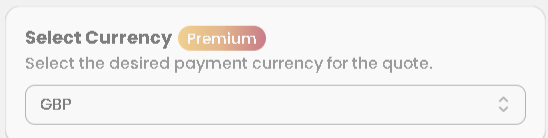
If you need to switch the currency on a quote — for example, if a customer moved markets or the wrong currency was applied — you can change it manually:
- Open the quote from Quote Listing
- Scroll to the Currency section on the right side of the Edit Quote page
- Click the currency dropdown
- Select the currency you want to use
Important: You can only switch to currencies that are already enabled in your Shopify Markets settings. If a currency isn’t showing up in the dropdown, go to Shopify Admin → Settings → Markets and add it there first.
Sending Quotes and Invoices in Local Currency #
Once the currency is set on the quote, everything that goes out to the customer reflects that currency:
- Quote email — The customer receives the quote with prices in their local currency
- PDF invoice — The exported PDF shows all amounts in the customer’s currency
- Draft order — When you convert the quote to a draft order, the selected currency carries over automatically
Your payouts from Shopify will still come through in your store’s base currency — the conversion happens on Shopify’s end, just like a regular international sale.
Example: US Store Selling to a UK Customer #
Your store is based in the US and runs on USD. A customer from the UK browses your store and requests a quote for 10 units of a product.
Here’s what happens:
- The customer sees the quote in GBP — their local currency
- You see and manage the quote in GBP on your Quote Listing page
- The invoice you send them shows prices in GBP
- When they pay, the amount arrives in your account in USD — no manual currency conversion needed on your end
It’s a seamless experience for the customer, and a clean process for you.
✅ Pro Tip: Ensure your Shopify Markets settings include the currencies you want to offer before editing or sending quotes in those currencies.
Frequently Asked Questions #
Can I manually override the currency on a quote? Yes — you can switch the currency on any quote from the Edit Quote page, as long as the currency is enabled in your Shopify Markets settings.
What if my customer’s currency isn’t available in the dropdown? It means that currency hasn’t been added to your Shopify Markets yet. Go to Shopify Admin → Settings → Markets, add the relevant market and currency, then come back and update the quote.
Does this affect my Shopify payouts? No. Your payouts always come through in your store’s base currency. Shopify handles the conversion automatically — just like any international order.
Do I need to set anything up inside Quotes Guru? No. As long as Shopify Markets is configured and you’re on the Premium plan, the feature works automatically. No extra setup is needed inside the app.


