Customizing how your customers interact with your RFQ system is essential for a smooth B2B experience. In Quotes Guru, you can choose between individual Quick Quotes or a full Quote List (Quote Cart). Follow these steps to adjust your button rules and tailor the quoting process to your store’s needs.
Step-by-Step: How to Change Your Quote Button Rule #
To control which items feature the Request for Quote button:
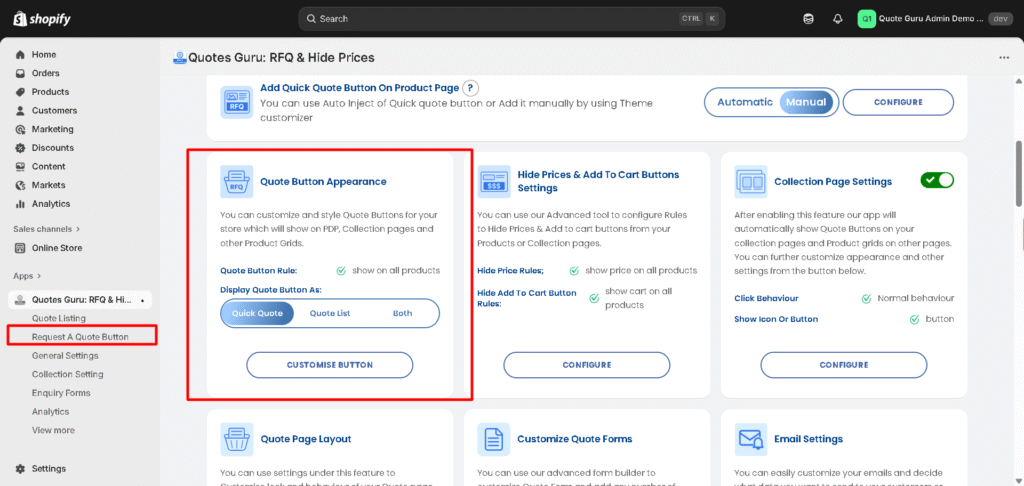
Option 1: The Quick Dashboard Method #
- Go to the App Dashboard
- Scroll down until you see the Quote Button Appearance box.
- Under the “Display quote button as” setting, simply select Quick Quote.
Option 2: The Direct Sidebar Shortcut #
- Click on Request A Quote Button in the left-hand menu.
- You’ll be taken directly to the Button Settings page.
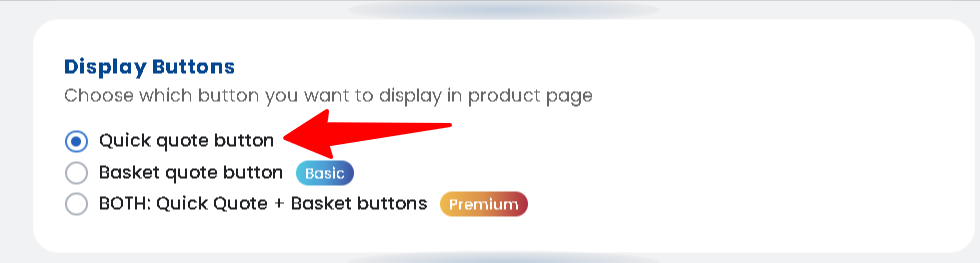
- Scroll down to the Display Buttons section and choose Quick quote
Which Display Rule Should I Choose? #
Select the option that best fits your customer journey:
- Option 1: Quick Quotes (Single Product)
This acts as an Instant Quote button. When clicked, it immediately opens a modal or quote page for that specific product. It’s perfect for high-ticket items where customers usually inquire about one item at a time.
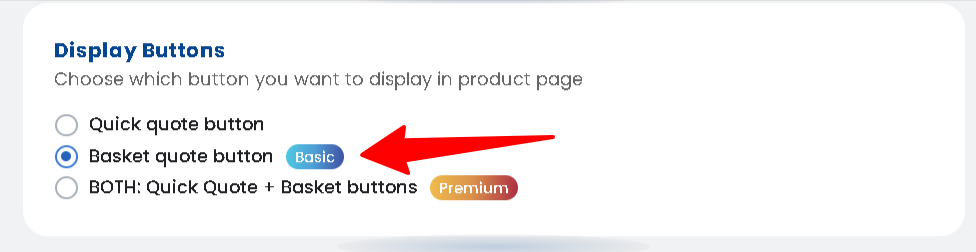
- Option 2: Quote List (Multiple Products)
This replaces Add to Quote buttons with an “Add to Quote List” button. It works exactly like a Quote Cart, allowing users to add multiple products to a single list and submit them all in one request.
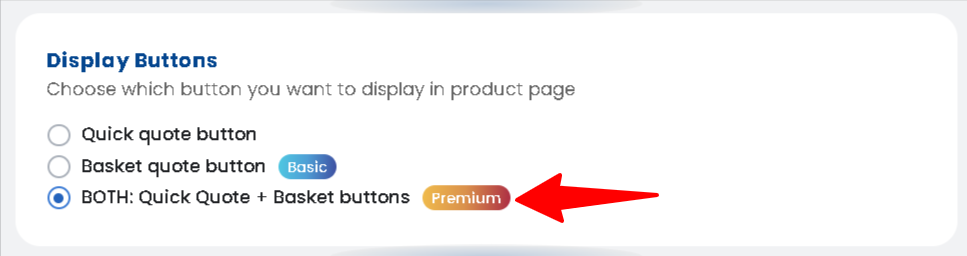
- Option 3: Hybrid (Quick Quote + Quote List)
This is our most flexible option. It allows you to use the Quote List by default, while still using Quick Quote buttons for specific products that require custom forms. This ensures your store handles both bulk inquiries and specialized requests simultaneously.