
Every email your store sends is a chance to make a good impression. When a customer submits a quote, the email they receive sets the tone for the entire transaction. With Quotes Guru, you have full control over every quote email — from the subject line and body content to colors, logos, product tables, and payment buttons.
This guide walks you through all three email templates available in Quotes Guru and how to customise each one to match your brand.
How to Get There #
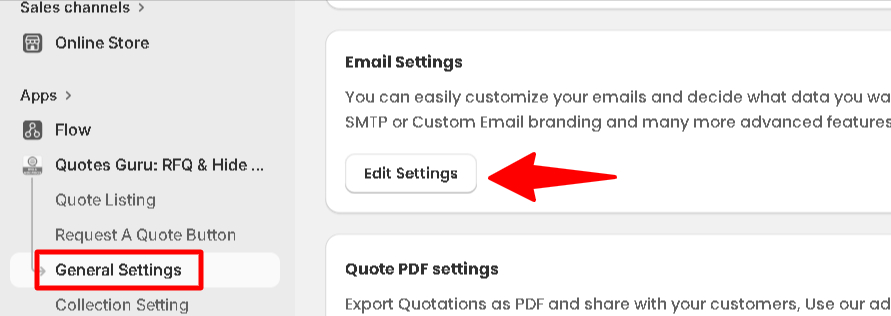
- Go to Quotes Guru: RFQ & Hide Prices in your Shopify admin
- Click General Settings in the left sidebar
- Find the Email Settings
- Click Edit Settings
You’ll see all three email templates ready to edit.
The Three Email Templates #
Here’s a quick overview of all three templates and when each one gets sent:
| Template | Who Receives It | When It’s Sent |
|---|---|---|
| Admin Notification | Store admin | Every time a customer submits a new quote |
| Customer Auto Responder | Customer | Automatically sent right after the customer submits a quote |
| Customer Resend Quote | Customer | When the admin edits a quote and resends it to the customer |
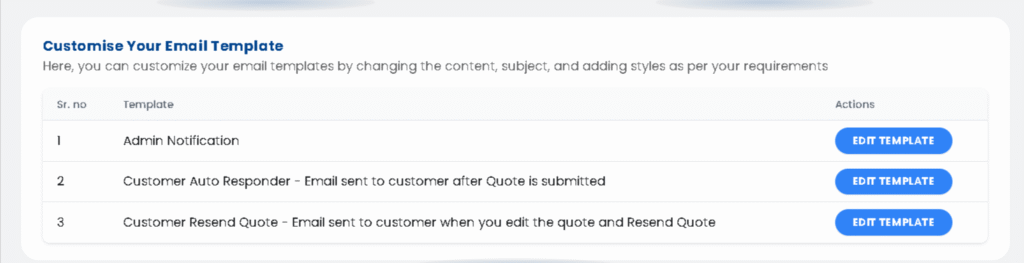
Click Edit Template on any of these to start customising.
Available Tokens #
Tokens are placeholders that automatically get replaced with real information when the email is sent. Use them to personalise every email without any manual work.
| Token | What It Shows |
|---|---|
| {Customer Name} | The customer’s full name |
| {Store Owner} | The admin’s name |
| {User Info} | Details of the customer who submitted the quote |
| {Product Grid} | Product information including image, title, price, and quantity |
| {Logo} | Your store logo |
| {Admin Email} | Your store’s admin email address |
| {Quote Serial No.} | The unique quote reference number |
What You Can Customise in Each Template #
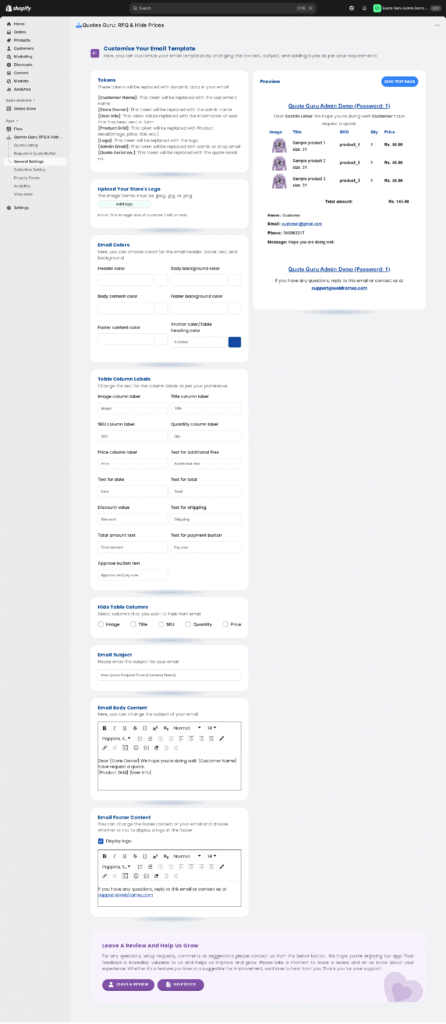
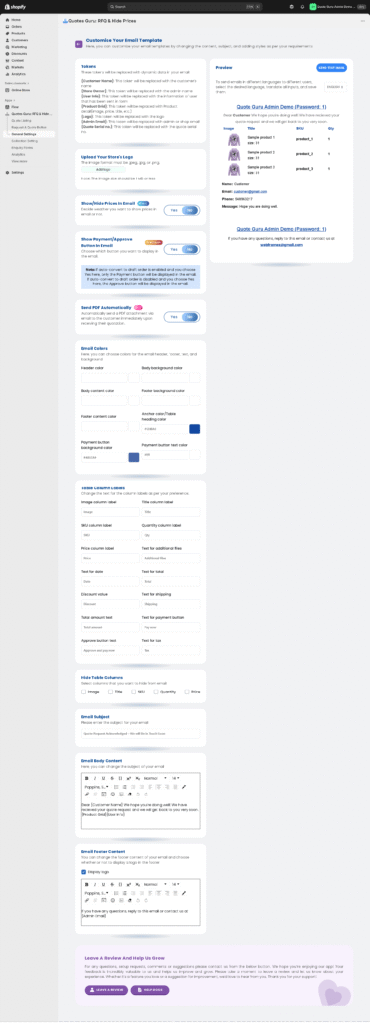
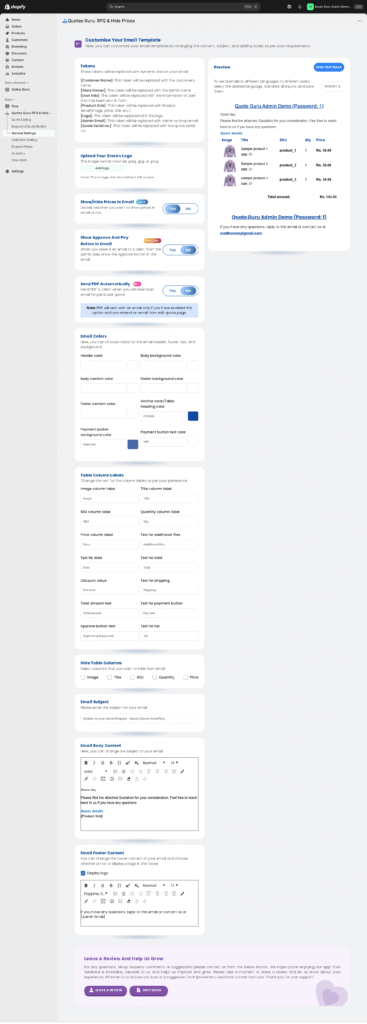
All three templates share the same set of customisation options. Here’s a full breakdown of everything you can change:
Upload Your Store’s Logo #
You can upload your store logo to display it in all email templates.
Supported file types: JPG, JPEG, PNG
Recommended size: 1 MB or less
Show/Hide Prices in Email #
Enable or disable product prices inside the quote email.
This helps you decide whether to display prices in the customer communication.
Show Approve and Payment Button in Email #
When this is enabled, customers see a clear Approve or Pay Now button directly inside the email. This removes extra steps — the customer can approve the quote or go straight to checkout without having to log into your store.
This is especially useful when combined with the auto-convert to draft order feature, as the payment button takes the customer directly to their pre-filled Shopify checkout.
👉 Learn more about the full quote-to-payment automation
Send PDF Automatically #
When enabled, a PDF copy of the quote is automatically attached to the email.
Note: For the Customer Resend Quote template, the PDF is attached when you resend a quote from the Edit Quote page. For the Customer Auto Responder, the PDF is attached immediately after the customer submits their quote.
👉 Learn how to customise your Quote PDF
Show View Quote Button In Email #
When enabled, a View Quote button is displayed inside the quote email. Clicking it takes the customer directly to their quote page, where they can review the full details of their request.
If you prefer a cleaner email without the button, simply toggle this option to No and it will be removed from the email layout.
Email Colors #
Customise the full color scheme of the email to match your store branding. You can change:
- Header color
- Body background color
- Body content color
- Footer background color
- Footer content color
- Table heading color
- Anchor (link) color
- Payment button background color
- Payment button text color
Preview your changes instantly on the right panel before saving.
Table Column Labels #
Rename any column heading in the product table to match your store’s language and style. For example, change “Price” to “Unit Cost” or “Total” to “Grand Total.”
Customizable fields include:
- Image
- Title
- SKU
- Quantity
- Price
- Additional Files
- Date
- Total
- Discount
- Shipping
- Payment Button Text
- Tax
- Approve Button Text
Hide Table Columns #
Choose which columns to remove from the product table in the email. You can hide: Image, Title, SKU, Quantity, or Price — keeping the email clean and focused on what matters most to your customers.
Email Subject #
Write a clear, relevant subject line for the email. Use tokens to make it dynamic:
Example: “Your Quote Request – Quote #{Quote Serial No.}”
A personalised subject line improves open rates and helps customers find the email easily later.
Email Body Content #
Write the main message of the email using the built-in text editor. You can:
- Add tokens to personalise the content
- Insert links or images
- Format the text with bold, italic, or custom styling
- Write in any language
Email Footer Content #
Add custom text at the bottom of every email. This is a great place for:
- Contact information
- Return or refund policy links
- Legal disclaimers
- Social media links
Preview and Send Test Email #
You can preview your email design in the panel on the right and send a test email to verify how it looks before finalizing.
Template 1: Admin Notification #
When it’s sent: Every time a customer submits a new quote request.
This email keeps you and your team informed the moment a new quote comes in. Customise it to include the customer’s name, quote number, and product details so you have everything you need at a glance without having to log into the app.
Tip: Keep this email concise — it’s for your team, not your customer. Include the quote number and a direct link to the quote in the email body for quick access.
Template 2: Customer Auto Responder – Email Sent After Quote Submission #
When it’s sent: Automatically sent to the customer right after they submit a quote.
This is your customer’s first impression after submitting a request. It confirms their quote has been received and sets expectations for what happens next. A well-written auto responder reassures the customer that someone is reviewing their request and will be in touch soon.
What to include:
- Tokens
- Logo upload
- Email colors
- Hide/show columns
- Subject and footer content
- Show/Hide Prices in Email Allows you to display or hide product pricing in the customer email.
- Enables customers to approve the quote or make payment directly from the email.
- When enabled, a PDF copy of the quote is automatically attached whenever you resend a quote from the Edit Quote page.
You can personalise the content to match your brand tone and include any additional message.
Template 3: Customer Resend Quote – Email Sent When You Edit and Resend a Quote #
When it’s sent: When you edit an existing quote and resend it to the customer from the Edit Quote page.
This template is used when you’ve reviewed and updated a quote — for example, adjusting pricing, adding a discount, or updating product details — and are ready to send the revised version to the customer.
What to include:
- Enable Send PDF Automatically to attach a copy of the updated quote
- Show/Hide Prices in Email Allows you to display or hide product pricing in the customer email.
- Enables customers to approve the quote or make payment directly from the email.
- Customize the subject line and email body
- Modify footer content
- Adjust the email layout and colors for consistency
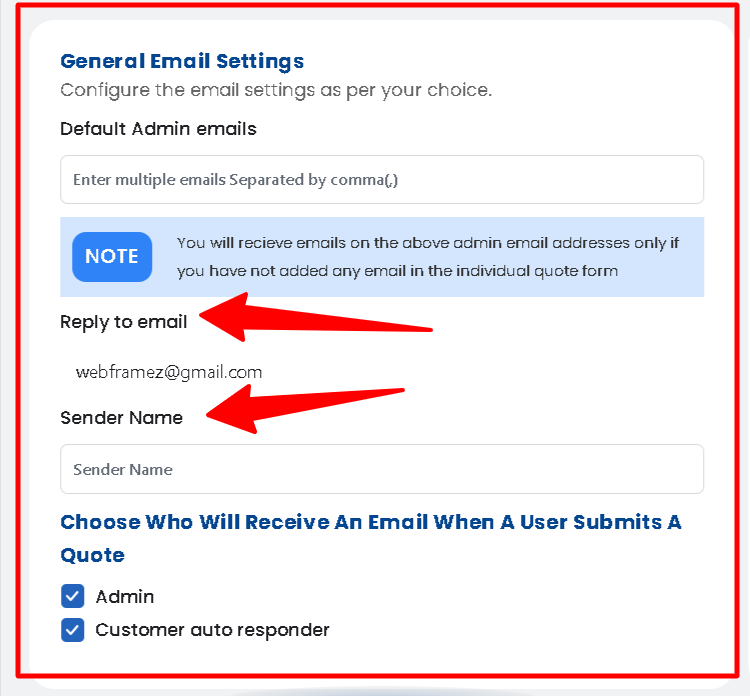
General Email Settings: Reply-To Email & Sender Name #
These settings apply globally to all three email templates:
Reply-To Email #
This is the email address customers will reply to when they respond to a quote email. If a customer hits “Reply” on any quote email, their message goes directly to this address.
Set this to a monitored inbox — like your sales team’s email — so no customer reply gets missed.
Sender Name #
This is the name that appears as the sender in the customer’s inbox. Instead of showing a generic email address, set this to something recognizable like “ABC Store Support” or “Sales Team at ABC Store.”
A clear sender name builds trust and reduces the chance of your emails being marked as spam.
Tips for Best Results #
- Always send a test email after making any changes — what looks good in the preview may look different in a real inbox
- Use tokens in the subject line — a subject like “Your Quote #1234 is Ready” gets more opens than a generic one
- Keep the Auto Responder warm and human — this is the first thing a customer reads after submitting a request, so make it feel personal
- Match your email colors to your store theme — consistent branding across your store and emails builds trust
- Add your reply-to email to a monitored inbox — if a customer replies and nobody sees it, you could lose the sale
Want to Send Emails in Multiple Languages? #
If your store sells to customers in different countries, you can set up multilanguage emails so each customer receives their quote email in their own language automatically.


