
If you run a Shopify B2B store and sell to wholesale customers across different regions, managing pricing for every customer manually is slow and easy to get wrong. A company in the United States might have different prices than a company in Australia or Mexico — and that should be reflected automatically in every quote.
Quote Guru handles this for you. Once your Shopify B2B store is set up with Markets, Catalogs, and Companies, Quote Guru reads your customer’s company location and applies the correct catalog pricing to their quote automatically — including product prices, discounts, shipping, and taxes.
This article covers:
- How to enable Multi-Market in Quote Guru
- What you need set up in Shopify first (Markets, Catalogs, Companies)
- How Quote Guru automatically assigns location and catalog pricing when a quote is submitted
- How to manually change the location or catalog on any quote from the Quote Guru admin
Step 1 — Enable Multi-Market in Quote Guru #
Before anything else, you need to turn on the Multi-Market feature inside Quote Guru.
- Open the Quote Guru app from your Shopify Admin.
- Find the Enable Multi Market toggle and turn it on.
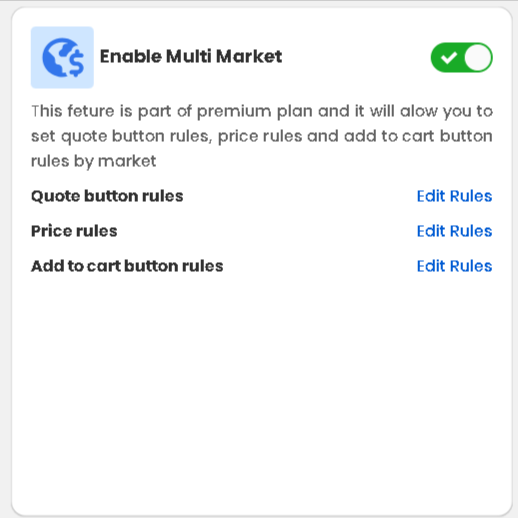
💡 Note: Multi-Market is a premium plan feature. If the toggle is unavailable, upgrade your Quote Guru plan to access it.
Step 2 — Set Up Your Shopify B2B Store #
Quote Guru reads your Shopify setup directly — so before it can assign catalog pricing to quotes automatically, you need three things configured in your Shopify Admin: To set up Shopify B2B with a B2B market, a catalog, and a company with at least one location, use this order:
What to create first:
- Customer accounts
- Company + company location
- Catalog
- B2B market
This order matters because a B2B market must include company locations to work properly. If a market has no company locations assigned, it won’t deliver B2B pricing or experiences.
Step 1: Create a company and at least one location
- In your admin, open Companies
- Create a company
- Open that company and in Locations, click Create new location
- Choose one of these:
- Copy an existing location
- New company location
- Enter:
- Shipping address
- Billing address
- Location name
- Location ID
- Add a main contact
- Use an existing customer or create a new one
- The contact must have an email address
- Set that contact’s permissions:
- Ordering only
- Location admin
You can also set payment terms, choose whether customers can ship to a one-time address, and decide whether orders are submitted as drafts for review or automatically submitted.
Step 2: Create a catalog
Catalogs control which products and prices your B2B customers can access.
- In your admin, go to Markets > Catalogs
- Create a new catalog
- Add the products and pricing you want B2B customers to see
Important plan note:
- On Basic, Grow, and Advanced, you can assign up to 3 active catalogs across all B2B markets
- On Shopify Plus, you can create unlimited catalogs and assign them directly to company locations
- A single company location can have up to 25 catalogs
Step 3: Assign the catalog
You have 2 common options:
- Assign through a B2B market
- Best when multiple companies should share the same pricing by region or group
- Assign directly to a company location
- Best when each company has negotiated pricing
- Direct company-location pricing is the more specific rule if both market and company-location catalogs apply
If you want to assign directly to a company location:
- In your admin, go to Markets > Catalogs
- Open the catalog
- Under the title, choose Company location from the dropdown
- Click Add a company location
- Select the company location, then click Done
Step 4: Create a B2B market
- In your admin, open Markets
- Create a new market
- In the Includes section, select Company locations
- Assign the company locations you created earlier
- Assign your catalog to that market
Important:
- A B2B market must have company locations assigned
- If a company doesn’t match a market, Shopify uses the store’s backup region
Step 5: Turn on customer accounts
To use Shopify B2B, customer accounts must be activated so B2B buyers can log in and access their pricing, products, and account information.
For a blended store:
- You can keep legacy customer accounts for D2C customers
- Then add the customer accounts login URL for B2B customers
For a dedicated B2B store:
- Turn on customer accounts for B2B buyers
How Quote Guru Automatically Assigns Location and Catalog to a Quote #
Once your Shopify setup is complete, Quote Guru handles the rest automatically every time a B2B customer submits a quote request. Here is exactly what happens:
| Stage | What Happens |
|---|---|
| Customer submits a quote | A logged-in B2B customer clicks the Request a Quote button on your storefront and submits their request. |
| Quote Guru reads their company location | Quote Guru identifies which Shopify company the customer belongs to and reads their assigned company location — for example, Snowdevil → United States location. |
| Location is assigned to the quote | The company location is automatically set on the quote. This tells Quote Guru which market and catalog applies to this customer. |
| Catalog is matched automatically | Quote Guru looks up which catalog is assigned to that location or market — for example, the United States catalog with −5% pricing — and attaches it to the quote. |
| Prices are applied from the catalog | All product prices in the quote reflect the catalog’s pricing rules — percentage adjustments, fixed prices, and volume pricing. |
| Merchant opens the quote | You see the quote in Quote Guru with the location and catalog already pre-filled and all pricing already correct — ready to review and send to the customer. |
💡 You do not need to manually look up what pricing applies to each customer. The moment a quote arrives in your Quote Guru inbox, the right location, catalog, and prices are already in place.
How to Manually Change the Location or Catalog on a Quote #
Sometimes you may need to adjust a quote manually — for example if a company has multiple locations, or if you want to apply a different catalog for a specific order. You can do this from the Edit Quote page inside Quote Guru.
- Open Quote Guru and go to your Quote Listing.
- Click the quote you want to edit to open the Edit Quote page.
- On the right side of the page, find the Select Location dropdown.
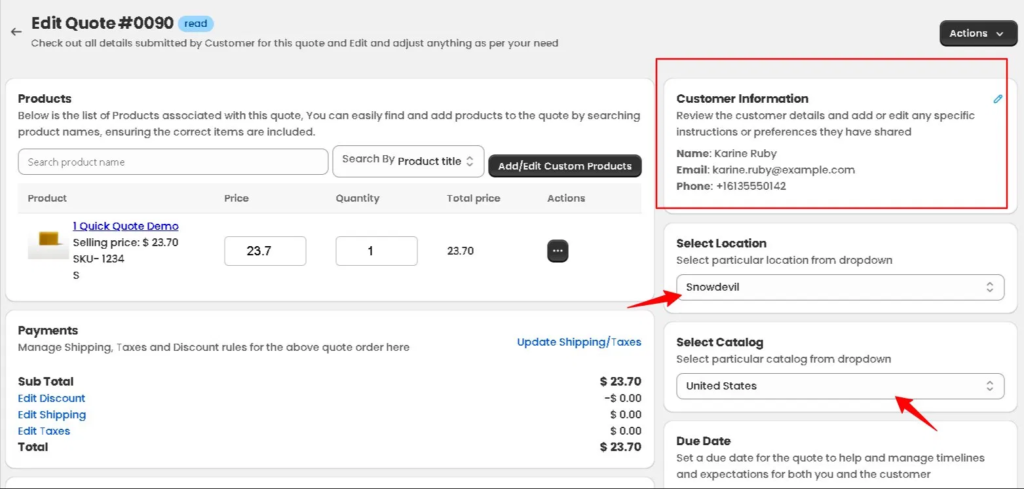
- Choose the correct company location for this customer — for example, Snowdevil’s United States location.
- Once you select a location, the Select Catalog dropdown below it automatically updates to show only the catalogs linked to that location or its market.
- Select the catalog you want to apply — for example, United States (−5% pricing).
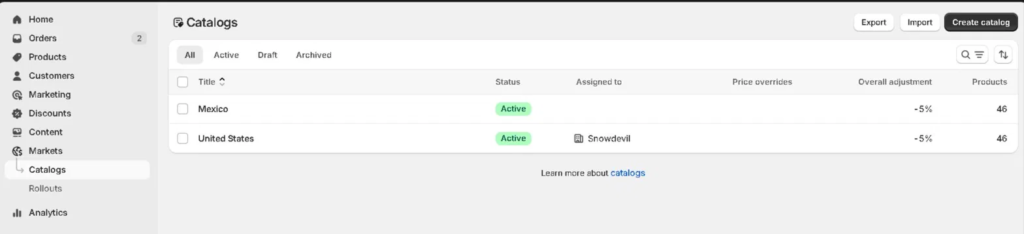
- The quote recalculates immediately — Sub Total, Discount, Shipping, Taxes, and Total all update based on the selected catalog’s pricing rules.
- Click Save to confirm your changes.
💡 How location and catalog work together: When you change the Location, the Catalog dropdown updates automatically to show only catalogs assigned to that location or market. When you select a Catalog, every price field in the quote recalculates — Sub Total, Discount, Shipping, Taxes, and Total — all reflecting the catalog’s rules. This means you can handle edge cases easily. For example, if a US company needs a quote priced under the Mexico catalog, just switch the catalog and all numbers update instantly.
Frequently Asked Questions #
#
Quote Guru automatically assigns the customer’s primary company location when they submit the quote. If you need to change it for a specific quote, open the Edit Quote page, change the Select Location dropdown, and the catalog will update accordingly.
#
The prices reflect the catalog assigned to the customer’s location. If the United States catalog has a −5% overall adjustment, all products in the quote will show at 5% below your standard retail price. Fixed prices set in the catalog always take priority over percentage adjustments.
#
Yes. The Select Catalog dropdown on the Edit Quote page shows all catalogs available for the selected location. You can pick any of them for that specific quote without changing the customer’s standard setup.
#
Quote Guru falls back to your store’s standard retail pricing. The quote is still created, but it will use your regular prices rather than any wholesale or B2B pricing.
#
Yes. Shopify catalogs support market-specific currencies. If your United States catalog is in USD and your Australia catalog is in AUD, Quote Guru reflects the correct currency inside the quote based on the assigned catalog and location.
#
No — B2B Markets and Catalogs work on all Shopify plans. On Basic, Grow, and Advanced plans you can assign up to 3 active catalogs across all B2B markets. On Shopify Plus you get unlimited catalogs and can assign them directly to specific company locations. Quote Guru works with both setups.


