
When you add a language to your store, Quotes Guru includes default translations right out of the box. But if you want to customize the exact wording your customers see — things like button labels, form text, notifications, and confirmation messages — the translation editor lets you edit every piece of storefront text for each language, directly inside the app.
This guide walks you through how to edit storefront translations in Quotes Guru, step by step.
What Can You Edit? #
Using the translation editor, you can customize any customer-facing text that Quotes Guru displays on your storefront, including:
- Quote button labels (e.g. “Request a Quote”, “Quote List”)
- Form field labels and placeholder text
- Success and error notifications
- Confirmation and status messages
Changes you make here only affect your storefront. Your admin panel language is managed separately — see How to Change the Admin Language.
How to Edit Storefront Translations #
- Go to the Dashboard page or General Settings
- Navigate to Language Settings/Multiple Language Support
- Click on Edit Settings
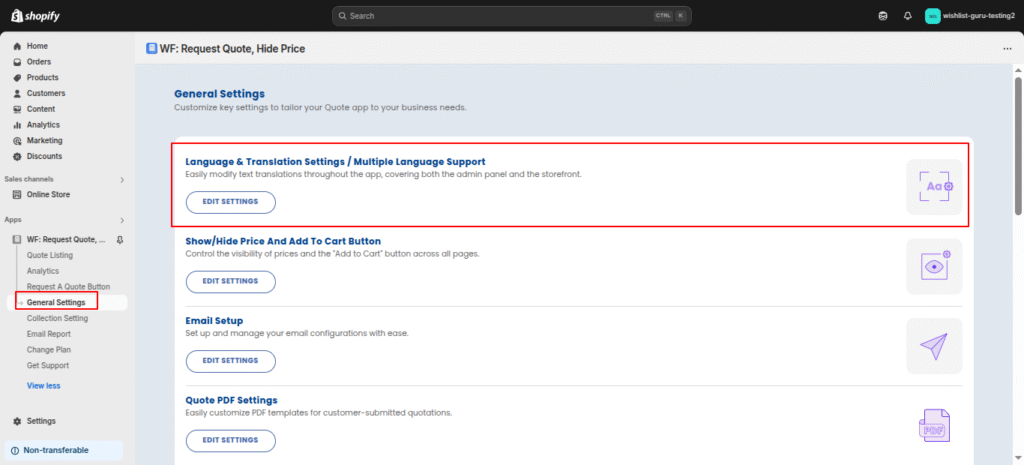
- You will need to click on the Edit translation button for the desired language for which you want to change TEXT TRANSLATIONS.
- After clicking the Edit translation button
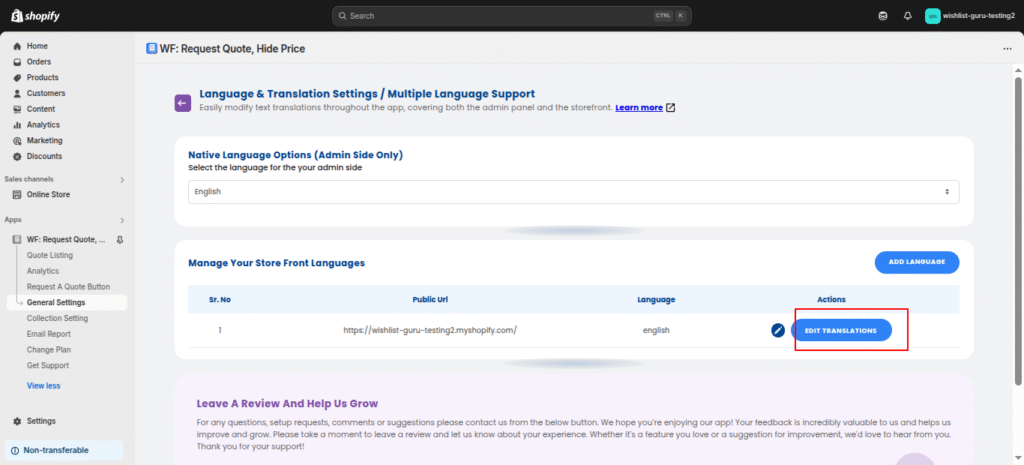
You’ll see a complete list of all customer-facing text strings used by Quotes Guru. Click into any field, type your preferred wording, and hit Save when you’re done.
Your storefront will immediately reflect the updated text for customers browsing in that language.
Tip: After saving, open your storefront in a new browser tab and switch to that language to confirm everything looks right in context.
What Can You Edit? #
The translation editor covers every piece of customer-facing text across the entire quote journey — from the first button click to the final confirmation. Here’s a breakdown of what you can customize for each language:
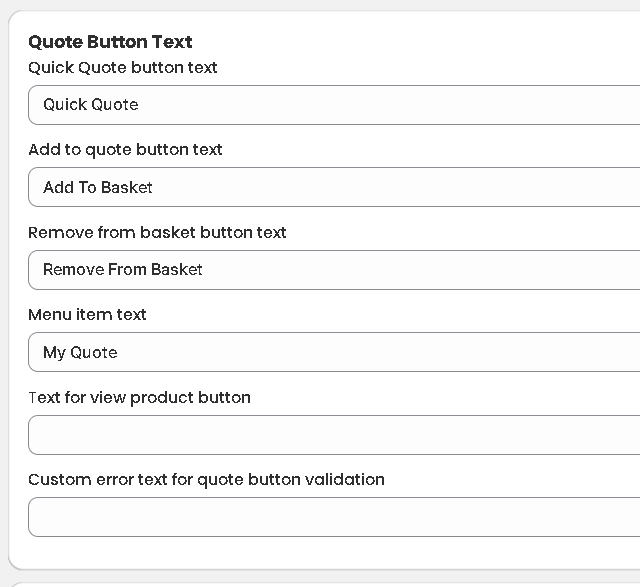
Quote Button Text
- Quote button labels (e.g. “Request a Quote”, “Quote List”)
- Remove from quote list button text
- Empty/clear quote list text
- Quote button validation error messages
Quote Form — Popup, Page & Drawer
- Form heading and subheading text
- “Continue shopping” button label
- Product information labels (Qty, Unit, Total, SKU, Vendor, Author)
- Estimated total text
- Quote list notification messages (item added, item removed)
- Login and create account popup text and button labels
- Custom product section labels and placeholders
- Step form navigation labels and Previous/Next button text
- Page loading status text
- Custom price coupon text and minimum price error messages
Other Storefront Text
- Hide price messages
- Approve quote page labels, descriptions, and error text
- Comment tab heading and quote accepted messages
- Magic link button text
- Empty comments and “no comments found” text
- Login prompts and account mismatch warning messages
Customer Quote Portal
- Portal login prompt for unauthenticated customers
- Portal heading and description text
- Quote table column labels (status, date, actions)
- Payment, approve, and pay button text
- Order summary labels (Shipping, Discount, Subtotal, Tax, Total)
- Quote confirmation messages
Editing Multiple Languages #
The translation editor works one language at a time. To customize text for additional languages, go back to the Language Management Page, click Edit Translation for the next language, make your changes, and save. Repeat for as many languages as your store supports.
Frequently Asked Questions #
Will editing one language’s translations affect other languages? No. Each language has its own independent set of translations. Changes you make to French, for example, won’t affect your Spanish or German text.
Can I reset translations back to the default? Yes. If you want to go back to the original default text for any field, simply clear the custom text you entered and save. Quotes Guru will fall back to its built-in default translation for that field.
Does this affect my quote form fields too? Quote form fields have their own translation settings. To edit form-specific text across languages, see How to Translate and Edit Quote Forms in Multiple Languages.
What if I haven’t added a second language yet? You’ll need to add a language first before you can edit its translations. See How to Add and Configure Multiple Languages for Your Store.


