
What Can You Control on This Settings Page? #
When you sell across multiple regions, a single pricing and cart setup rarely fits all your customers. A wholesale buyer in Australia shouldn’t see the same experience as a retail customer in the US — and with Quote Guru’s multi-market support, they won’t.
From one settings page, you can configure two things independently for each Shopify market:
- Product Price Rules — Choose whether to show prices, hide them completely, hide them only on quoted products, or hide them for guest users who haven’t logged in.
- Add to Cart Button Rules — Control whether customers can add products to cart directly, or whether you want to hide the cart button and push them toward requesting a quote instead.
Both are configured from the same page, for each market, with no code changes needed.
Note: If you don’t configure rules for a specific market, Quote Guru automatically falls back to your primary market’s rules. So your storefront is never broken while you’re setting things up.
What Do You Need Before Setting This Up? #
Make sure you have these in place before you start:
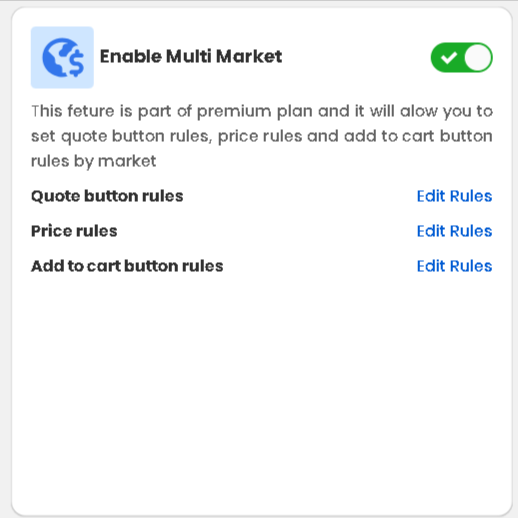
- Multi-Market is enabled in Quote Guru (go to Dashboard→Enable Multi-Market toggle). This is a premium plan feature.
- At least one additional Market is created in your Shopify Admin under Settings → Markets.
That’s all — no developer needed, no theme edits, no extra apps.
How to Configure Price and Add to Cart Rules by Market — Step by Step #
Both Price Rules and Add to Cart Button Rules are configured from the same page. Here’s how to get there and set them up:
- Open the Quote Guru app from your Shopify Admin.
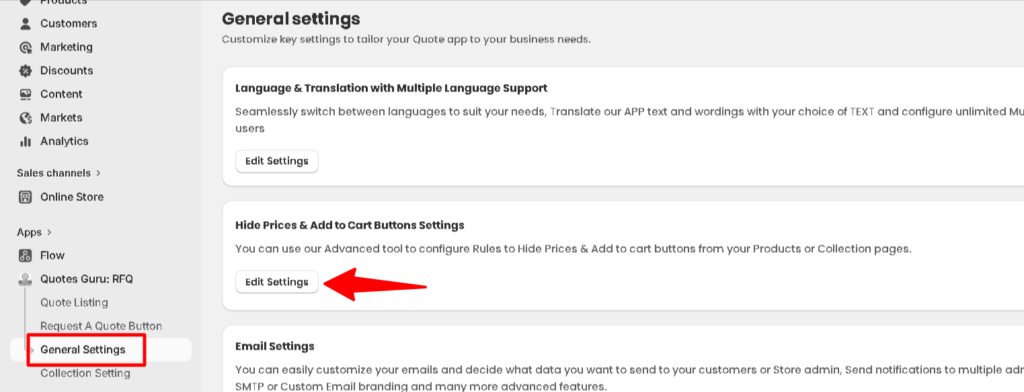
- In the left-side navigation, click General Settings.
- Find the Hide Prices & Add to Cart Buttons Settings section and click Edit Settings.
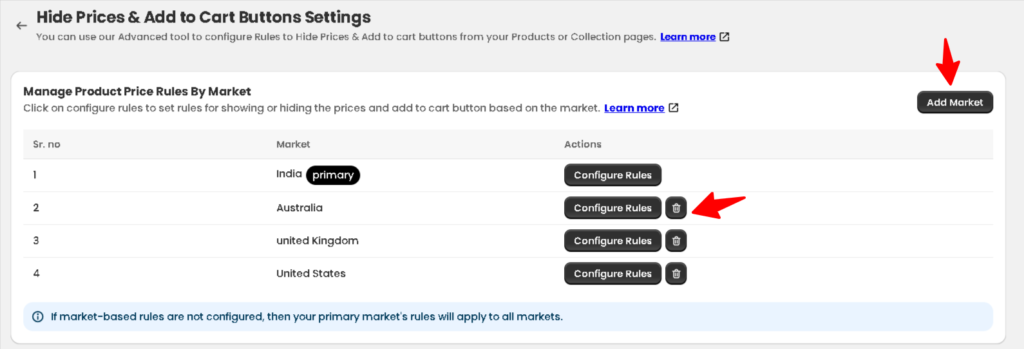
- You will see Manage Product Price Rules by Market section.
- Click Add Market. A dropdown will appear — select the market you want to configure (for example, Australia, United States, or Europe).
- Click Configure Rules next to the market you just added.
- Choose your preferred rule for that market (see the full options explained below).
- Click Save. Your changes go live on your storefront immediately.
Which Price Rule Should You Choose for Each Market? #
When you click Configure Rules in the price section, you’ll see these options. Here’s what each one does and when to use it:
| Rule Option | What It Does | Best For |
|---|---|---|
| Show price on all products | Prices are visible on every product for this market. Standard retail behaviour. | Markets where you want full transparency — retail-facing regions. |
| Hide price on all products | All prices are hidden for customers in this market. They must contact you or request a quote to find out pricing. | B2B or wholesale markets where pricing is confidential or negotiated. |
| Hide price on specific products | Prices are hidden only on the products you select — everything else shows normally. | Mixed catalogues where only some products have custom or negotiated pricing. |
| Hide price on quoted products | Prices are automatically hidden on any product that already has an active quote attached to it. | Great for B2B workflows — once a product is in a quote, the price is removed from the storefront for that customer. |
| Hide price for guest users and require login | Prices are hidden for anyone who isn’t logged in. A login prompt is shown instead. | Wholesale stores where only registered customers should see pricing. |
| Hide where conditions match | Prices are hidden based on custom rules you define — such as product tag, collection, or price range. | Advanced setups — e.g. hide prices for all products tagged ‘wholesale’ or priced above a certain amount. |
| Show where conditions match | Prices are shown only when your conditions are met — hidden by default otherwise. | Highly controlled pricing visibility based on specific product attributes. |
Additional Configuration — Custom Hidden Price Message #
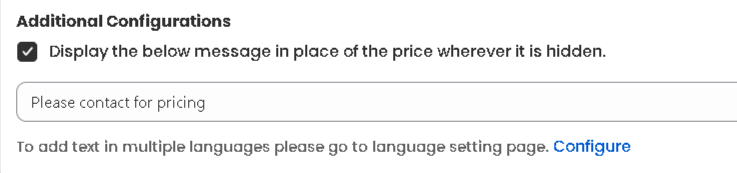
When a price is hidden, you can replace it with a custom message instead of leaving the space blank. For example: “Please contact us for pricing”
To set this up, check the box under Additional Configurations that says Display the below message in place of the price wherever it is hidden, then type your message in the text field. You can also configure this message in multiple languages from the language settings page.
Which Add to Cart Rule Should You Choose for Each Market? #
Scroll down the same page to find the Add to Cart Button Rules section. This controls whether customers can add products to their cart directly — or whether you want to remove that option and push them toward requesting a quote. Here are your options:
| Rule Option | What It Does | Best For |
|---|---|---|
| Show cart on all products | The Add to Cart button appears on every product for this market. Standard behaviour. | Retail markets where you want a normal shopping experience. |
| Hide cart on all products | The Add to Cart button is completely removed for this market. | B2B or quote-only markets where every order should go through a quote first. |
| Hide on specific products | The cart button is hidden only on products you hand-pick. | Stores where only certain products (e.g. custom or bulk items) must go through a quote. |
| Hide on quoted products | The Add to Cart button is automatically hidden on products that have an active quote. | Ensures customers follow through on quotes rather than adding to cart at a different price. |
| Hide for guest users | The cart button is hidden for anyone not logged in. Logged-in customers see it normally. | Wholesale stores where only registered customers can purchase directly. |
| Hide where conditions match | The cart button is hidden based on conditions you define — like product price, tag, or collection. | Advanced setups — e.g. hide Add to Cart for any product priced above 800 (as shown in the screenshot). |
| Show where conditions match | The cart button only appears when your conditions are met — hidden by default otherwise. | Tightly controlled buying experience based on specific product rules. |
Using the Condition Builder #
When you select Hide where conditions match or Show where conditions match, a condition builder appears. You can set it to:
- All conditions — Every condition you add must be true for the rule to apply (AND logic).
- Any condition — At least one condition must be true for the rule to apply (OR logic).
Then add your condition — for example, Product price is less than 800 — to define exactly when the rule kicks in. Click Add New Condition to stack multiple rules together.
⭐ Premium Feature: Customer-based conditions like tags, country, and login status are available on the premium plan only. Product-based conditions (price, collection, tag) are available on all plans.
Frequently Asked Questions #
#
Yes. You can add as many markets as you have set up in Shopify, and configure each one independently. Both rule sections — price and cart — work per market, so your Australian wholesale customers can have completely different settings from your US retail customers.
#
By default, the price area is left blank. But you can replace it with a custom message like ‘Please contact us for pricing’ using the Additional Configurations option on the same page. You can even translate this message for different languages.
#
When the cart button is hidden, customers can use the Request a Quote button instead. They submit a quote request, you review it and send back a quoted price, and they can then complete the order from the quote — all managed inside Quote Guru.
#
Absolutely. In fact, this is the most common setup for B2B markets — hide the price so customers see a custom message, and hide the cart button so all orders go through a quote. Both rules are independent, so you can mix and match freely.
#
No. Each market’s rules are completely independent. Changing the rules for Australia has no effect on the United States or any other market you’ve configured.


