
Displaying the Quote List across your store is a great way to make the quote request feature easily accessible to customers—whether they’re browsing product pages, the homepage, or collection pages. The Quotes Guru app offers flexible options to configure how and where the Quote List appears, helping you seamlessly integrate it into your store’s design. Whether as a floating icon, header button, or navigation menu item, this feature ensures a smooth and consistent quoting experience across your site. In this guide, you’ll learn how to set up and customize the Quote List to enhance user interaction and boost quote requests.
How to Configure the Quote List Feature #
Option 1: The Quick Dashboard Method #
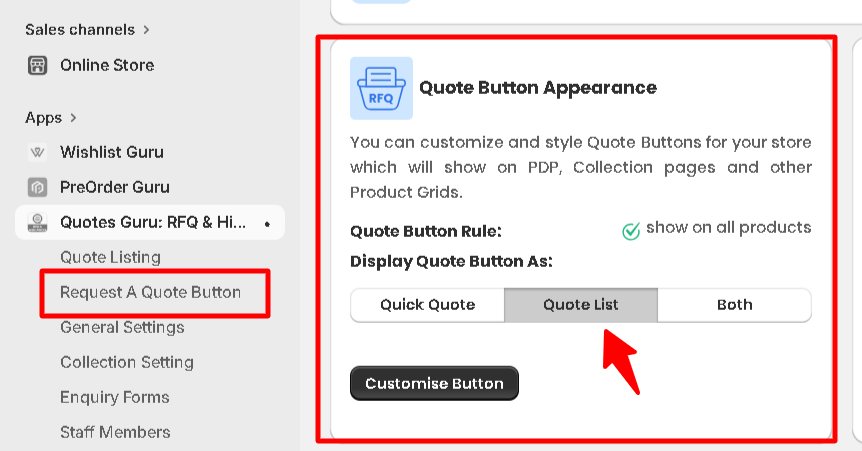
- Go to the App Dashboard
- Scroll down until you see the Quote Button Appearance box.
- Under the “Display quote button as” setting, simply select Quote list.
Option 2: The Direct Sidebar Shortcut #
- Click on Request A Quote Button in the left-hand menu.
- You’ll be taken directly to the Button Settings page.
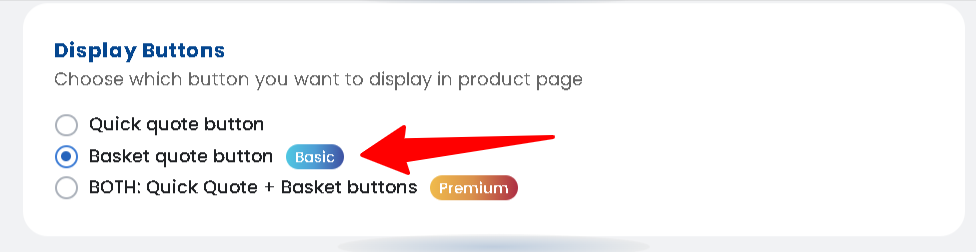
- Scroll down to the Display Buttons section and choose the Quote list.
The Quote List in our app allows you to provide customers with an easy and persistent way to request quotes, no matter where they are in your store. Whether you want the button to appear as a floating icon, a header button, or a menu item, this feature offers multiple configuration options to match your store’s design and user experience needs.
Key Features of the Quote List #
- Floating Icon:
The floating icon is a small, persistent button that stays visible as customers scroll through the pages of your store. It’s ideal for stores where you want to make the Request Quote option always accessible, without taking up too much space on the screen. - Header Button:
The header button places the Request Quote button in your store’s header, typically at the top of the page. This ensures that the button is always within reach for customers, even as they navigate different sections of your store. It’s a great choice if you want to make the quote request option highly visible from any page. - Menu Item:
With the menu item option, you can add the Request Quote button as part of your store’s navigation menu. This allows customers to access the quote request option through your main menu, which could be especially useful if you want to integrate it into your store’s existing navigation structure.
How to Hide the “Remove from Quote” Button on Product and Collection Pages #
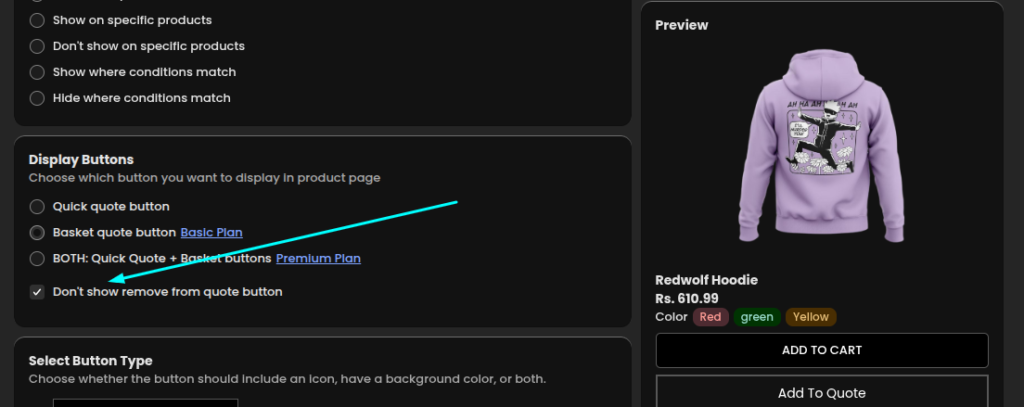
By default, when a customer adds a product to their quote list, a “Remove from Quote” button appears on the product page and collection page — giving them the option to remove it right there. But some merchants prefer to keep the product page clean and only allow removal from inside the quote list itself.
With the “Don’t show Remove from Quote button” option, you can hide this button from product and collection pages entirely — so customers can add products to their quote list freely, but can only remove them from the quote list page.
What Changes After Enabling This #
| Before | After | |
|---|---|---|
| Product Page | Shows “Add to Quote” button, then switches to “Remove from Quote” after adding | Always shows “Add to Quote” button |
| Collection Page | Shows “Add to Quote” button, then switches to “Remove from Quote” after adding | Always shows “Add to Quote” button |
| Quote List Page | Dustbin icon to remove products | Dustbin icon still available ✅ |
Important: When this option is enabled, the “Add to Quote” button stays visible at all times on the product and collection pages. If a customer clicks it again for the same product, the quantity increases in the quote list rather than adding a duplicate line — so the quote list stays clean and organized.
Customers can still remove products completely by opening the quote list and clicking the dustbin icon next to the product they want to remove.
1. For the Collection Page Demo, click here
2. For the Product Page Demo, click here
Check related articles :
How to Customise Request for Quote Button
How to show Quick (Instant) Quote Button on Product Page


