
Every time a customer submits a quote, you need to know about it immediately. A delayed response. Every time a customer submits a quote, the right people on your team need to know about it immediately. A slow response is often the difference between winning and losing a sale — especially in B2B where customers are comparing multiple suppliers at the same time.
Quotes Guru gives you two ways to manage where quote notification emails get sent — depending on how your store is set up and how many quote forms you’re running.
Which Option Is Right for You? #
| Your Setup | Best Option |
|---|---|
| You have one quote form or want all quotes to notify the same email | Option 1 — Set a default admin email in General Settings > Email Settings |
| You have multiple quote forms and want each form to notify a different email | Option 2 — Add email addresses to each form individually |
Option 1: Set a Default Admin Email for All Quote Forms #
If you want every quote submission — regardless of which form the customer used — to send a notification to the same email address or addresses, set up a default admin email in General Settings.
This is the simplest option and works well for smaller teams or stores with a single sales inbox.
Step 1: Go to Email Settings #
- Open Quotes Guru: RFQ & Hide Prices in your Shopify admin
- Click General Settings in the left sidebar
- Click Email Settings
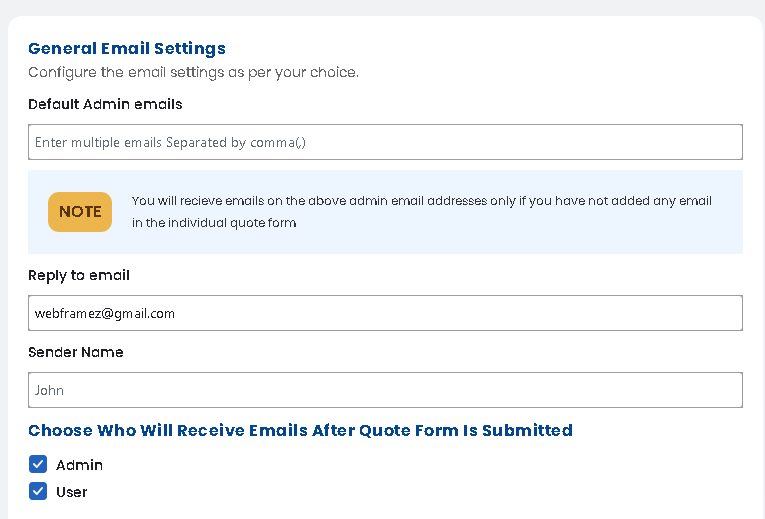
- In General Email Settings section
Step 2: Enter Your Admin Email Addresses #
In the Admin Email field, enter the email address or addresses that should receive quote notifications.
- Single email: Just enter one address —
sales@yourstore.com - Multiple emails: Separate each address with a comma —
sales@yourstore.com, support@yourstore.com, manager@yourstore.com
There’s no limit to how many email addresses you can add. Department emails work just as well as individual ones.
Step 3: Save Your Changes #
Click Save to apply. From this point on, every time a customer submits a quote, a notification email will be sent to all the addresses you’ve entered.
Option 2: Set Different Email Addresses for Different Quote Forms #
If you’ve created multiple quote forms — for example, one for wholesale enquiries, one for custom orders, and one for general pricing requests — you might want each form to notify a different person or team.
For example:
- Wholesale Enquiry Form → notifies
wholesale@yourstore.com - Custom Order Form → notifies
custom@yourstore.com - General Pricing Form → notifies
sales@yourstore.com
This way, the right team member gets notified for the right type of enquiry — without everyone receiving every notification.
How to set it up:
- Open Quotes Guru: RFQ & Hide Prices in your Shopify admin
- Click General Settings in the left sidebar
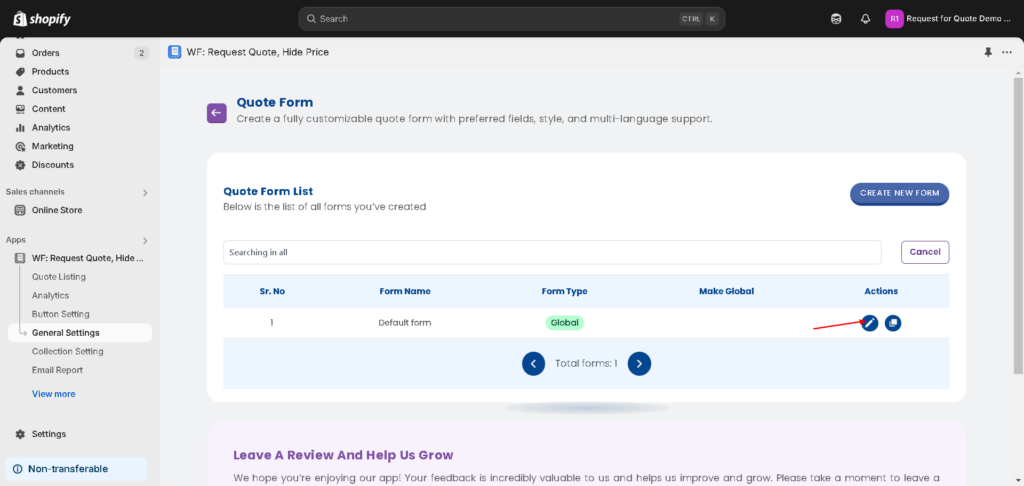
- Click Customize Quote Forms
- Find the quote form you want to configure and click Edit
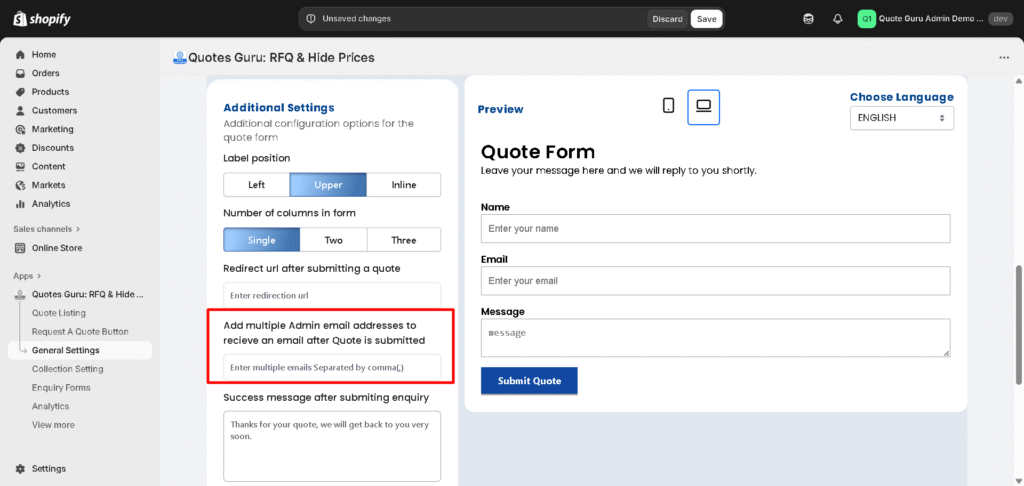
- Inside the form settings, scroll down to the Additional Settings section
- Find the Admin Email field
- Enter the email address that should receive notifications specifically for this form
Adding multiple email addresses for one form: Separate each address with a comma:
wholesale@yourstore.com, manager@yourstore.com
- Click Save
- Repeat this process for each of your other quote forms
Each form will now send notifications to its own dedicated email address — completely independent of the default admin email in General Settings.
How Do the Two Options Work Together? #
Here’s what happens when both are configured:
- If a quote form has its own email address set → notifications go to that form’s email only
- If a quote form has no email address set → notifications fall back to the default admin email in General Settings
This means you can set a default catch-all email in General Email Settings and only override it for the specific forms that need a different recipient. A clean and flexible system.
Who Should You Add? #
Solo merchant or small team: Use Option 1 with your main business email. Keep it simple — one inbox, one team.
Sales-led business with one team: Use Option 1 with a shared sales inbox like sales@yourstore.com so anyone on the team can pick up and respond to new quotes.
Multiple departments or product types: Use Option 2 to route each form’s notifications to the right department. Wholesale goes to the wholesale team, custom orders go to the production team, and so on.
Use SMTP for branded sending – about the Email Sender #
By default, quote notification emails are sent through Quotes Guru’s email server. If you’d prefer to send emails from your own email address — for example, noreply@yourstore.com — You can set that up through SMTP.
👉 Learn how to set up SMTP for Email 👉 Gmail SMTP Setup Guide
Want to Customise What the Admin Notification Email Looks Like? #
You can fully customise the admin notification email template — subject line, body content, colors, logo, and more — from the Email Template editor.
👉 How to Customise Quote Email Templates in Quotes Guru
Tips for Best Results #
- Use a monitored inbox — Make sure the email address you enter is one your team actually checks regularly. A quote notification sitting unread in a rarely-checked inbox defeats the purpose
- Add multiple team members — If more than one person handles quotes, add all of them so no request falls through the cracks when someone is out of office
- Use department emails for larger teams — An address like
sales@yourstore.comthat multiple people have access to is often better than a single personal inbox - Set up SMTP — If you want notifications to come from your own branded email address instead of Quotes Guru’s server, set up SMTP to keep everything consistent


