
If you want to offer your customers an easy way to request quotes for multiple items at once, adding a ‘Quote’ button to the cart page is the perfect solution. Available on our Pro and Premium plans, this feature allows you to streamline the RFQ process by moving it to the final step before checkout.
Why Do Customers Prefer the Quote Button on the Cart Page? #
Many Shopify stores suffer from “app clutter” on the Product Detail Page (PDP). Between bundles, upsells, and product options, adding another button can make your site look crowded and confuse your customers.
By enabling the quote button on the cart page, you provide a cleaner shopping experience:
- Reduce PDP Friction: Keep your product pages focused on visuals and descriptions.
- Bulk Quote Requests: Customers can view all their selected items in one list and submit a single quote request for the entire group.
- Simplified Decision Making: It allows customers to “shop” first and then decide which items they need a custom price for right before they check out.
How to Enable the Quote Button on Your Cart Page #
Follow these two stages to successfully place the button on your cart template:
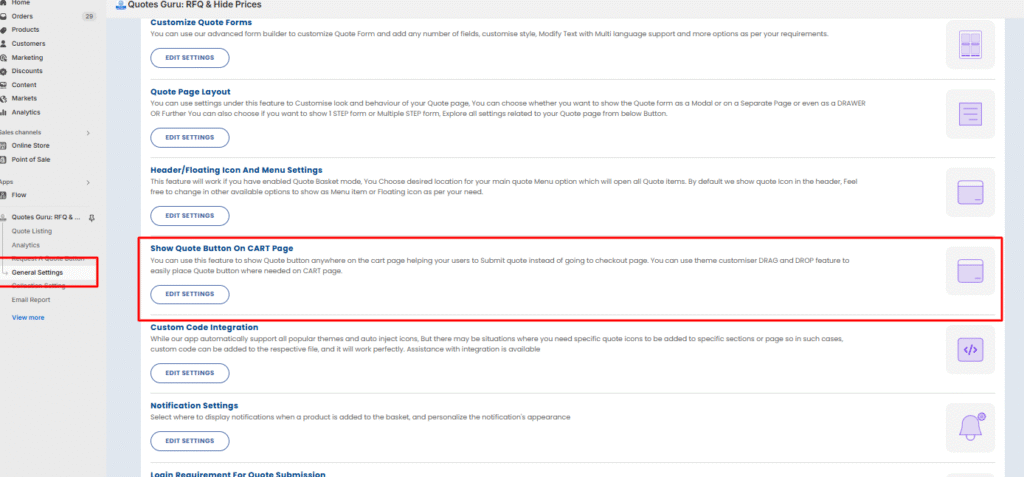
Stage 1: Enable Manual Configuration in the Dashboard (Custom Code Integration)
If the quote button doesn’t display correctly on your cart page, you can use the provided shortcode and paste it directly into your cart page template at the exact location you want it to appear.
- Open the Quotes Guru app and go to General Settings.
- Locate the section Show Quote Button on the cart page.
- Click on Edit Settings.
- Select the option Configure Manually. This tells the app you will handle the placement yourself.
<div class=”wfq-quote-list-btn” btn-title=”Custom Cart Button”></div>
btn-title attribute (optional) Use it to display as a label text for your custom button.
Stage 2: Place the Button in Your Theme Editor
If the quote button position on the cart page needs adjusting, you can reposition it manually using the theme editor.
- Go to your Shopify Admin > Online Store > Themes.
- Click ‘Customize’ on your current theme.
- In the top dropdown menu, change the template from “Home Page” to Cart.
- In the left-hand sidebar, find the Template or Subtotal section and click Add Block.
- Search for and select the Quotes Guru Cart Quote List.
- Drag and Drop: Move the block to your desired position.
- Click Save.
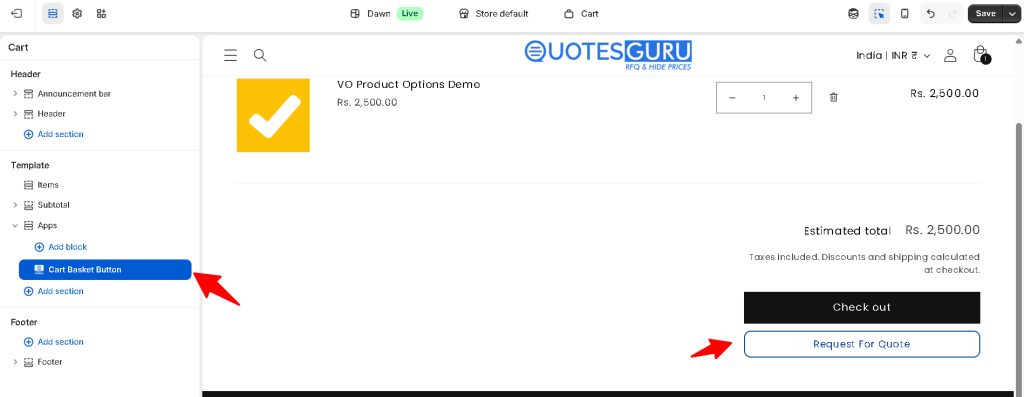
When you click on the configure button manually, you will see a wide ‘request quote’ button, which you need to delete and replace with a new ‘quote’ button, and you can change its placement through drag and drop. Let’s check the detailed video:
How to move products from the cart page into our quote list. #
When enabled, any products already in the customer’s quote list will be merged with the cart products being added, rather than creating duplicates. Set to Yes to merge, or No to keep them separate.
- Just override all the products in the quote list (default).
- Merge products with existing products in the quote list (new).
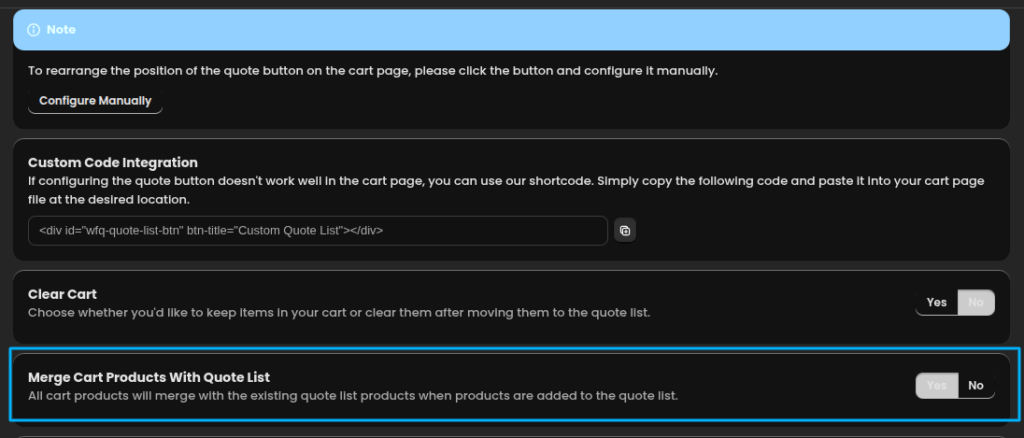
Clear the cart option #
Choose whether items should be removed from the cart after they’re moved to the quote list. Set to Yes to clear the cart automatically, or No to keep the items in the cart as well.

Want to Remove the Quote Button from PDP? #
If you prefer to show the quote option only on the cart page and wish to remove/hide it from product detail pages,
- If you have not added an app block in PDP,
- Then just go to the dashboard.
- Choose manually.

- If you have added the app block in PDP
- Then just go to the theme customizer
- Choose a product template from the templates
- remove the quote button app block
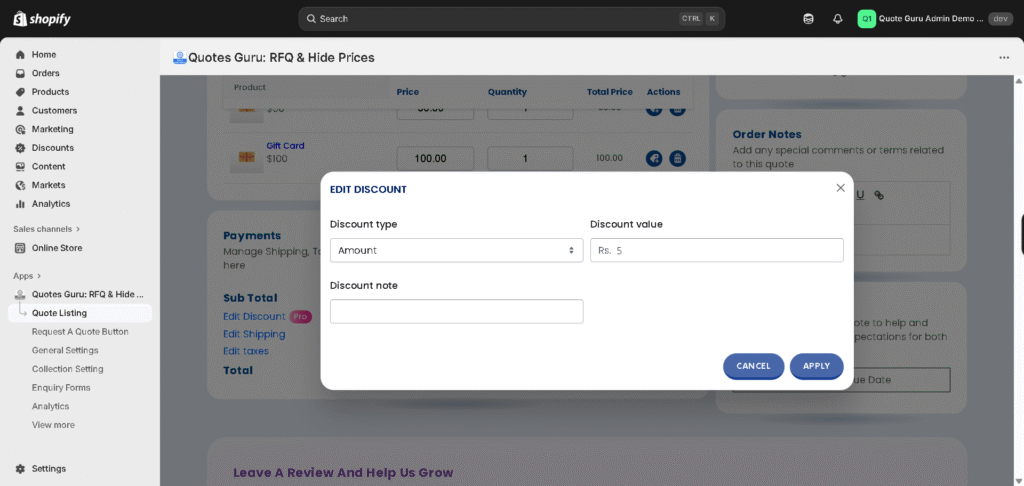
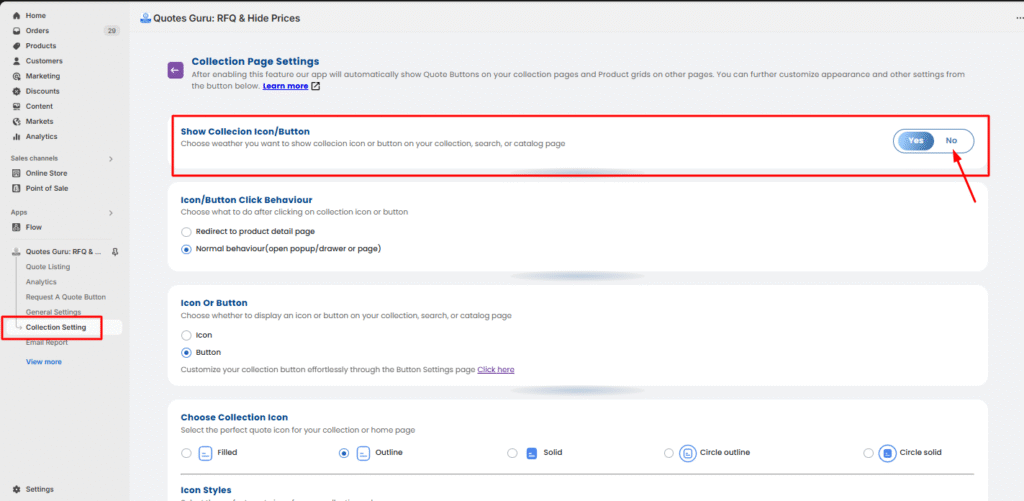
Want to Remove the Quote Button from the Collection Page? #
- go to Collection settings
- and click on ‘no’ to disable the quote button on the Collection Page.
By enabling the Quote Button on the cart page, you provide your customers with a streamlined way to request quotes in bulk—clear, simple, and effective. Need help? We’re always here for you and you can reach us at support@webframez.com.


