
Whether you’re rewarding a loyal wholesale customer, running a promotional campaign, or negotiating a deal with a B2B buyer — being able to apply discounts directly inside a quote is essential. Quotes Guru gives you full flexibility over how discounts are applied to each quote, from no discount at all to custom manual amounts or your existing Shopify discount codes.
In this guide, you’ll learn how to apply discounts to individual quotes and how to set up automatic discount rules for all incoming quotes.
Note: The discount feature is available on the Pro Plan and above.
Available Discount Options #
Quotes Guru offers three discount options inside every quote:
| Discount Option | Best For | Plan Required |
|---|---|---|
| No Discount | Quotes where no discount applies | All Plans |
| Custom Discount | Manual discount amounts or percentages set by the admin | Pro, Premium |
| Shopify’s Discount | Automatically apply existing Shopify discount codes to the quote | Pro, Premium |
How to Apply a Discount to a Quote #
- Go to Quotes Guru: RFQ & Hide Prices in your Shopify admin
- Click Quote Listing in the left sidebar
- Open the quote you want to edit by clicking Edit Quote
- Scroll down to the Payments section
- Click Edit Discount
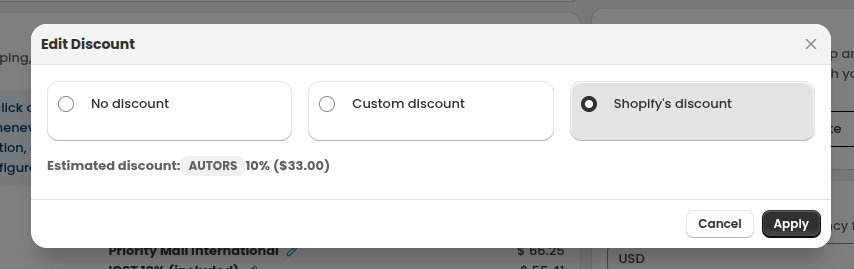
- A popup will appear with three options — select the one that fits your needs
- Click Apply to save the discount to the quote
The Three Discount Options Explained #
1. No Discount #
Select this option when no discount applies to the quote. This is the default setting — the customer pays the full price as listed in the quote.
When to use it:
- Standard quotes with no special pricing
- New customers who haven’t qualified for a discount yet
- Products with fixed pricing that can’t be discounted
2. Custom Discount #
Allows you to manually enter a discount amount or percentage specifically for this quote. This gives you full flexibility to negotiate pricing on a per-quote basis without affecting any other orders or discount codes in your store.
When to use it:
- Wholesale or bulk order negotiations
- Loyal customer rewards
- One-off promotional pricing discussed over phone or email
- Situations where the discount doesn’t exist as a Shopify code
How it works: After selecting Custom Discount, enter either a fixed amount (e.g., $20 off) or a percentage (e.g., 15% off). The quote total updates automatically to reflect the discount.
3. Shopify’s Discount #
Applies an existing Shopify discount code to the quote automatically. If the customer already has a discount code — or if you want to apply a store-wide promotion to their quote — this option fetches it directly from your Shopify store.
When to use it:
- The customer has a valid Shopify discount code
- You’re running a store-wide promotion that should also apply to quote orders
- You want consistency between your regular checkout discounts and your quote pricing
How it works: After selecting Shopify’s Discount, Quotes Guru fetches the applicable discount from your Shopify store and shows you the estimated discount amount before you apply it. For example: “AUTORS 10% ($33.00)” — so you can review it before clicking Apply.
Default Discount Rules (Global Settings) #
If you want discounts to be applied automatically to all quotes coming from your storefront — without having to manually set them on each quote — you can configure this in your Miscellaneous Settings.
How to set it up:
- Go to Quotes Guru: RFQ & Hide Prices in your Shopify admin
- Click General Settings in the left sidebar
- Click Miscellaneous Settings
- Scroll down to the Default Discount Rules section
- Choose your preferred option:
- Automatically apply discounts to all quotes — Shopify’s discount will be applied automatically to every new quote that comes in from the storefront
- Don’t apply automatically discounts to all quotes — Discounts are applied manually on a per-quote basis
- Click Save

Note: The automatic discount option applies Shopify’s existing discounts. If you want to apply a custom manual discount, you’ll still need to do that per quote from the Edit Quote page.


