
Controlling where customers see your “Request a Quote” button is key to a professional store. Whether you want to hide Shopify prices and show a quote button for high-ticket items or your entire catalog, Quotes Guru gives you total control. Tailoring this experience reduces customer confusion and ensures you only receive inquiries for the right products.
How Do I Add the Request a Quote Button to My Product Page? #
There are two ways to display the Request a Quote button on your product pages. You can let the app handle it automatically or place it exactly where you want using Shopify’s modern theme tools.
Option 1: Use “Automatic” (Recommended) #
Our Auto Inject feature automatically places the Quick Quote button near your “Add to Cart” area. This is the fastest way to get started and requires zero coding. You can toggle this on directly from the Quote Dashboard.

Option 2: Add Manually via Theme Customizer (App Blocks) #
If you want full control over the button’s position (e.g., above the description or below the price):
- Choose Manual.
- It redirects to the Themes Product Page Template.
- Under the “Product Information” section, click Add Block.
- Select the Quotes Button block and drag it to your preferred spot.
- Click Save.

Option 3: Add a quote button using Custom code #
Add a quote icon or button to your collection or home pages by inserting the following code into your card-product.liquid file:
- Quote Icon Example
<div class=”wfq-quotes-icon” product-id=”{{ product.id }}” product-handle=”{{ product.handle }}”></div>
- Quote Button Example
<div class=”wfq-quotes-button” product-id=”{{ product.id }}” product-handle=”{{ product.handle }}”></div>
Note: Replace {{ product.id }} with your theme’s product ID variable as required.
Managing Button Visibility via the Dashboard #
Quick Quotes are like an Instant Quote button which will directly open a Modal or Quote page with single product information, and the user can fill out a form and submit a quote.
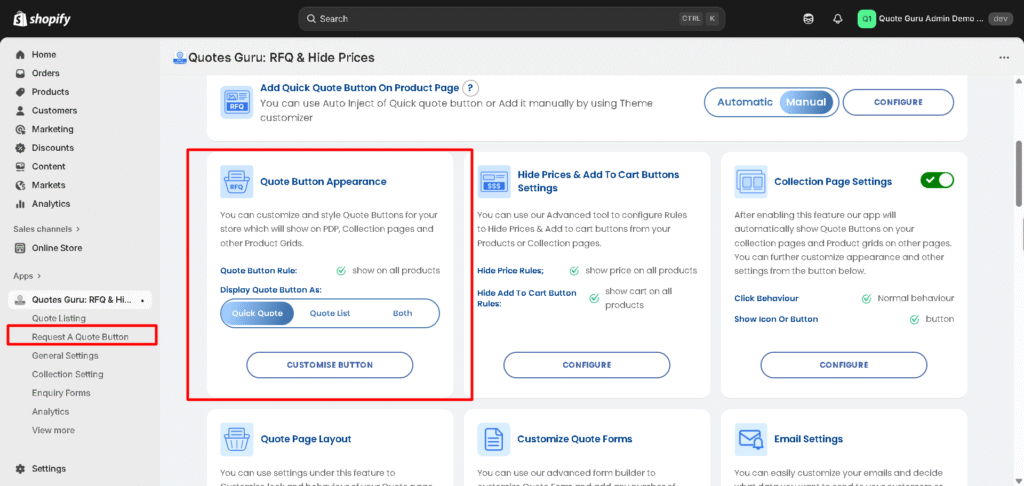
- Go to Dashboard
- Find Quote Button Appearance
- Click on the Customise Button
Check it in action #
How to Manage Quote button Rules #
You can choose your preferred rule to show or hide the quote button on all products, or specific products
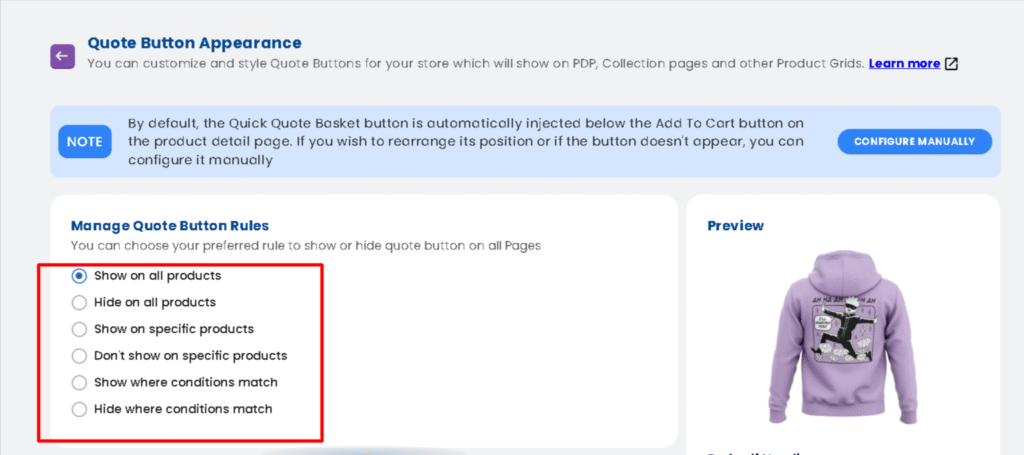
- Show on All Products
This will display the “Request Quote” button on all product pages across your store. - Show on Specific Products
This will show the “Request Quote” button only on selected products. - Don’t Show on Specific Products
This will hide the “Request Quote” button on certain products, while still showing it on others. - Show where conditions match :
This feature is helpful to apply various conditions matching your needs and to show a button where these conditions will match. - Hide where conditions match :
This feature is helpful to apply various conditions matching your needs and to hide the button where these conditions will match. There are many options available to set conditions like: Product title, Product type, product vendor, product price, product tag, product in stock and Collection.- All conditions – must match all conditions
- Any conditions – Must match at least one condition
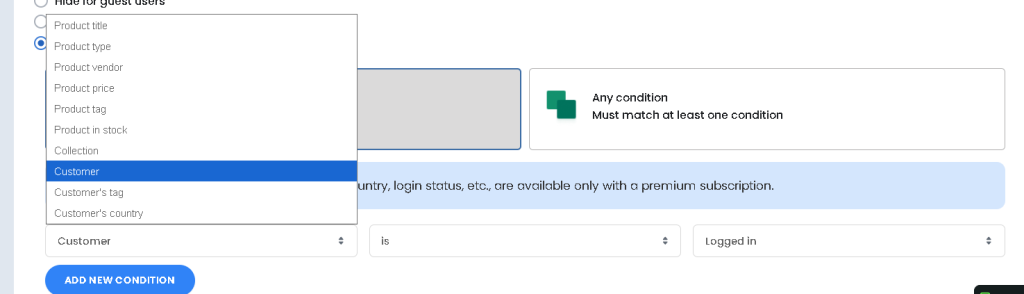
How to add Customer based conditions: Filter by Login, Tags, and Country #
With these conditions, you total control over who sees your quote buttons, prices, and “Add to Cart” buttons. Available exclusively on the Premium Plan, these settings allow you to create a personalized B2B or international shopping experience.
You can now apply these rules across Quote Buttons, Add to Cart (ATC) settings, and Hide Price sections:
- By Login Status:
Choose to show or hide buttons and prices based on whether a user is logged in or Guest. This is perfect for “Members Only” stores or private wholesale portals. - By Customer Tags:
Target specific groups, such as “Wholesale,” “VIP,” or “Tax-Exempt.” Only customers with the matching tag in their Shopify profile will see your configured quote options. - By Customer’s Country:
Tailor your store for global sales. Show the “Request a Quote” button only to international customers while keeping standard checkout for local buyers (or vice versa).
Example #
You sell both ready-made accessories and custom furniture. For accessories, you want customers to buy directly, but for custom furniture you want quote requests.
The “Request a Quote” button will now appear only on product pages marked as Custom Furniture, and won’t appear for accessories — giving customers the right action at the right place.
Create a rule: Show Where Conditions Match → Product Type = “Custom Furniture” and set All conditions must match.
Check related articles :
How to Customise Request for Quote Button
How to Show Quote List on Product/Home/Collection Page


