
When you’re managing multiple quotes at the same time, knowing exactly where each one stands is critical. Is this quote still being reviewed? Has it been sent to the customer? Is someone on your team already working on it?
Quotes Guru’s quote status system gives you a clear, real-time view of every quote in your pipeline — so nothing gets missed, nothing falls through the cracks, and your team always knows what needs attention next.
All Available Quote Statuses #
Here’s a complete overview of every status you’ll see in Quotes Guru and what each one means:
| Status | What It Means |
|---|---|
| Created | A new quote has been submitted by the customer and is waiting to be reviewed |
| Read | The admin has opened and viewed the quote but hasn’t taken action yet |
| In Progress | The quote is currently being reviewed or updated — either by the admin or the customer |
| Sent | The quote has been sent to the customer and is waiting for their response |
| Draft Order | Automatically assigned when the quote is converted to a Shopify draft order — no manual action needed |
| Ordered | The customer has completed payment and the order is now in Shopify |
| Declined | The quote was declined by the customer |
| Cancelled | The quote was cancelled by the admin |
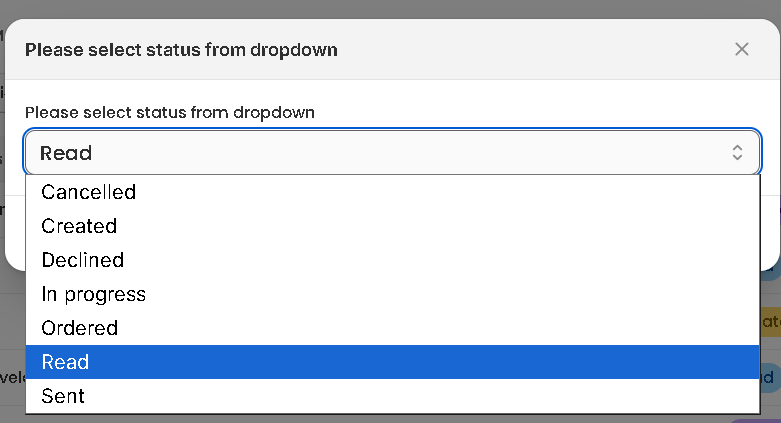
Note: The Draft Order status is assigned automatically by Quotes Guru as soon as the quote is converted to a draft order — you don’t need to manually set this one. All other statuses can be updated manually from the Quote Listing page or the Edit Quote page.
The “In Progress” Status — How It Works #
The In Progress status is the most active status in your pipeline. It tells you and your team that a quote is currently being worked on — so no one accidentally duplicates effort or sends a quote that’s still being edited.
Here’s when the In Progress status gets applied:
- Automatically — When a customer makes any changes to their quote from the storefront, the status switches to In Progress instantly. This alerts you that the customer has updated something and the quote needs to be reviewed again before sending.
- Manually — You or anyone on your team can change a quote to In Progress at any time from either the Quote Listing page or the Edit Quote page.
How to Update a Quote Status Manually #
You can change the status of any quote in two places:
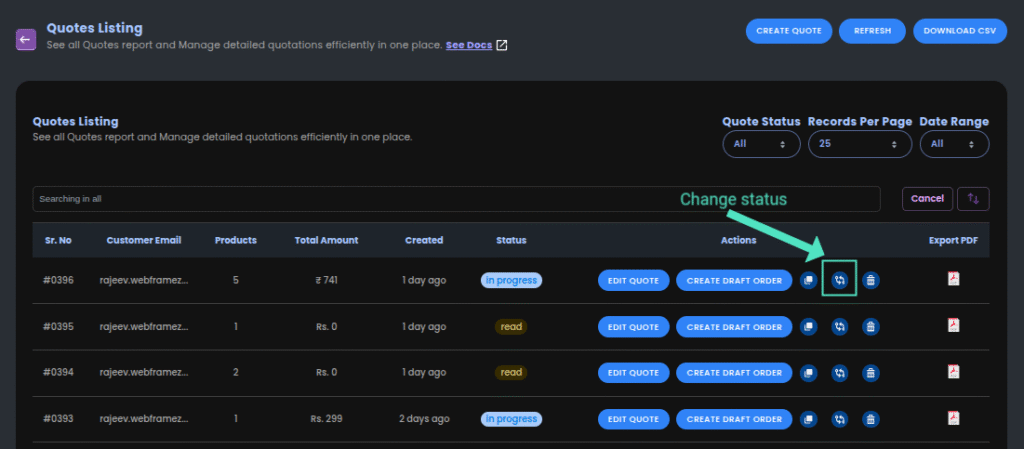
From the Quote Listing page:
- Go to Quotes Guru: RFQ & Hide Prices in your Shopify admin
- Click Quote Listing in the left sidebar
- Find the quote you want to update
- Click the Change Status icon next to the quote
- Select the new status from the list
- The status updates immediately
From the Edit Quote page:
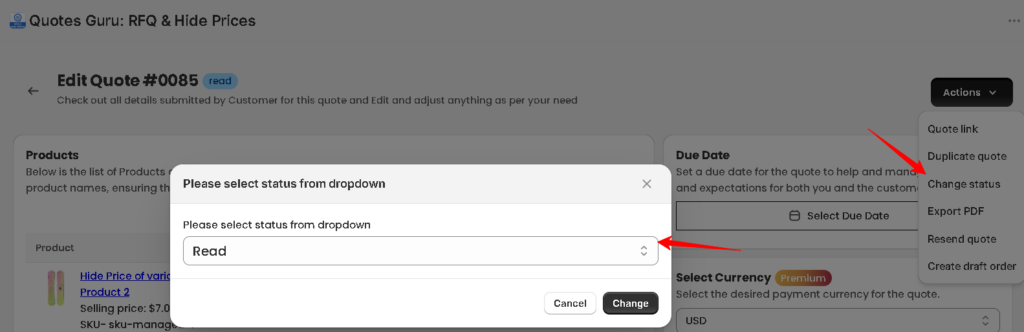
- Open the quote you want to update by clicking Edit Quote
- Find the Status field at the top of the page
- Click the dropdown and select the new status
- Click Save
How to Filter Quotes by Status #
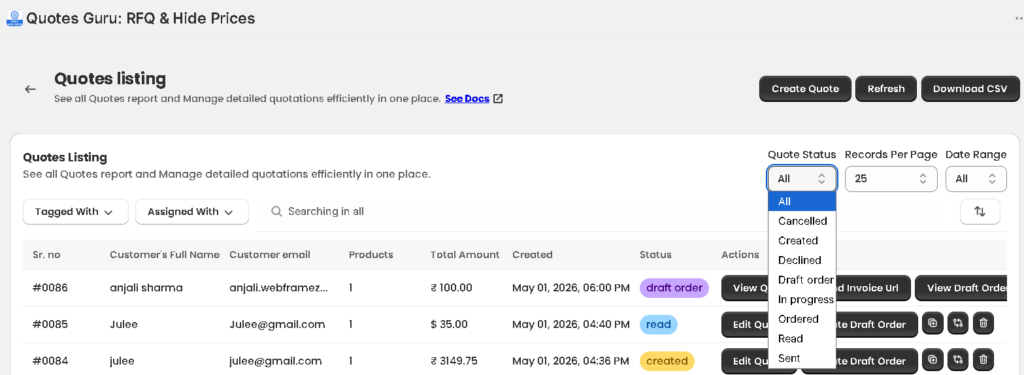
If you have a lot of quotes coming in, the status filter in Quote Listing helps you quickly find what you need:
- Go to Quote Listing
- Find the Quote Status dropdown at the top right of the page
- Select the status you want to filter by — for example, In progress to see all new unreviewed quotes
- The list updates instantly to show only quotes at that stage
This is especially useful at the start of your day to quickly see which quotes need attention first.
Tips for Managing Your Quote Pipeline #
- Check Pending quotes first — These are new submissions that haven’t been touched yet. Responding quickly here makes a big impression on customers
- Use In Progress to signal ownership — If you’re working on a quote, update it to In Progress so your team knows it’s being handled
- Filter by Sent regularly — These are quotes waiting for customer response. If a quote has been Sent for a few days with no reply, it might be worth following up
- Keep statuses up to date — An accurate status list means your whole team has a clear picture of the pipeline without needing to ask each other for updates


