
Your quote form is one of the first things an international customer interacts with. If the field labels, placeholders, and button text are all in English, customers browsing your store in French or German may hesitate — or give up entirely. Quotes Guru lets you translate your quote form into any language you’ve added to your store, so every customer sees the form in their own language automatically.
This guide shows you how to translate and edit your quote form fields for each language.
How This Is Different from Storefront Translations #
The Storefront Translation Editor handles general app text — things like button labels, notifications, and confirmation messages across your whole storefront.
This article covers something more specific: translating the fields inside your quote form itself — the labels, placeholder text, and custom field names that appear when a customer fills out a quote request. These are edited directly inside the Form Editor, per language.
Before You Start #
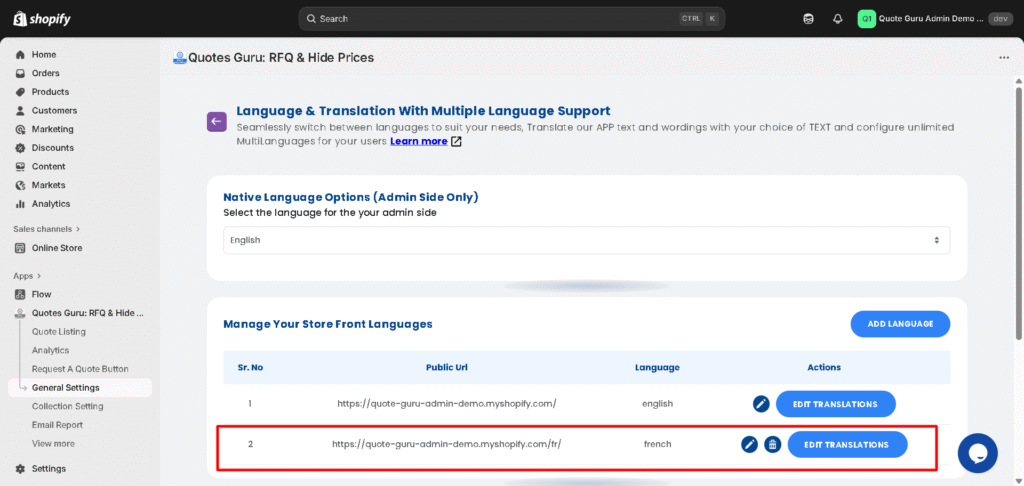
Make sure you’ve already added your languages in General Settings → Multiple Language Support. The language dropdown inside the form editor will only show languages you’ve enabled. If you haven’t set up multilanguage support yet, see How to Add and Configure Multiple Languages for Your Store.
Steps to Translate Your Quote Form #
Step 1 — Open the Form Editor #
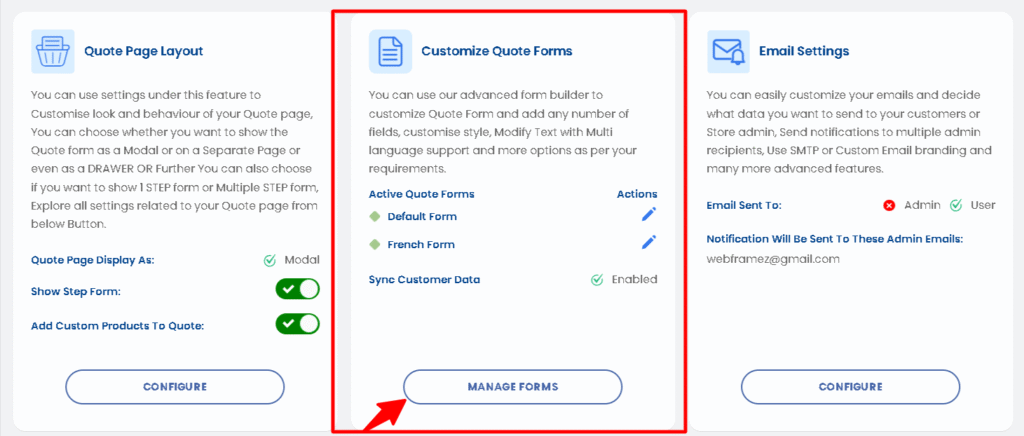
From your Quotes Guru dashboard, go to Customize Quote Forms → Manage Forms. You’ll see a list of all the forms you’ve created.
Click on the form you want to translate to open it in the editor.
Step 2 — Check the Default Language #
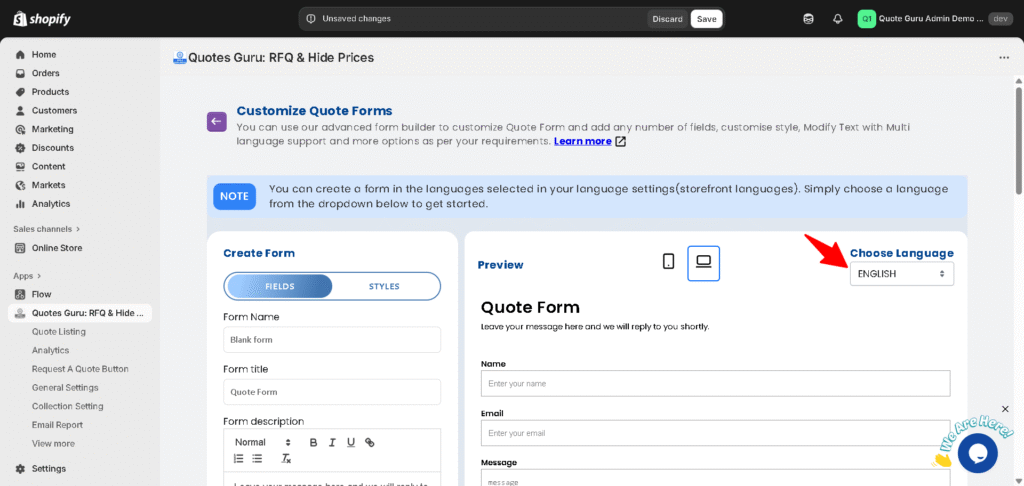
When the form editor opens, your default language is automatically selected in the language dropdown at the top of the editor. Review the existing fields and make any changes you need in the default language, then click Save before moving on.
Step 3 — Switch to Another Language #
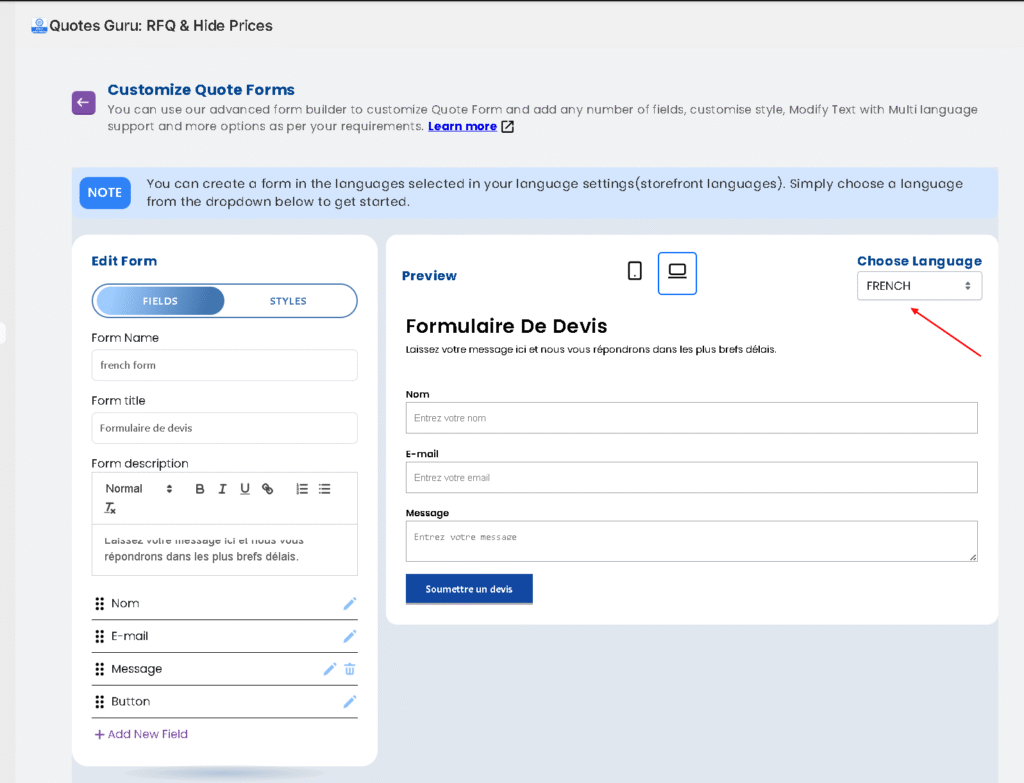
Click the language dropdown at the top of the form editor and select the language you want to translate into — for example, French, German, or Spanish.
The form editor will now show the same fields, ready for you to enter translated content.
Make sure you’ve enabled multi-language support in your App settings before switching between languages. This ensures your customers see the correct version of the form based on their selected store language. Learn from here
Step 4 — Translate Each Field #
Go through each field in the form and enter the translated version of:
- Field labels (e.g. “Full Name” → “Nom Complet”)
- Placeholder text (e.g. “Enter your name” → “Entrez votre nom”)
- Button text (e.g. “Submit Quote” → “Soumettre le devis”)
- Any custom field names you’ve added
Choose the products where you want this form to appear. Learn from here
Step 5 — Save #
Once all fields are translated, click Save. Your changes are saved specifically for that language — your default language form is not affected.
Step 6 — Repeat for Every Language #
Go back to the language dropdown, select the next language, translate the fields, and save. Repeat for every language your store supports.
How It Works Automatically #
Once your translated forms are saved, Quotes Guru detects the language the customer is browsing in and displays the correct version of the form automatically. No manual switching needed — the right form language is shown to the right customer every time.
Frequently Asked Questions #
What if I haven’t translated a field for a specific language? If a field hasn’t been translated, it will fall back to your default language text. To keep the experience fully localized, make sure every field is translated for each language.
Can I have different form fields for different languages? No — the structure of the form (which fields exist) is the same across all languages. You’re only translating the labels and text, not adding or removing fields per language.
Can I assign a translated form to specific products? Yes — once your form is saved, you can choose which products or collections it appears on. See How to Show a Quote Form on Specific Products or Collections for details.
Does this affect multiple forms? Yes — if you have multiple quote forms, each one needs to be translated separately. Open each form in the editor and follow the same steps.


