
Accurate tax calculations are essential when preparing quotes — especially for B2B stores, international customers, and businesses with complex tax structures. Quotes Guru gives you full control over how taxes are applied to each quote, from automatic Shopify tax rates to custom manual entries. This guide explains all available tax options and how to manage them directly from the quote panel.
Plan Requirements #
| Tax Feature | Plan Required |
|---|---|
| No Taxes | All Plans |
| Custom Taxes | Pro Plan |
| Shopify Default Taxes | Premium Plan |
How to Access the Edit Taxes Panel #
- Go to Quotes Guru: RFQ & Hide Prices in your Shopify admin
- Click on Quote Listing in the left sidebar
- Open an existing quote or create a new one
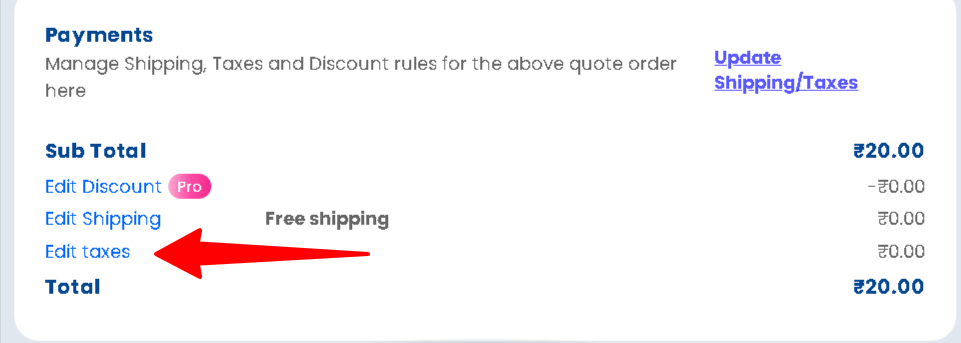
- Scroll down to the Payments section
- Click the Edit Taxes button — a popup will open with all available tax options
Available Tax Options #
Quotes Guru currently supports three tax options inside quotes:
1. No Taxes #
Select this option if taxes don’t apply to the quote — for example, for tax-exempt customers, digital products, or service-based items that are not taxable in your region.
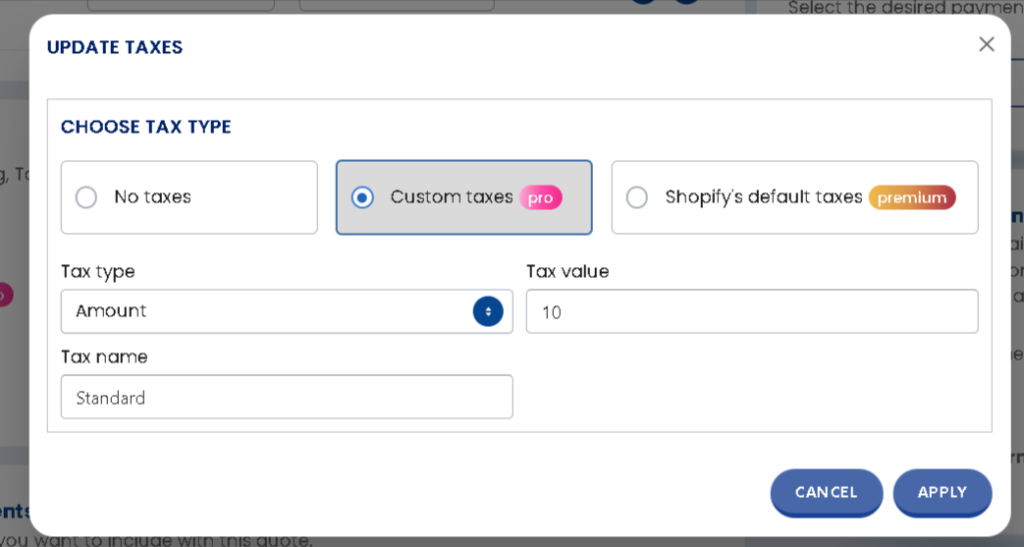
2. Custom Taxes (Pro) #
Allows you to manually enter a custom tax amount or percentage for an individual quote. This gives you flexibility for special tax arrangements, overrides, or negotiations with specific customers.
Custom taxes will appear on the quote email and PDF sent to the customer.
Important: Custom manual taxes will not carry over when converting a quote to a draft order. Shopify automatically calculates taxes during draft order creation and does not support manual tax entries at that stage.
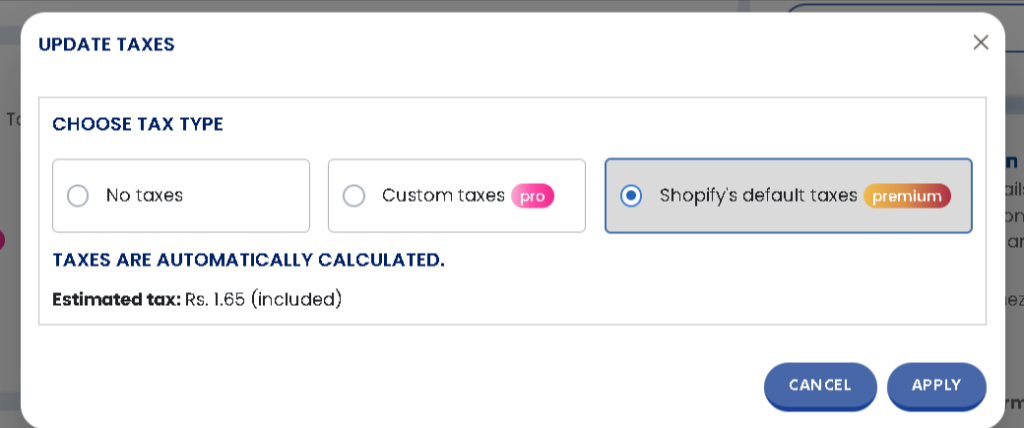
3. Shopify Default Taxes (Premium) #
Automatically fetches and applies your store’s existing Shopify tax rates to the quote based on the customer’s shipping address. This ensures accurate, location-based tax calculations without any manual configuration — keeping your quotes consistent with your Shopify checkout and fully compliant.Entered directly in the quote — these will appear in your emails and PDFs, giving you more flexibility.
How to Apply Taxes to a Quote #
- Click Edit Taxes in the Payments section of the quote
- Check the “Apply Taxes” box to enable tax calculation
- Select your preferred tax option — No Taxes, Custom Taxes, or Shopify Default Taxes
- For Custom Taxes, enter the tax amount or percentage manually
- Click Save to apply the taxes to the quote
To remove taxes from a quote, simply uncheck the “Apply Taxes” box and save.
Viewing Tax Breakdown Details #
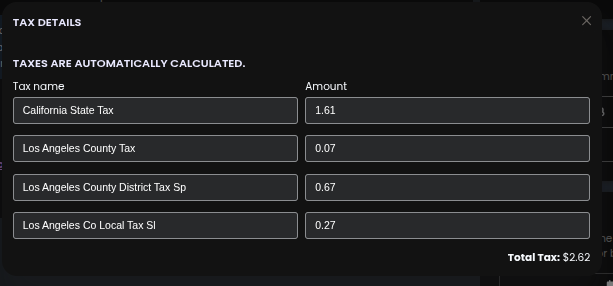
If multiple taxes are configured for a specific product or shipping address, a Tax Details button will appear in the Payments section.
- Click Tax Details to view a complete breakdown of each applied tax
- Click the Edit button next to any tax name to rename it
- If only one tax applies, it will appear automatically without the detailed breakdown view
Updating Taxes After Changes #
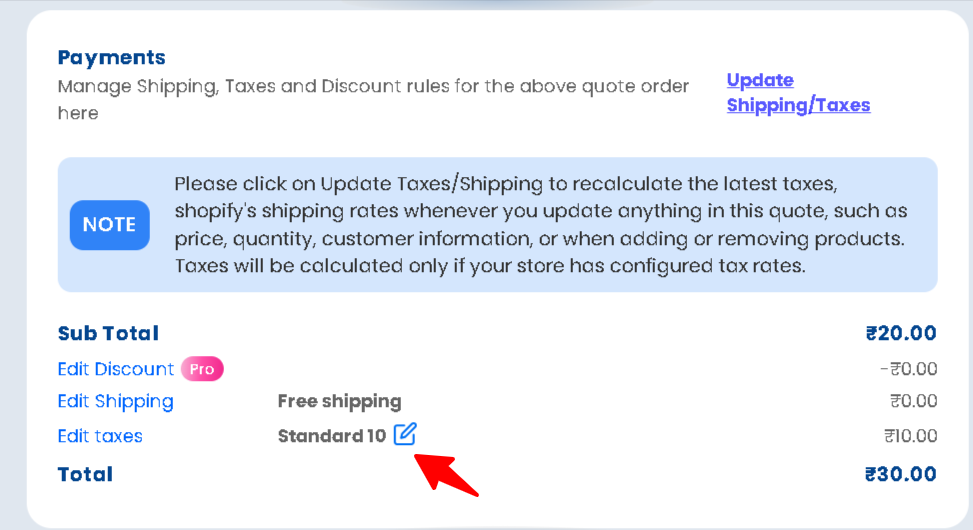
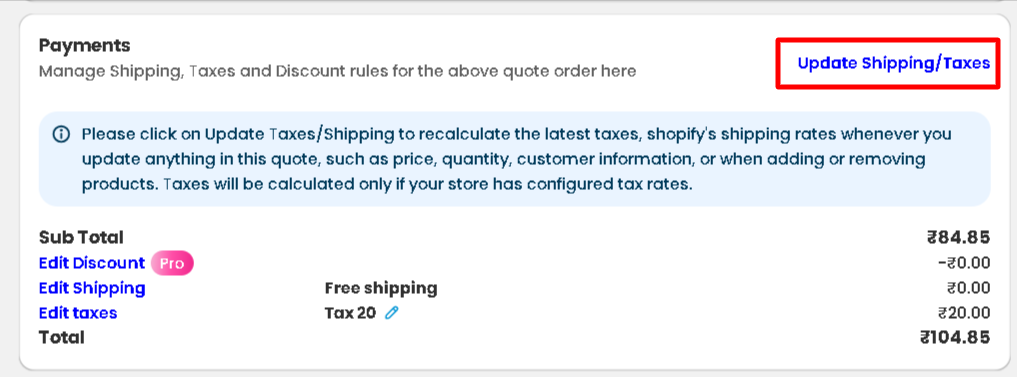
If you make changes to a quote — such as updating customer information, product prices, quantities, or adding/removing products — the taxes may need to be recalculated.
Simply click the Update Taxes button to instantly refresh and recalculate all taxes based on the latest quote details. This ensures your quote always reflects accurate pricing before it’s sent to the customer.
Default Tax Configuration (Global Settings) #
You can set a default tax behavior that applies automatically to all quotes from General Settings → Miscellaneous Settings → Default Tax Rules.
Options available:
- Automatically apply taxes — Taxes will auto-calculate every time you open the Edit Quote page
- Do not apply taxes automatically — Apply taxes manually on a per-quote basis as needed
This global setting saves time for stores that consistently apply the same tax rules to every quote.

Example in Action #
Let’s say you’re creating a quote for a customer in a region with multiple tax types such as GST and State Tax:
- Open the quote and scroll to the Payments section
- Click Edit Taxes → check Apply Taxes
- Select Shopify Default Taxes to auto-calculate based on the customer’s address
- Click Tax Details to view the full GST + State Tax breakdown
- If the customer’s shipping address changes, click Update Taxes to refresh the calculation instantly


