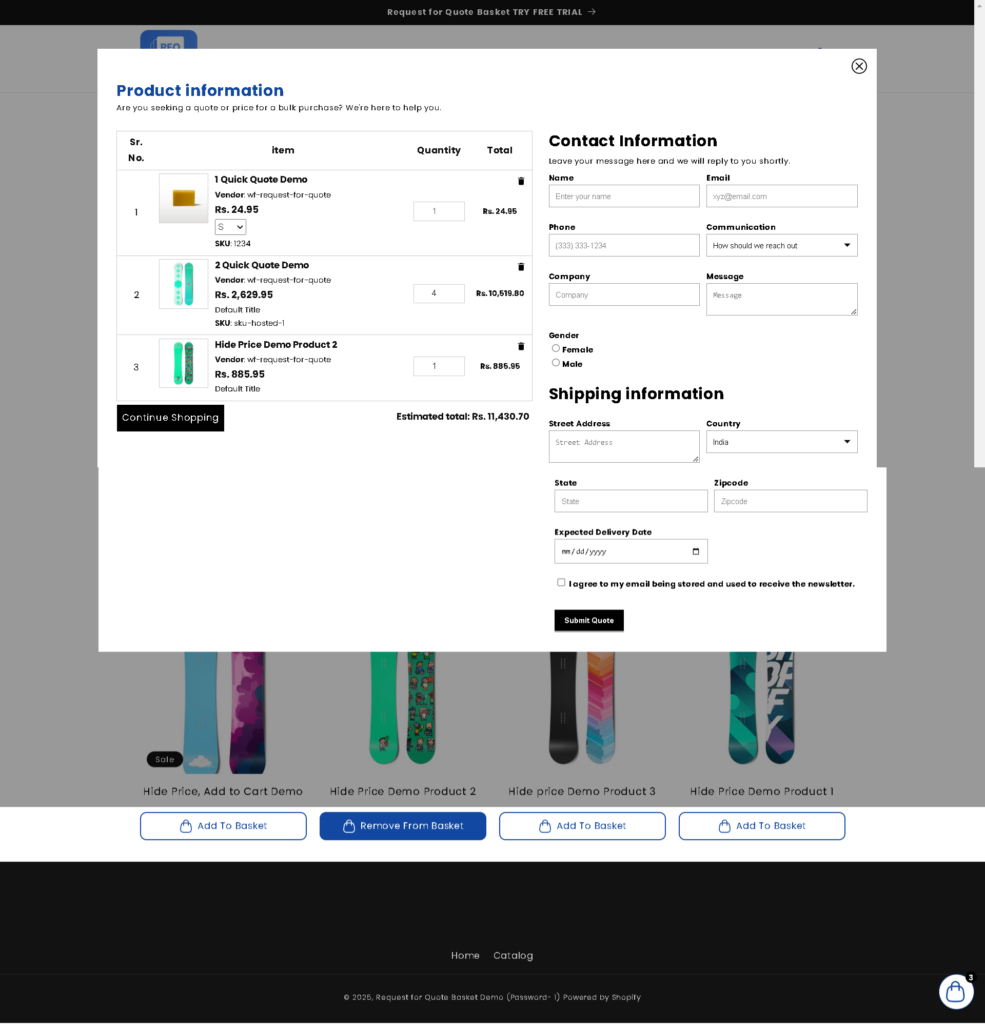
The Quote Page Layout settings in Quotes Guru give you full control over how your quote form looks and behaves on your storefront. From choosing how the quote list is displayed, to customising colours, fonts, and product information — this guide walks you through every setting so you can create a quote experience that matches your brand perfectly.
How to Access the Quote Form layout #
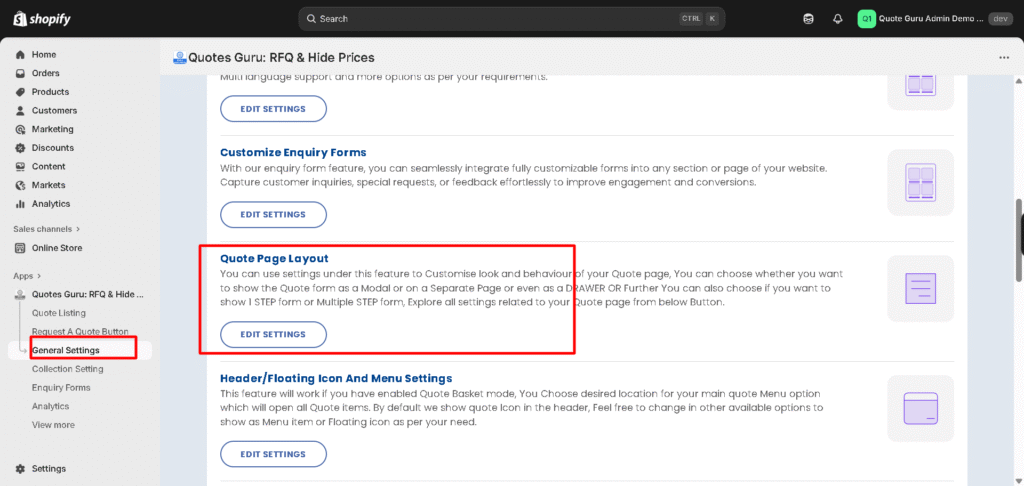
- Go to the General Settings
- Find the Quote Page Layout
- Click Edit Settings
Choose What Product Information to Show #
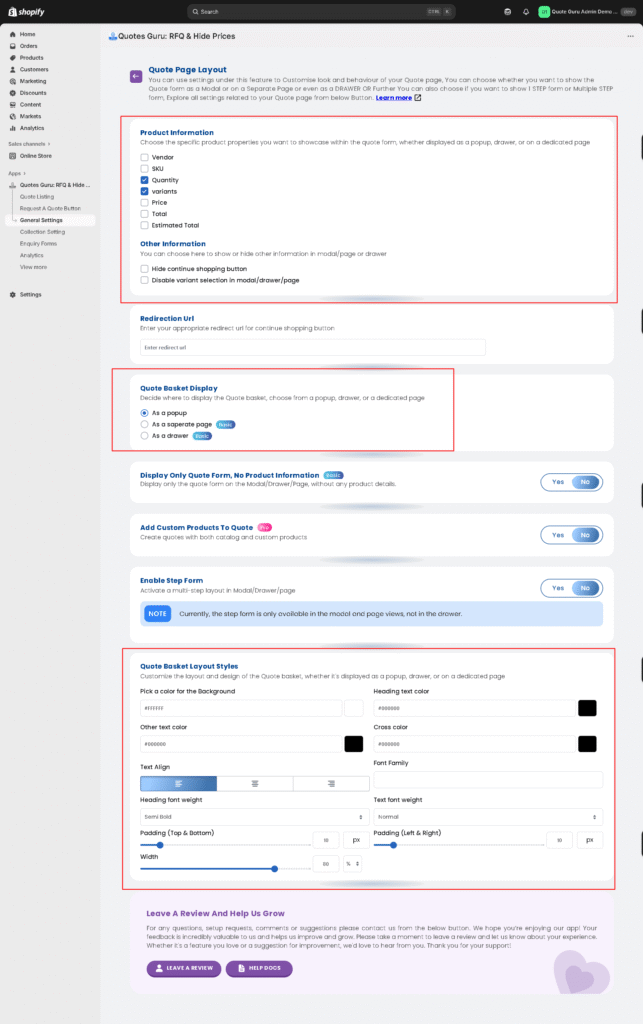
Choose which product details are shown inside the quote form, whether displayed as a popup, drawer, or dedicated page.
• Vendor
• SKU
• Quantity
• Variants
• Price
• Total
• Estimated Total
Simply check or uncheck the fields based on what’s relevant for your customers.
Configure Additional Display Options #
Control additional elements shown in the modal, drawer, or page view:
• Hide Continue Shopping Button – Removes the “Continue Shopping” button if you want customers to stay focused on the quote process.
• Disable Variant Selection in Modal/Drawer/Page – Useful for stores that don’t want customers changing variants once added.
Add a Redirection URL (Optional) #
Set a custom URL for the Continue Shopping button. By default it points to /collections/all, but you can change it to any page on your store — such as a specific collection or your homepage.
Choose the Quote List Display Type #
Select where you want the quote list to appear:
- Popup Layout: This option allows the quote form to appear as a lightweight overlay on the screen, enabling a smooth, quick interaction without navigating away from the current page.
- Drawer Layout (Basic plan): The drawer form slides in from the side of the screen, offering an easy-to-access but non-intrusive way for customers to submit their quote requests.
- Dedicated Page Layout (Basic plan): For a more focused approach, you can choose to display the form on its own dedicated page, which is perfect for businesses with complex quote requests or those that want a larger space to collect detailed information.
Display Only the Quote Form (No Product Details) #
Enable Display Only Quote Form, No Product Information
This will show the form alone—without product details—useful for stores that want a minimal design.
Add Custom Products to Quote (Pro Feature) #
Enable this to allow customers to add custom, non-catalog products directly to their quote. When set to Yes, customers can specify items not listed in your store along with quantities — ideal for made-to-order or custom product stores.
Enable Step Form (Multi-Step Layout) #
Activate a multi-step layout for the quote form in Modal or Page view. Instead of showing all fields at once, the form is broken into steps for a cleaner, guided experience.
Note: The Step Form is currently only available in Modal and Page views — not in the Drawer.
Customize Quote List Layout Styles #
Customise the visual design of your quote list to match your brand:
- Background color
- Heading text color
- Other text color
- Cross/close button color
- Text alignment — Left, Center, or Right
- Font family
- Heading font weight — e.g., Semi Bold
- Text font weight — e.g., Normal
- Padding — Top & Bottom / Left & Right
- Width — Control the width of the list as a percentage
- Heading font size
- Description font size
These settings help ensure the quote list blends seamlessly with your theme.
This customizable approach makes it easier for you to align the quote form with your store’s aesthetic while offering your customers a smooth and personalised quote request experience.
You can check how it will look on the front end :