If you’re handling multiple quote requests every day, manually converting each one into a draft order eats up time you don’t have. Quotes Guru’s Auto-Convert to Draft Order feature takes care of this for you — the moment a customer submits a quote, Quotes Guru creates a draft order automatically, and you can send a payment link right away. No back-and-forth, no manual steps, no delays.
In this guide, you’ll learn how to turn on this feature and get the most out of it.
Why This Feature Matters #
When a customer requests a quote, they’re already interested. The longer they wait, the more likely they are to move on. Auto-conversion removes that gap entirely:
- Quotes turn into draft orders the moment they’re submitted
- You can send a payment link right away — no manual processing needed
- Customers get a pre-filled checkout experience based on their quote
- Orders flow directly into Shopify, just like any regular sale
- Your team spends less time on admin and more time on selling
Note: This feature is available exclusively on the Premium Plan.
How the Full Automation Works #
Here’s the complete flow from quote to completed order:
Customer submits quote → Draft order created automatically → You send payment link → Customer pays → Order appears in Shopify
What Gets Carried Over to the Draft Order #
When a quote is automatically converted, the following details transfer directly into the Shopify draft order:
- Products — All items and quantities from the quote
- Pricing — Agreed prices and any applied discounts
- Customer Information — Name, email, and contact details
- Shipping — Applied shipping charges
- Taxes — Shopify default taxes (note: custom manual taxes do not carry over)
- Order Notes — Any internal notes added to the quote
How to Set It Up #
Step 1: Enable Auto-Conversion #
- Go to Quotes Guru: RFQ & Hide Prices in your Shopify admin
- Find the option “Automatically convert quote to draft order”
- Select Yes to enable it
- Click Save
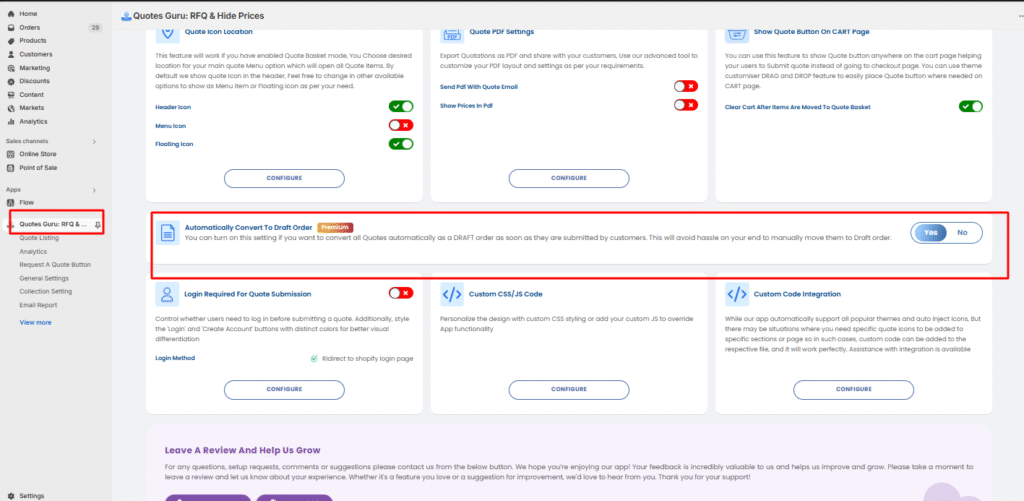
✅ Auto-conversion is now live. Every new quote submitted will automatically be converted into a draft order.
Step 2: View Quote Status in Quote Listing #
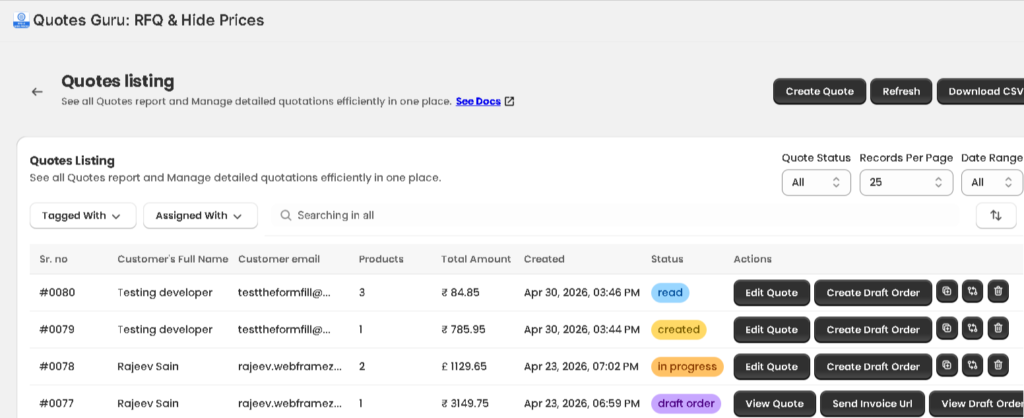
Once enabled, go to Quote Listing to see the updated quote statuses:
- Premium Plan — New quotes will be marked as “In Draft Order”
- Other Plans — Quotes will continue to show as “Pending”
This clear labeling helps you instantly see which quotes have been converted and are ready for the next step.
Step 3: Send the Checkout Link to the Customer #
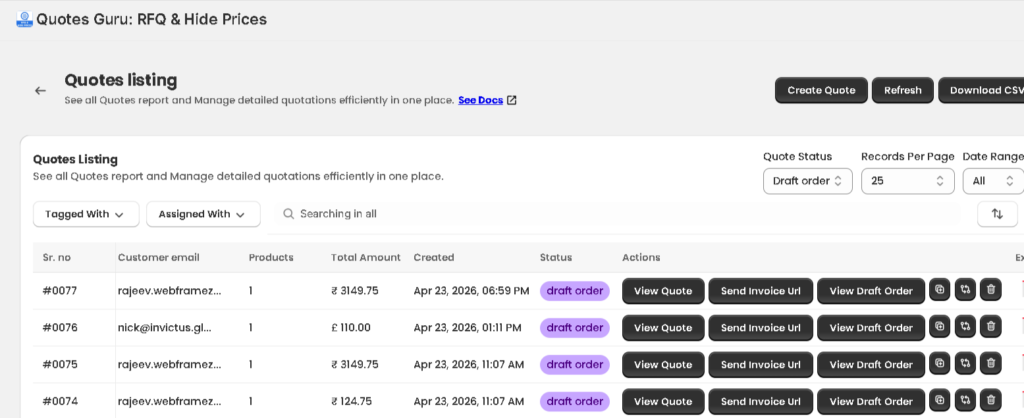
Next to each quote marked “In Draft Order”, you’ll see options to:
Send it directly to the customer — The customer receives an email with a checkout-ready link based on their quote
Copy the invoice URL — Share it manually via email or message
Step 4: Customer Completes Checkout #
The customer clicks the link in their email, reviews their pre-filled order, and completes the purchase. Once the order is placed:
- The order appears in your Shopify Admin → Orders
- You can fulfill it like any regular Shopify order
Step 5: Quote Status Updates Automatically #
After the customer places the order, the Quote Listing updates automatically:
- “In Draft Order” changes to “Ordered”
Everything stays organized and up to date — no manual status changes needed.
Add a Payment Button to the Quote Email #
To automatically send a payment button inside the quote email after the draft order is created:
- Go to Quotes Guru → General Settings
- Find Email Settings
- Open your Email Template
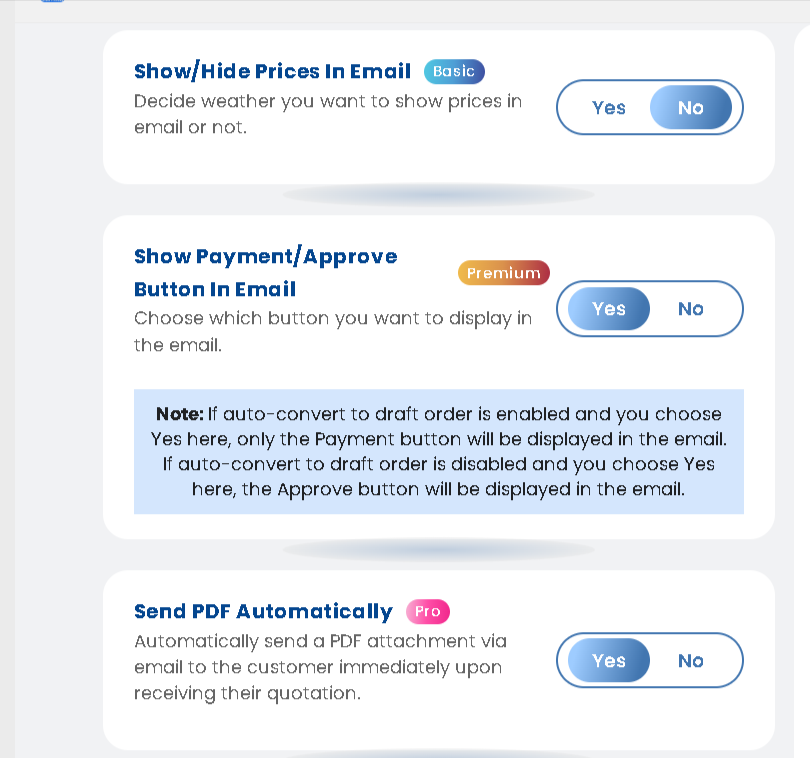
- Enable the “Show Payment/Approve Button in Email” option
- Save your changes
Customers will now receive a direct Pay Now button in their quote email, making it even easier to complete the purchase.
Send Quote PDF Automatically #
If you want to include the quote PDF as an attachment in the email:
- Go to Quotes Guru → Email Settings
- Enable the “Send PDF Automatically” option
- Save your changes
The PDF will be attached to every quote email sent to the customer automatically.
👉 Learn more about Quote PDF Settings