
Welcome to the official setup guide for Quotes Guru: RFQ & Hide Prices. This walkthrough covers the three simple steps required to launch the app on your Shopify store. By following this guide, you will learn how to enable Request Quote buttons, hide product prices, and create a tailored B2B or wholesale shopping experience for your customers in minutes.
How to Install and Activate Quotes Guru on Your Shopify Store #
Getting started is simple. To begin using Quotes Guru, you first need to add the app to your Shopify admin. Follow these steps to complete the installation and start hiding prices or enabling quotes.
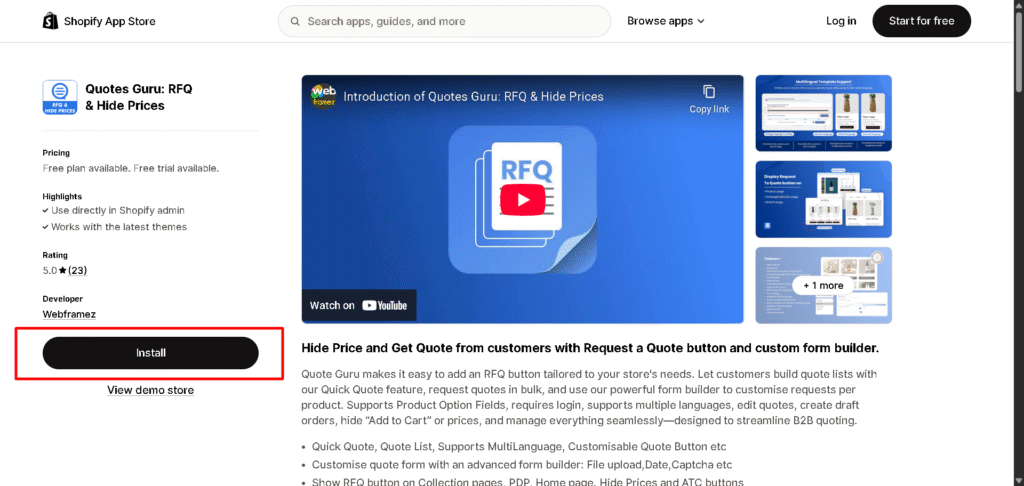
- Find the App: Go to the Shopify App Store and search for “Quotes Guru: RFQ & Hide Prices.”
- Add to Store: Click the Install button on the app listing page.
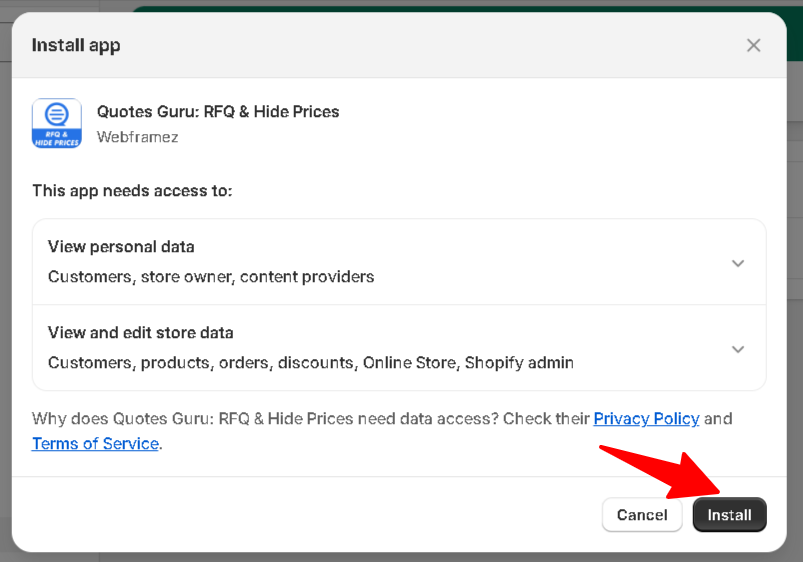
- Approve Permissions: Review the app permissions and click Install App in your Shopify admin to connect it to your store.
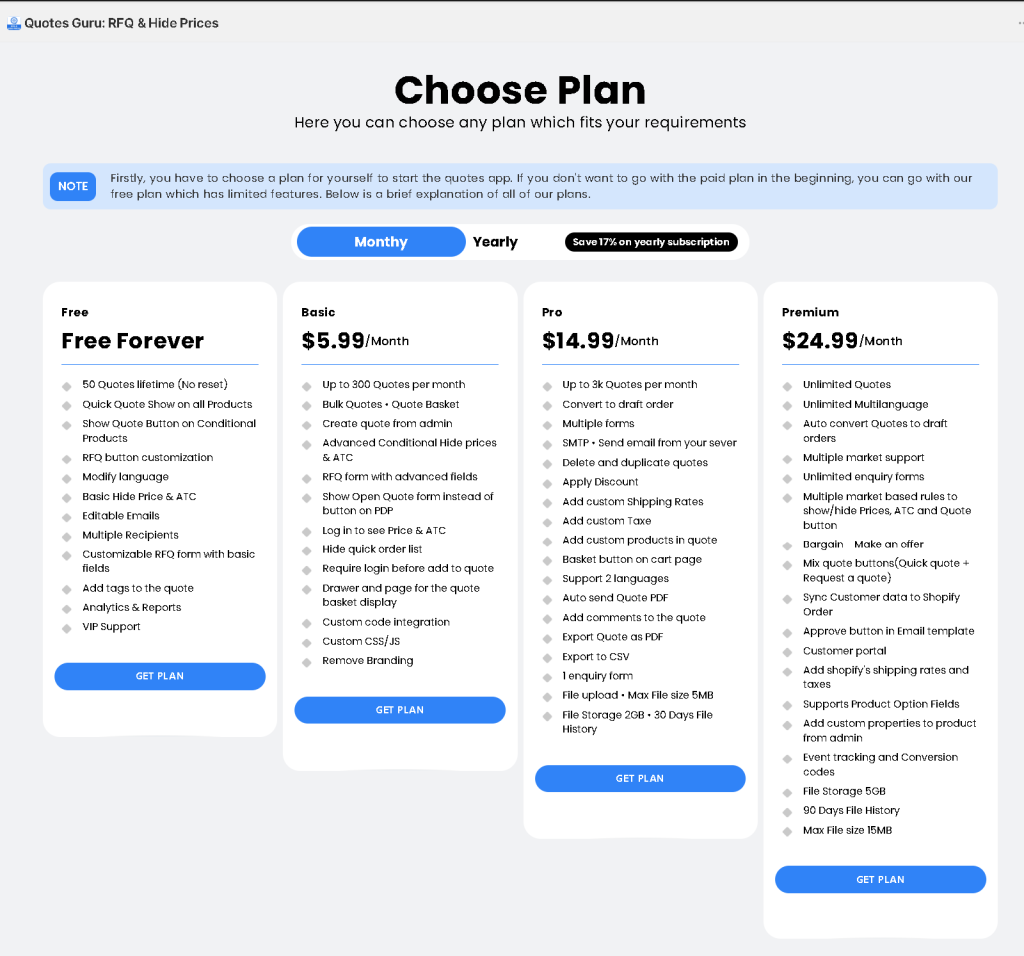
Choose a Plan according to your preference: #
Steps to Activate Quotes Guru on Your Shopify Theme: #
1. Choose Theme & Activate App #
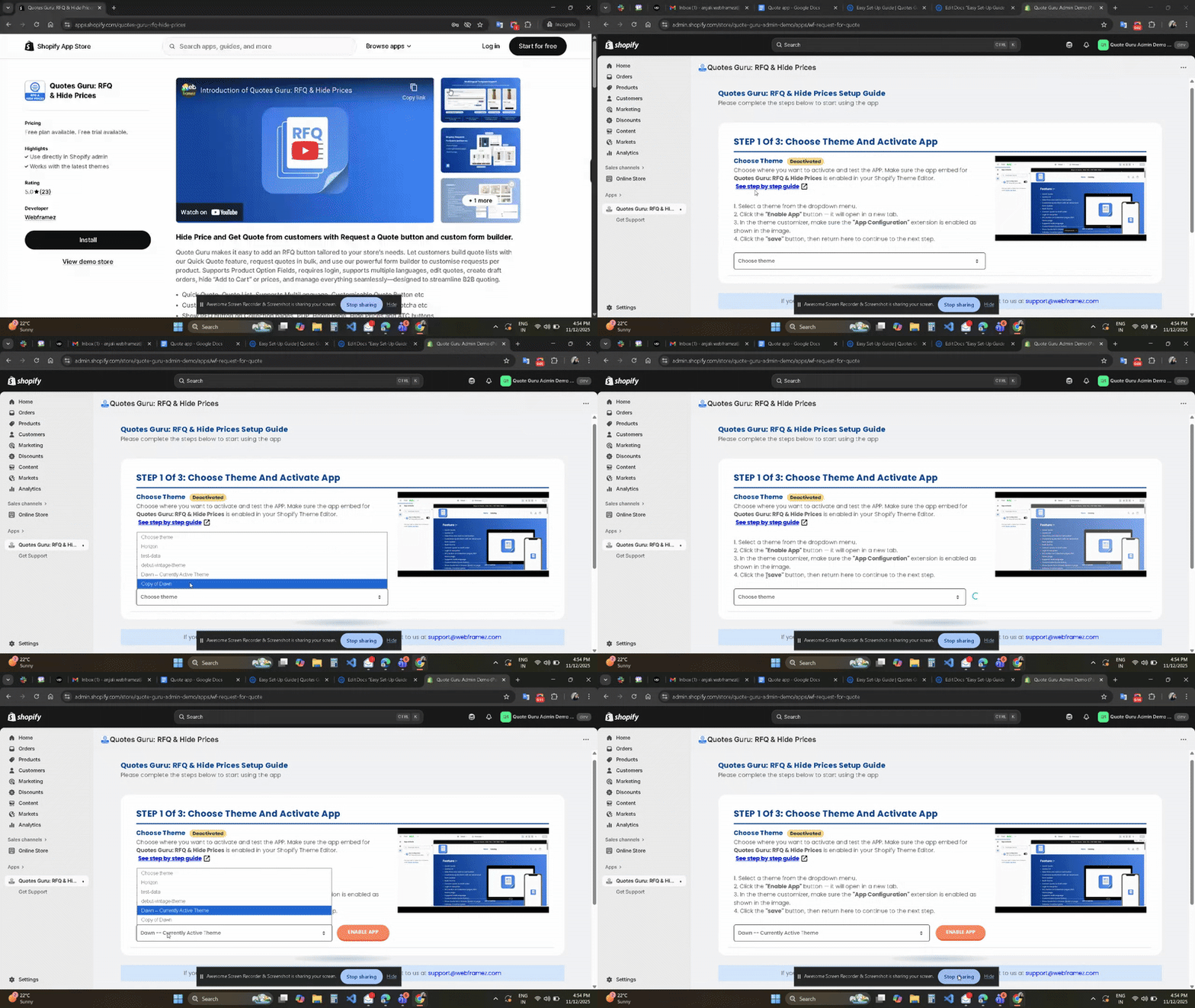
- Before the app can appear on your store, you must link it to your preferred Shopify theme.
- Select Your Theme: From the dropdown menu, choose the theme where you want to enable the Quote functionality. We recommend testing on a Duplicate Theme first.
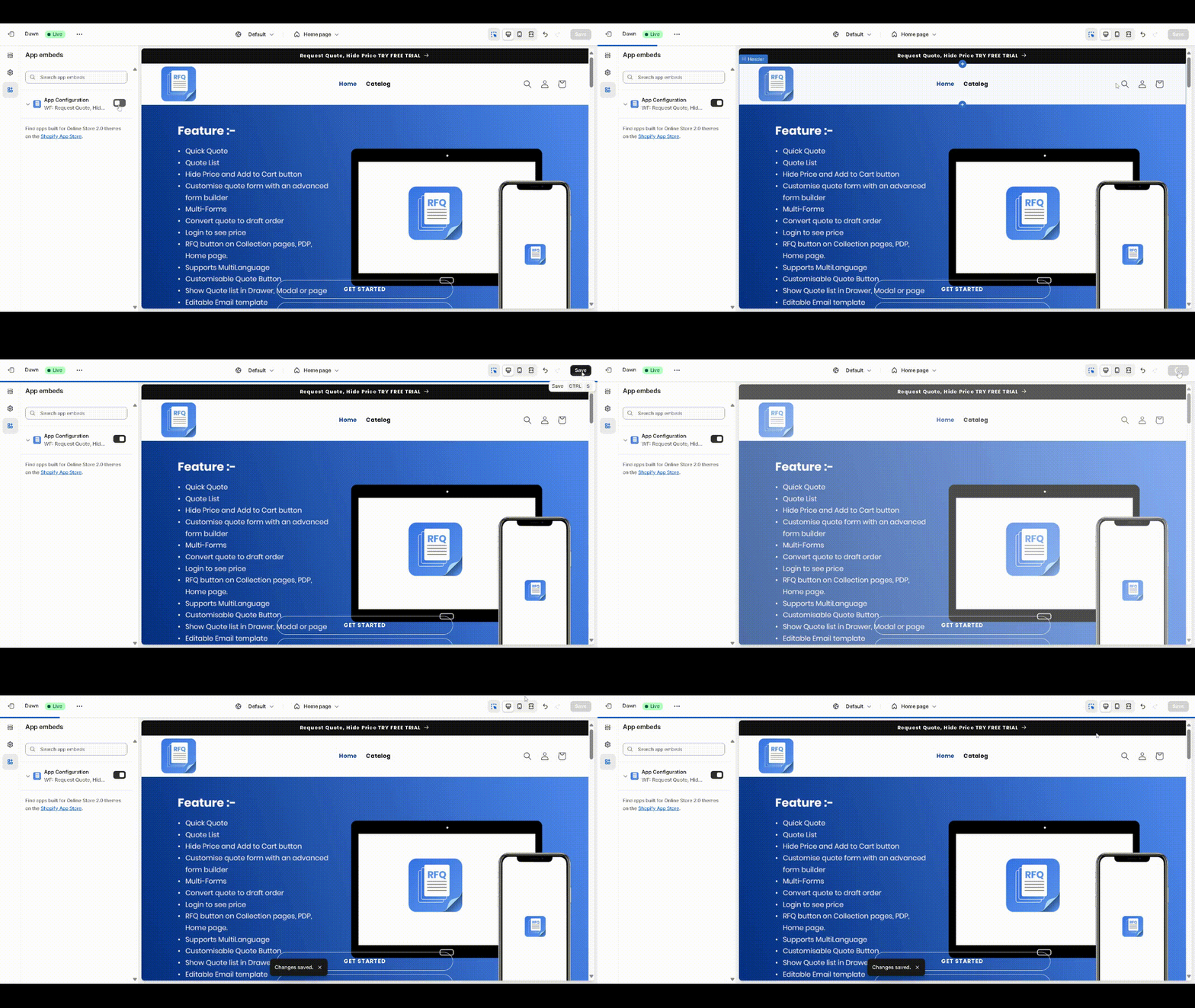
- Activate App Embed: Click the “Enable App” button. This will open your Shopify Theme Editor. Ensure the Quotes Guru toggle is switched to ON in the “App Embeds” section and click Save.
2. Choose Product Options #
Customise how and where the “Request Quote” button appears. Select the option that best fits your business model:
- Display “Request Quote” Button for All Products
Enable this add “Request Quote” button below the “Add to Cart” button across your entire catalog. This is ideal for wholesale-only stores. - Select Specific Products
Choose this if you only want quotes for high-ticket items, custom-made goods, or bulk purchases. You can manually pick which products will show the button while others keep standard pricing. - Show Where Conditions Match (Automated)
Set specific rules (like product tags or collections). Any existing or future products that match these conditions will automatically display the quote button, saving you manual work.
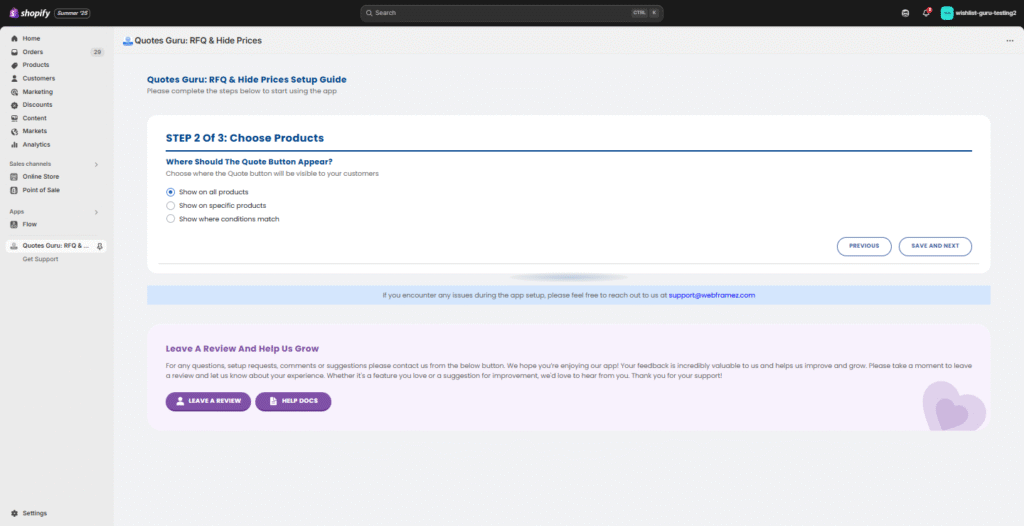
How to Choose Products: Example, we choose option 3 #
- Select either Show on All Products or Show on Selected Products based on your preference.
- If selecting specific products, you will need to pick them from your product list.
- Then there is another important option of Show, where conditions match as shown in the screenshot.
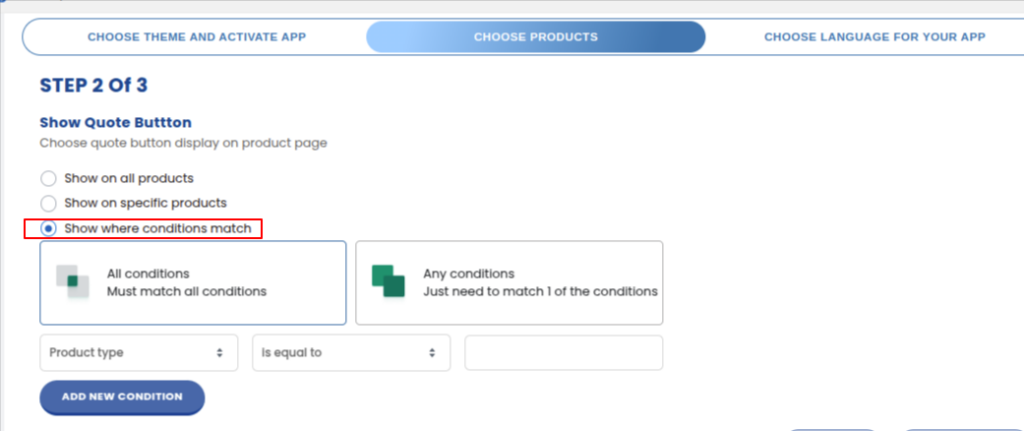
- All conditions must match all conditions
- Any conditions just need to match 1 of the conditions
Then we have many options to make new conditions for Product title, Product type, product vendor, We have various options to create new conditions for Product title, Product type, product vendor, product price, product tag, product stock status, and Collection.
Once you’ve chosen your products, save your settings to apply the changes.
3. Choose the Language for Your App #
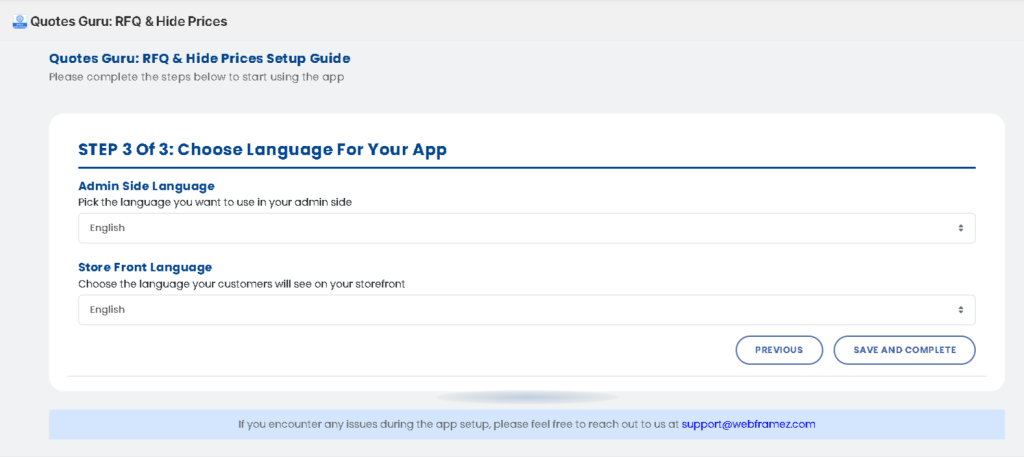
To provide a smooth and localised experience for both your team and customers, you can customise your language settings:
- Admin Panel Language: Choose the language you prefer for managing your quotes and settings.
- Storefront Language: Select the language your customers see on the “Request Quote” forms and buttons to ensure a professional, local feel.
Finalising the Setup #
Once you’ve completed these three steps, your Quotes Guru: RFQ & Hide Prices app is ready to go! You can now start receiving quote requests from your customers, hide prices on specific products, and personalise your store’s experience for the customers.


