
You can easily customize the “Request for Quote” button on your product, home, or collection pages to match your store’s unique brand identity. Whether you are using the Quick Quote button, the Quote List, or both, Quotes Guru gives you total control over how they look and behave. In this guide, we’ll show you how to personalize everything from colors and hover effects to button placement.
How to Access the “Request for Quote” Button #
Follow these simple steps to access and customize your quote button:
- Go to your Shopify Admin and open the Quotes Guru app.
- From the left-hand menu, click on Request quote Button Settings.
- You’ll see options to customize Quote buttons.
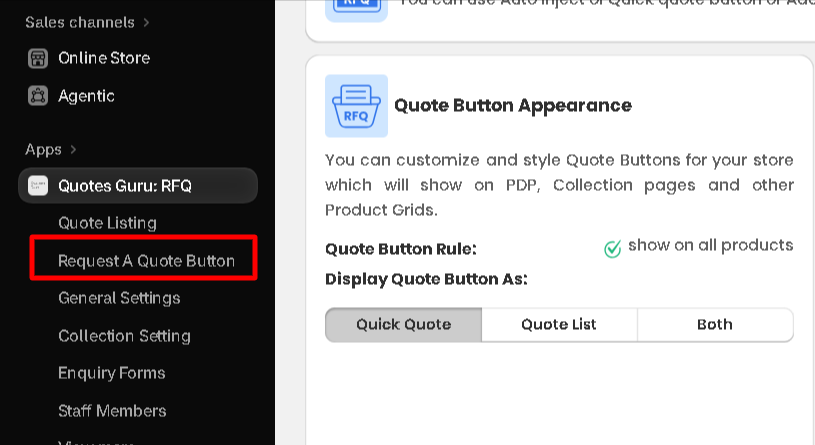
Steps to Style and Personalize Your Quote Buttons: #
Choose whether the button should include an icon, have a background colour, or both.
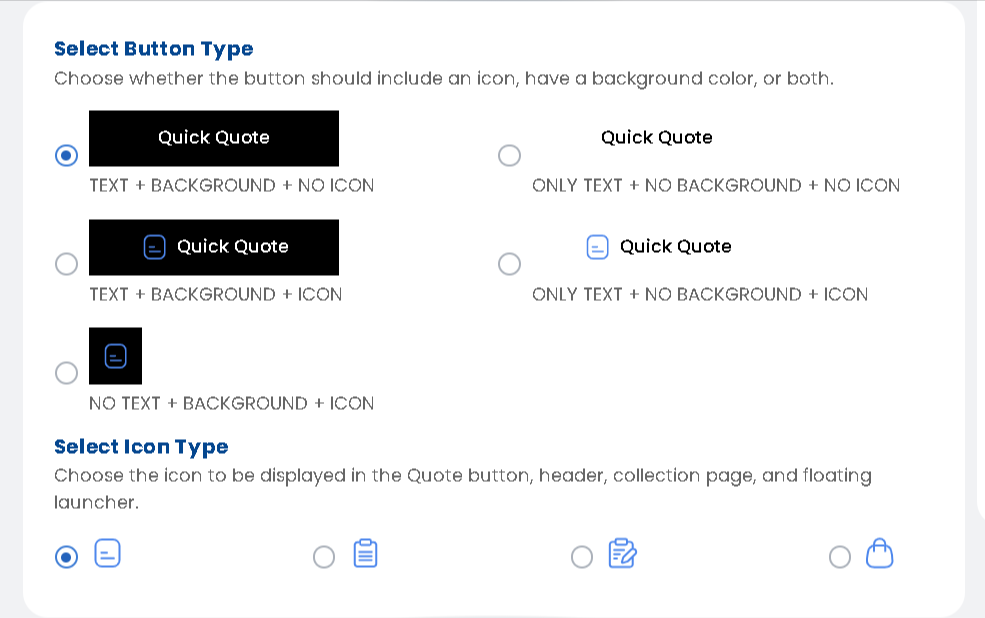
How to Customize the Button Styling #
Button States: Regular, Hover, and Active (Note: If you choose it as a quick button, only the regular and hover options will be available)

These states allow you to customise how the button appears in different user interactions.
- Regular State:
This is the default appearance of the button when it is not being interacted with. You can customize the background color, text color, and other styles that users will see initially. - Hover State:
The hover state refers to the appearance of the button when a user hovers their cursor over it. You can set a different background color, text color, or add effects to make the button visually interactive when users are about to click. - Active State:
The active state is the appearance of the button when it’s clicked or being pressed. This is the state where you can adjust the button’s styling to show feedback when the user has engaged with it (e.g., changing its color, adding shadows, etc.).
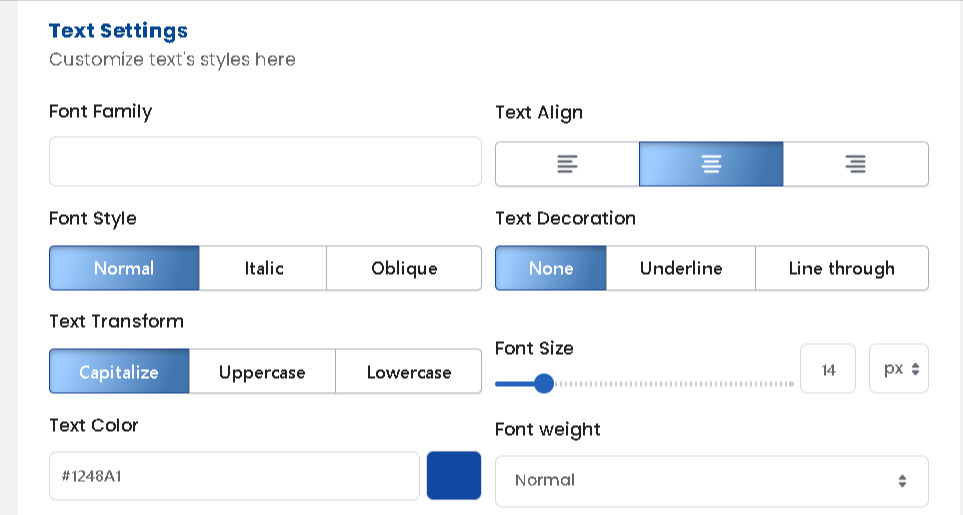
How to Style Button Text #
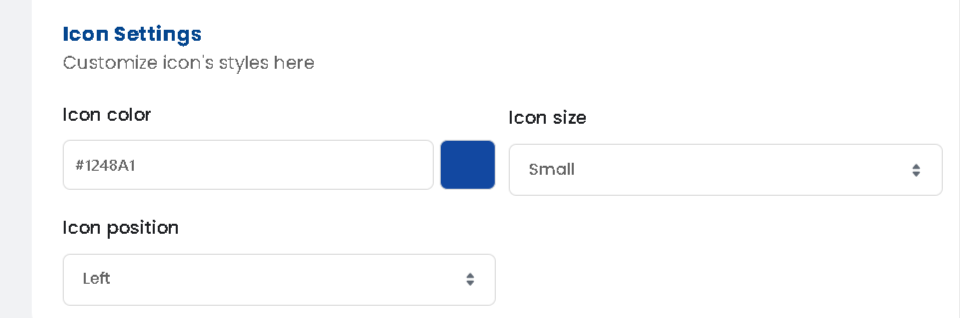
How to Style Button Icon #
Preview and Save:
Use the live preview tool to see your changes in real-time before clicking. Save to update your storefront.
Let’s see how we can change the buttons’ display on the admin side and how it reflects on the front end:


