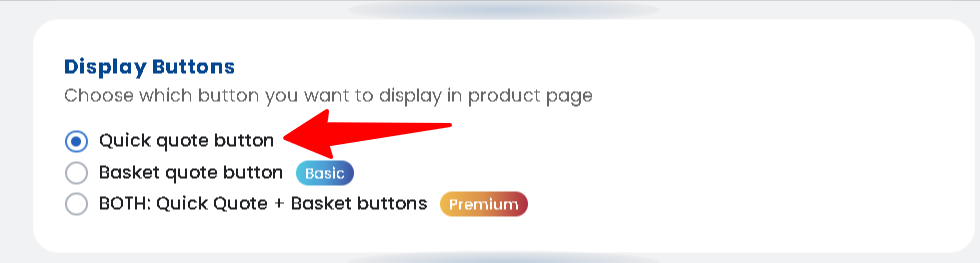
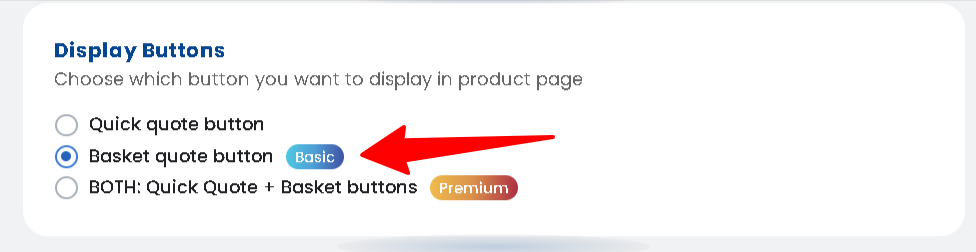
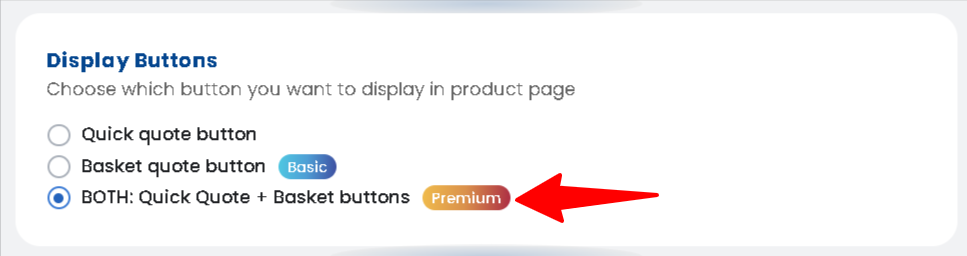
Customizing how your customers interact with your RFQ system is essential for a smooth B2B experience. In Quotes Guru, you can choose between individual Quick Quotes or a full Quote Basket (Quote Cart). Follow these steps to adjust your button rules and tailor the quoting process to your store’s needs.
Step-by-Step: How to Change Your Quote Button Rule #
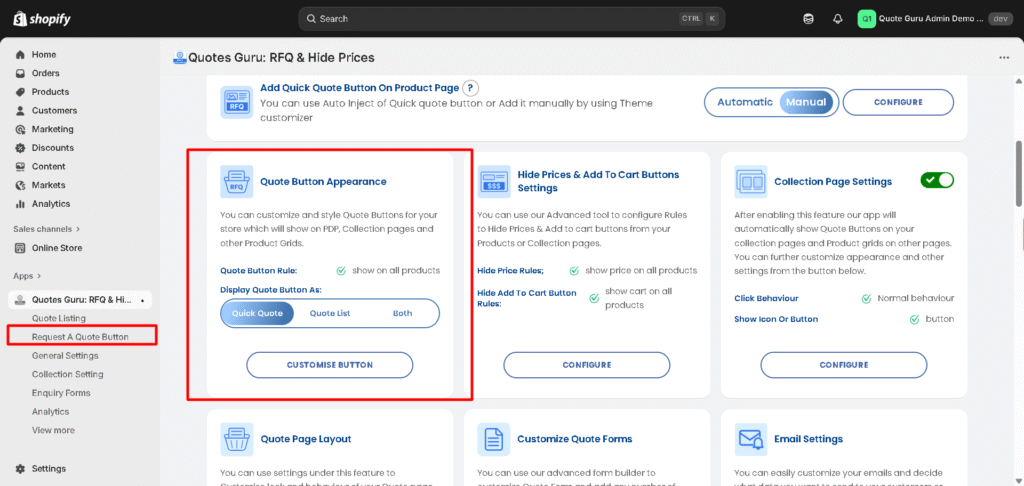
To manage which products display the RFQ button, follow these steps in the Quotes Guru dashboard:
- Go to Dashboard
- Find Quote Button Appearance
- Click on the Customise Button
Which Display Rule Should I Choose? #
Select the option that best fits your customer journey:
- Option 1: Quick Quotes (Single Product)
This acts as an Instant Quote button. When clicked, it immediately opens a modal or quote page for that specific product. It’s perfect for high-ticket items where customers usually inquire about one item at a time. - Option 2: Quote Basket (Multiple Products)
This replaces Add to Quote buttons with an “Add to Quote Basket” button. It works exactly like a Quote Cart, allowing users to add multiple products to a single list and submit them all in one request. - Option 3: Hybrid (Quick Quote + Quote Basket)
This is our most flexible option. It allows you to use the Quote Basket by default, while still using Quick Quote buttons for specific products that require custom forms. This ensures your store handles both bulk inquiries and specialized requests simultaneously.