
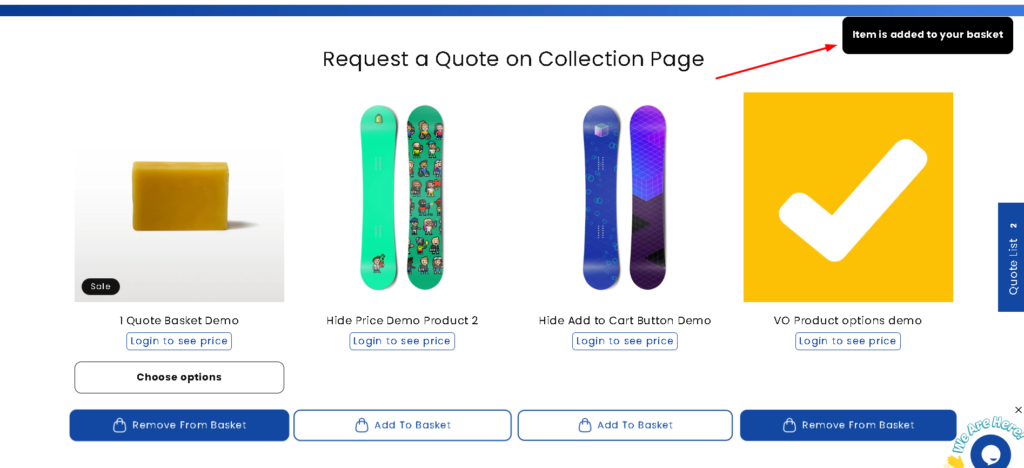
Customize the notification that appears when a product is added to the quote basket. You can control its position, appearance, and duration to ensure it fits your store’s branding and provides a smooth user experience.
Steps: Navigate to Notification Settings #
- From your Shopify Admin:
- Click on Notification Settings
- Go to Apps
- Open Quotes Guru: RFQ & Hide Prices
- Navigate to General Settings
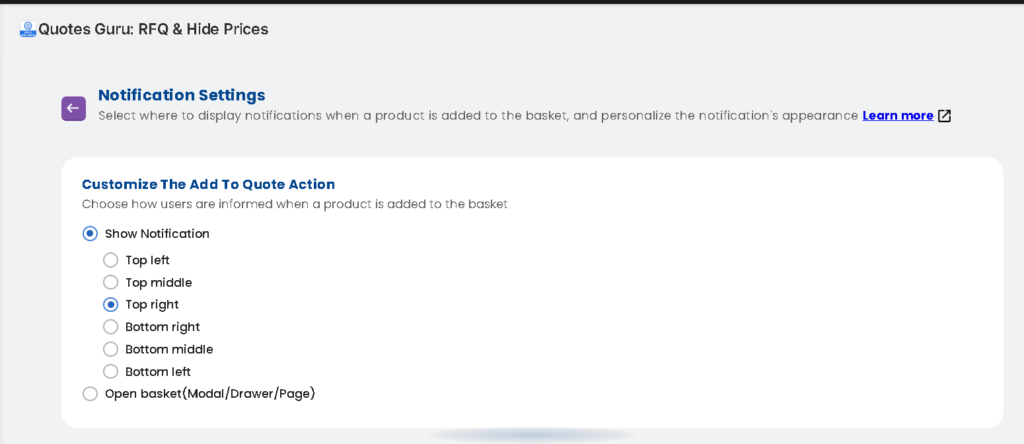
1. Toast Position #
Select where you want the toast notification to appear on the screen after a product is added to the basket:
- Top Left
- Top Middle
- Top Right
- Bottom Right
- Bottom Middle
- Bottom Left
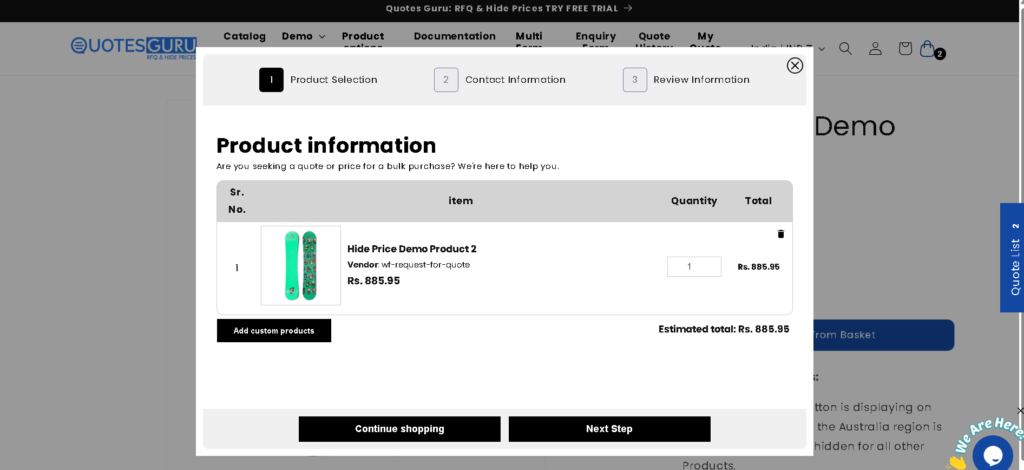
2. Open basket(Modal/Drawer/Page) #
In addition to toast notifications, the app also supports an Open Basket notification behaviour. This option automatically opens the basket interface as soon as a product is added, giving customers immediate visibility into their selected items.
Depending on your store app configuration, the basket can open as:
- Modal – A centered popup displaying basket contents
- Drawer – A side panel sliding in from the edge of the screen
- Page – Redirects the customer to the full basket or quote page
This notification type is ideal when you want to guide customers directly into the quote flow without relying on a temporary toast message.
3. Notification Styles #
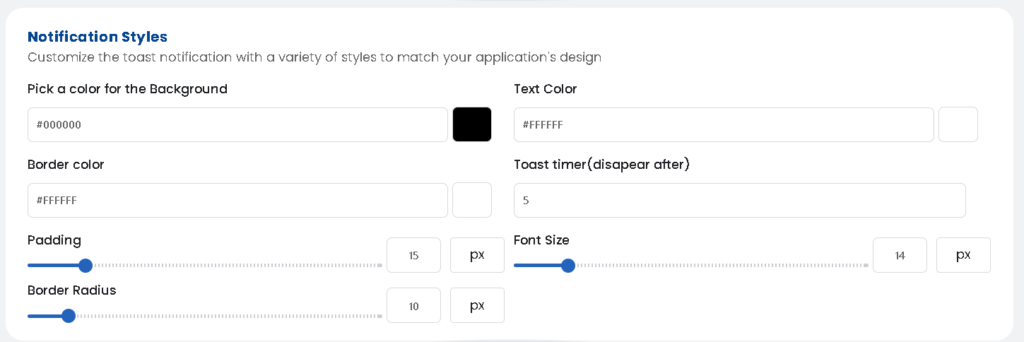
Customize the visual appearance of the toast notification to match your brand identity.
You can configure:
- Background color – Set the main notification background
- Text color – Ensure readability against the background
- Border color – Optional accent for better visibility
- Toast timer – Control how long (in seconds) the notification remains visible
- Padding – Adjust spacing inside the notification
- Font size – Optimize readability across devices
- Border radius – Choose between sharp or rounded corners
All changes are applied instantly, allowing you to fine-tune the design for optimal user experience.
Edit Notification Text via Language Settings (Multi-Language Support) #
Merchants can fully customize the notification text shown to customers using the Language Settings / Multiple Language Support feature. Click Here
This allows you to:
- Edit the default notification message text
- Translate notifications into multiple languages
- Ensure messaging stays consistent with your store’s tone and regional audience


