
Why This Matters #
Global merchants often serve customers across different regions, each operating under its own pricing structure, business logic, and quoting expectations. Your store’s quote button visibility, hide-price rules, or add-to-cart settings may need to behave differently depending on the customer’s market.
The Multi-Market Module empowers you to configure market-specific rules for:
- Showing/Hiding the “Request a Quote” button
- Showing/Hiding product prices
- Showing/Hiding the Add to Cart button
If a shopper belongs to a specific Shopify Market, they will automatically see the rules assigned to that market. If no rules are configured for that market, your default market rules continue to apply—ensuring seamless behavior across all storefronts.
This provides tighter governance, localized merchandising strategy, and consistent experiences for global buyers.
How to Use the Multi-Market Module #
Step 1: Enable the Multi-Market Module #
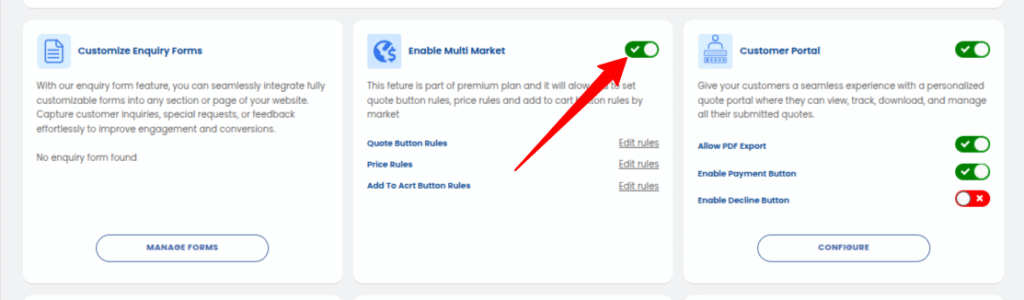
- Go to your Quotes Guru → Dashboard.
- Find the module Enable Multi Market.
- Turn ON the toggle (green).
- This module is available only on the Premium plan.
- After enabling, the system activates market-based rule options inside your Rule Settings pages.
Step 2: Navigate to Rule Pages #
This feature works inside two major sections:
- Request a Quote Button
- Hide Prices & Add to Cart Button
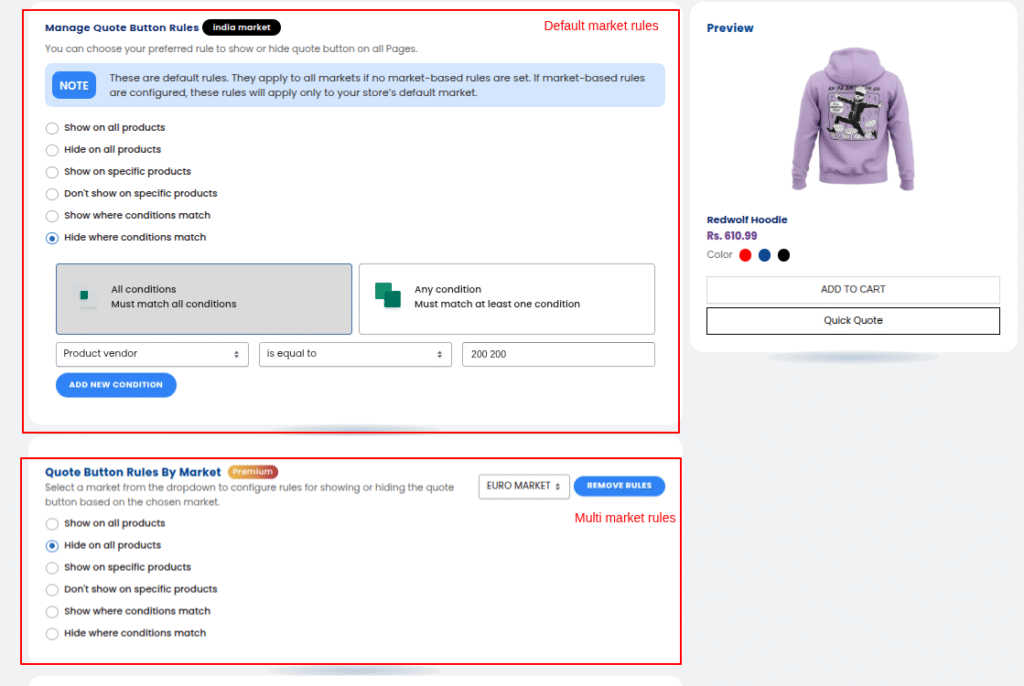
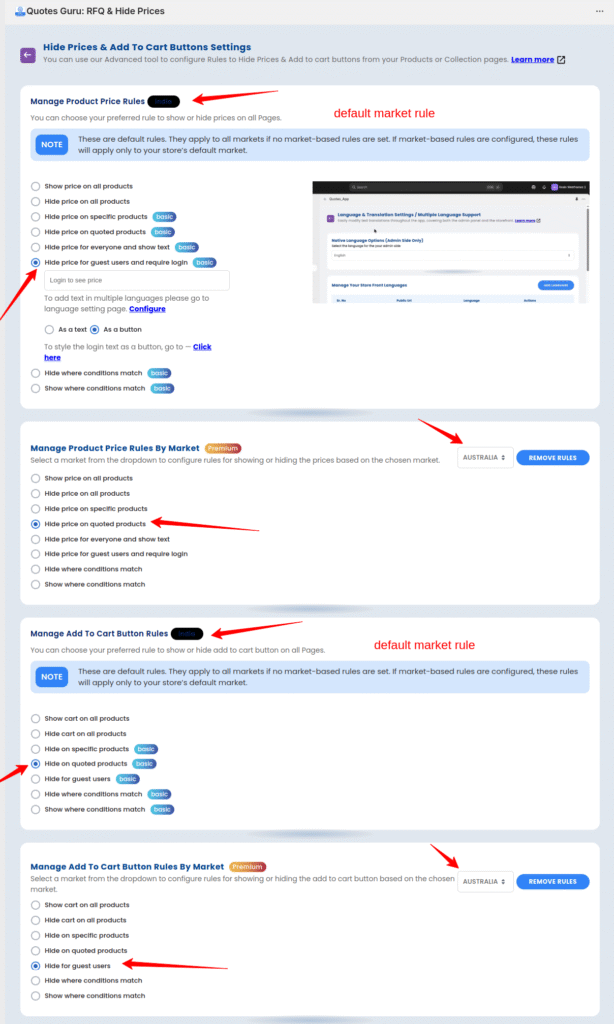
Inside each of these pages, you’ll now see an additional section titled:
“Quote Button Rules by Market” or “Price/Cart Rules by Market”
These appear below your default rules.
Step 3: Understand Default vs. Market Rules #
- Default Rules
These apply to every market unless that market has its own custom rules.
You will see a tag such as (United States). - Market-Specific Rules
These override the default settings only for the selected Shopify Market.
Each market will show its label, such as EURO, INDIA, the United States, Australia, etc.
If no rule has been configured for a particular market:
→ The default rules automatically apply.
Step 4: Configure Market-Specific Rules #
- Select a market from the dropdown.
- Apply your preferred rule:
- Show on all products
- Hide on all products
- Show on specific products
- Don’t show on specific products
- Show where conditions match
- Hide where conditions match
- Add conditions if needed (e.g., vendor, price, tags).
- Click Save Settings.
Important:
You must save rules for the selected market before switching to another market.
Otherwise, your rules will not be stored.
Step 5: Remove Market Rules (If Needed) #
If you want to reset rules for a particular market:
- Select the market.
- Click Remove Rules.
- That market will instantly revert to default behavior.
Usage Examples #
Example 1: Hide Prices in European Market Only #
- Default market → Show all prices
- EURO Market → Hide all prices
- Result: European customers will see products without prices, while all other markets see regular pricing.
Example 2: Show Quote Button Only for High-Value Products in India #
- Default market → Show on all products
- INDIA Market → Show Quote Button where conditions match
- Condition: product price > 2000
- Result: Indian customers see the Quote Button only on expensive items; other markets see it on all products.
Example 3: Disable Add to Cart Only in the US #
- Default market → Add to Cart visible
- US Market → Hide Add to Cart
- Result: U.S. customers are encouraged to submit quotes, while other geographies follow normal shopping flow.
Example 4: Reset a Specific Market #
You tested rules for EURO Market but want to start fresh.
Simply click Remove Rules, and the system automatically restores the default global rules for that market.
We can also do this customization for you on our end if you do not have any coding background just reach us out at support@webframez.com


