
Quote Guru now integrates seamlessly with Klaviyo, allowing you to trigger automated emails and workflows when a customer submits a quote. This helps you respond faster, personalize communication, and improve quote-to-conversion rates.
Why this matters #
Without automation, quote follow-ups often rely on manual emails or delayed responses. By connecting Quote Guru with Klaviyo, you can:
- Instantly trigger emails when a quote is submitted
- Personalize messaging using quote and customer data
- Automate follow-ups, reminders, and approvals
- Create a consistent post-quote experience at scale
Create a Private API Key in Klaviyo (for Quote Guru) #
- Log in to Klaviyo:
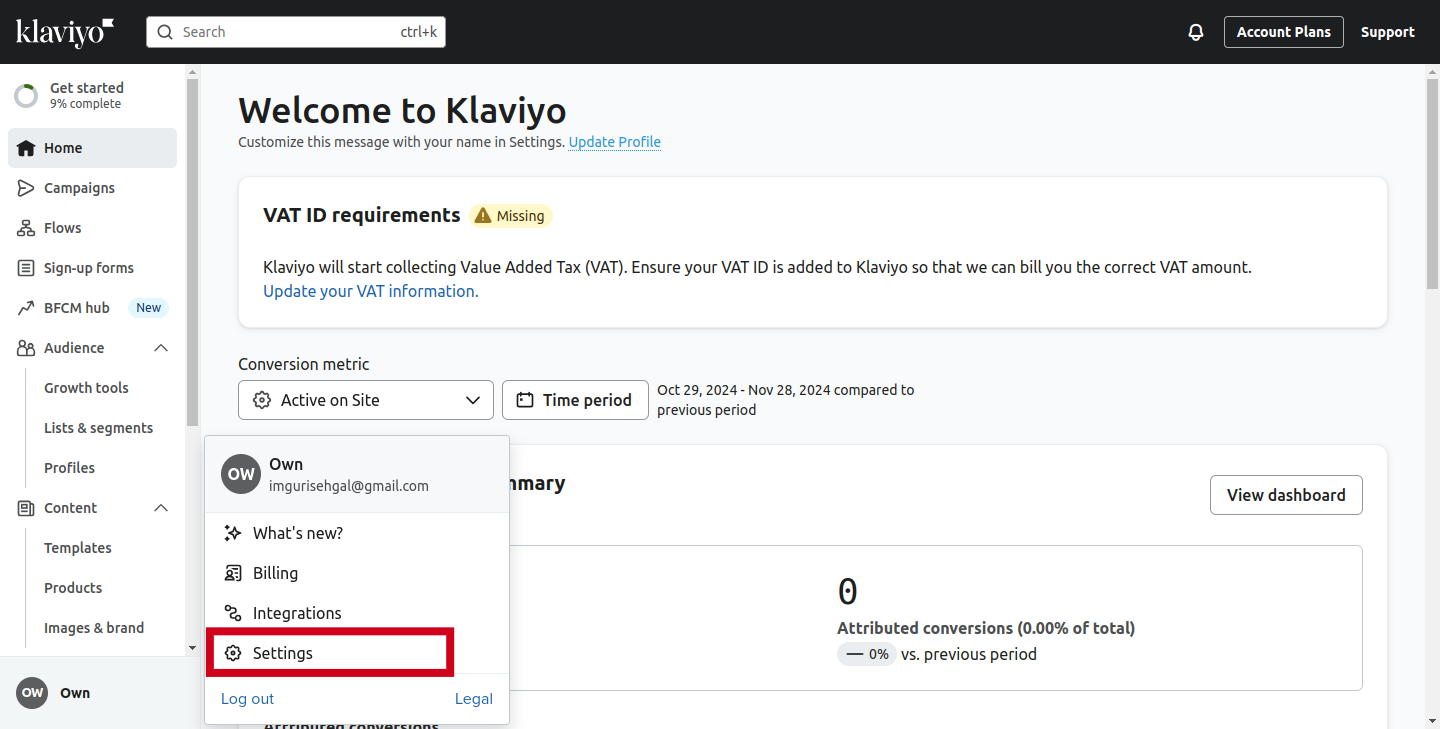
- In Klaviyo, select your profile from the bottom left-hand corner of the page.
- Navigate to API Keys:
- Click on Settings → Account → API Keys.
- Click on Settings → Account → API Keys.
- Create a New Private API Key: Learn from here
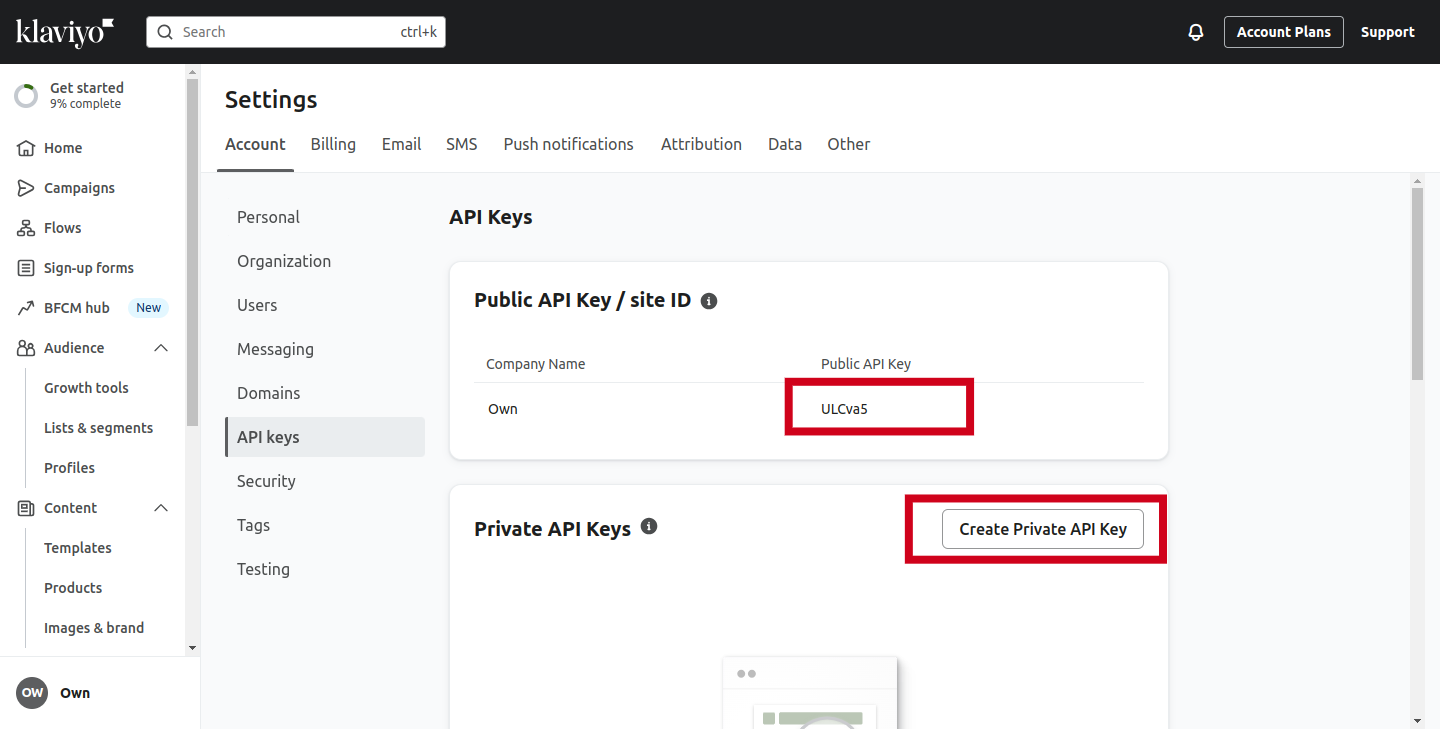
- Click Create Private API Key.
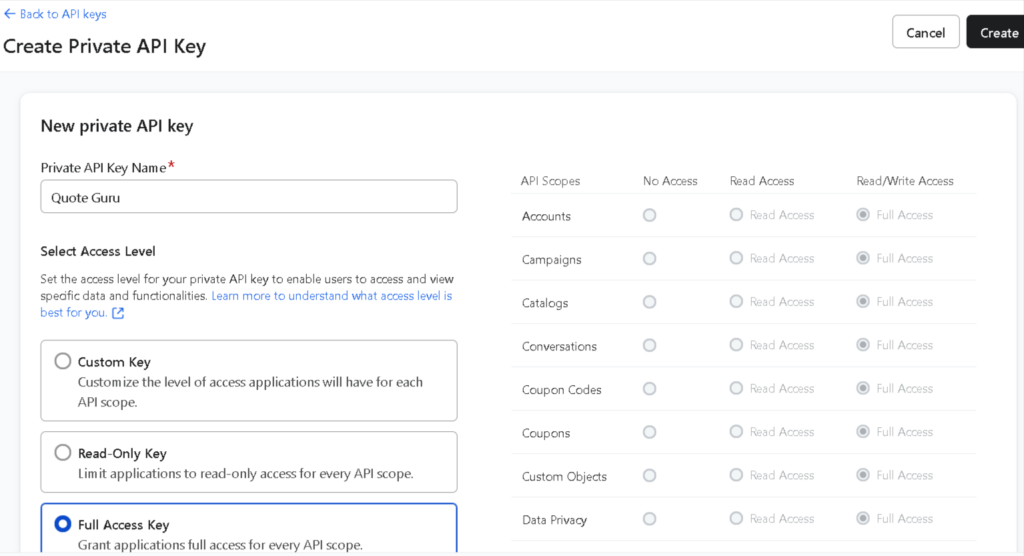
- Name your new API key to differentiate it from other keys.
- Select Full Access Key and then click Create.
- Copy API Keys:
- Take note of your Public API Key and Private API Key.
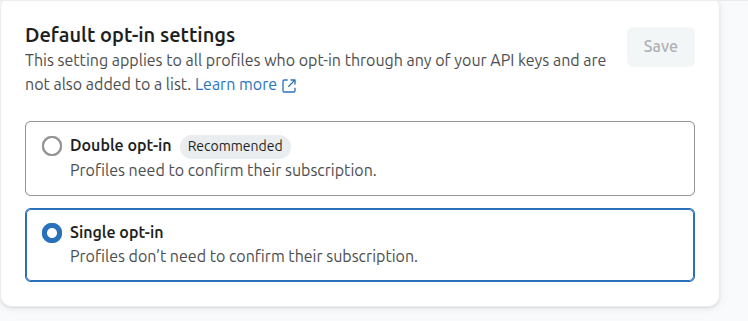
- You must choose the Single Opt-in option in your Klaviyo. So the user automatically adds as a subscriber to the list.
- Integrate with Quote Guru:
- In your Shopify admin, go to the Quote Guru app.
- Click General Settings, then select integration.
- Paste the Private API Key
- Save the settings
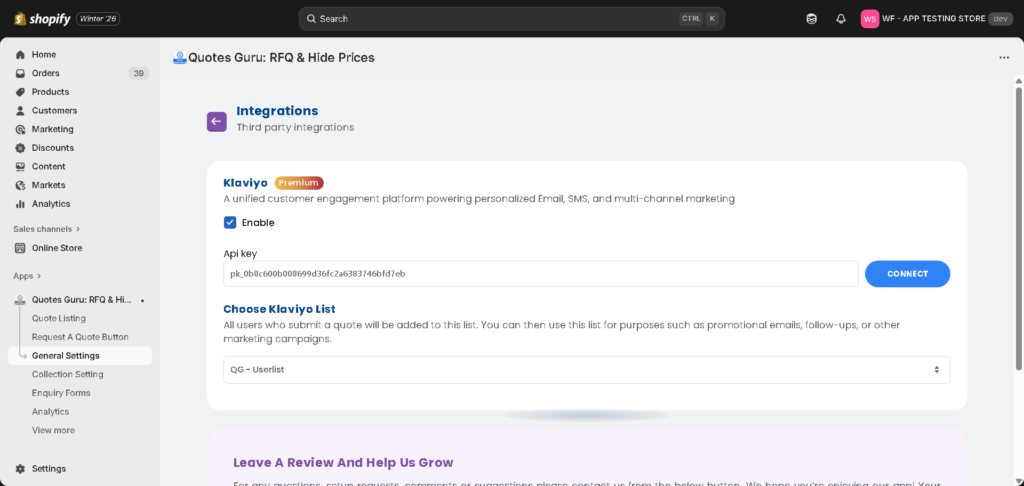
Once saved, Quote Guru will start sending quote events to Klaviyo.
2. Set up a Klaviyo Flow using Quote Guru Metrics #
Quote Guru sends a custom metric to Klaviyo when a quote is submitted.
Metric name: #
Quotes_Guru_Quote_Submitted
Steps to create the flow: You will learn from here #
- Go to Klaviyo → Flows
- Click Create Flow
- Choose Metric-triggered Flow
- Select the metric:
Quotes_Guru_Quote_Submitted - Re-entry criteria: Choose Allow re-entry
- Click Create Flow
This flow will now trigger every time a customer submits a quote through Quote Guru.
3. Configure the Email Template in the Flow #
Once the flow is created, you can design the email that customers receive after submitting a quote.
Steps: #
- Inside your flow, add an Email action
- Choose Create New Email
- Set:
- Subject line (example: We’ve received your quote request)
- From name and email
- Use Klaviyo’s editor to design the content
- Add dynamic variables (customer name, quote reference, etc.)
- Save and publish the email
- Make sure you untick this setting so the customer receives the email again if they request a new quote.
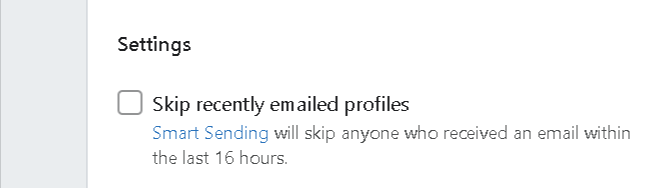
This email will now be automatically sent when the quote event is triggered.
4. Add a Dynamic Table to Your Flow Email (Quote Details) #
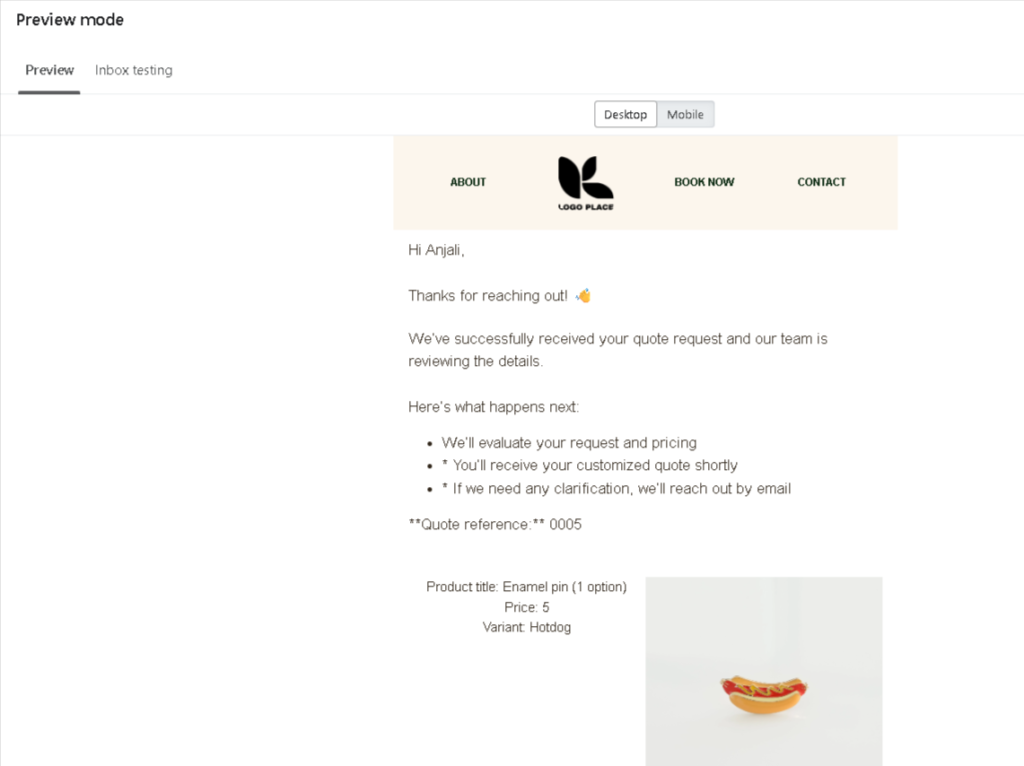
You can include quote details—such as products, quantities, and prices—inside the email using a dynamic table.
How it works: #
Quote Guru passes structured quote data to Klaviyo as event properties. These can be rendered in the email using dynamic content blocks.
Steps: #
- Open the email editor inside your flow
- Add a Table or Dynamic Content block
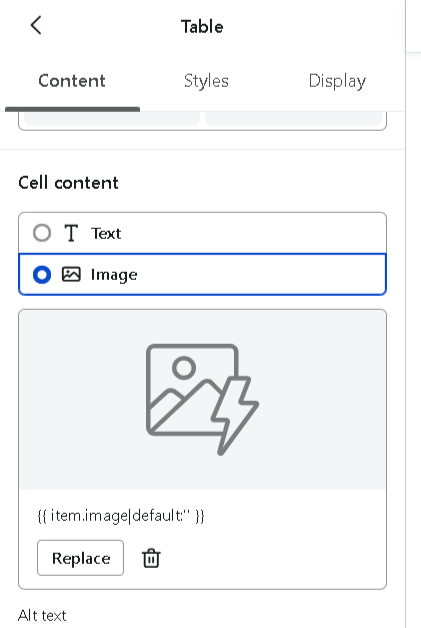
- Click Styles > Dynamic to convert the table into a dynamic block.
- You’ll see 2 fields appear: Row Collection and Row alias.
- Enter the event as shown in the screenshot below
This allows customers to clearly see what they requested directly inside the email.
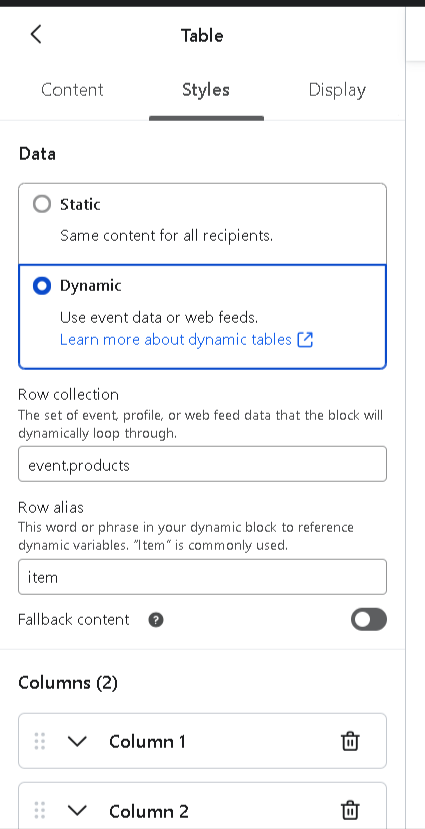
- Click back to the Content tab to adjust your column types.
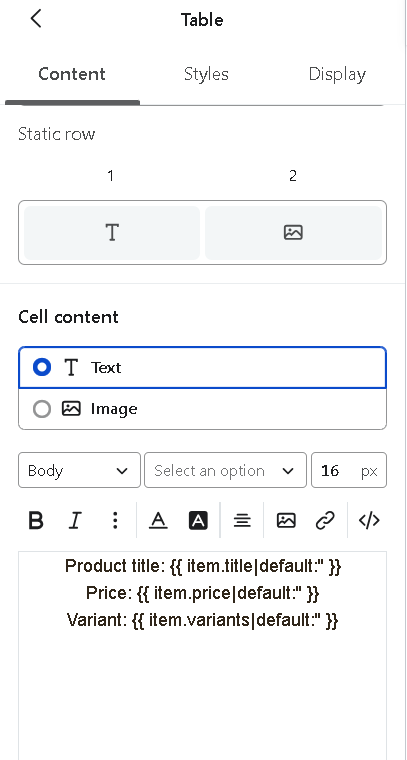
Add a product event: #
In the table below, we’ll explore the template tags you can use and how each piece of product information is referenced.
| Template Tag | Name | Description |
| {{ person.first_name|default:” }} | First Name | Show the First Name ofthe customer |
| {{ person.last_name|default:” }} | Last Name | Show the Last Name of the customer |
| {{ person.email|default:” }} | Customer email address | |
| {{event.products.productId|default:” }} | Product Id | Inserts the product’s unique ID |
| {{event.products.variantId|default:” }} | Variant Id | Displays the variant ID, which could be used for a product’s size or colour variation. |
| {{event.products.title|default:” }} | Title | Displays the product name |
| {{ event.quote_number|default:” }} | Quote Number | Displays the Quote number |
| {{ event.draft_order_id|default:” }} | draft_order_id | Display the draft order id of quote |
| {{ event.total_amount|default:” }} | total_amount | Display the total amount of quote |
| {{ event.tags }} | tags | Display the tags of quote |
| {{ event.shipping_charges }} | shipping_charges | Display the shipping charges of quote |
| {{ event.tax_charges }} | tax_charges | Display tax charges of quote |
| {{event.products.handle|default:” }} | Product Handle | Provides a dynamic link to the product page using the product handle |
| {{event.products.price|default:” }} | Product Price | Provide a dynamic price |
| {{event.products.image|default:” }} | Product Image | Displays the product image dynamically by referencing the image URL associated with the product handle. |
| {{ event.quote_id|default:” }} | Quote ID | Displays the Quote ID |
| {{event.products.variants|default:” }} | Product Variant Name | Which could be used for a product’s size or colour variation. |
| {{ event.invoiceUrl }} | Invoice Url | When auto-convert to draft order is enabled, this variable will contain the invoice URL so a payment button can be added to the email template. Otherwise, if no URL is available, this value will remain empty. |
When dynamic table variables do not show in the preview: #
Check the Dynamic Table setup * Row collection should match the event array (e.g. event.products). * Row alias should match what you use in the tags (e.g. item).
Build variables from the event data * In Preview & Test, select the correct event and click on a product field (e.g. title, price, image) to copy the full tag. * Convert it to the alias format by replacing the array + index with the alias. * Example: {{ event.products.0.title }} → {{ item.title }}
Use clean variables first * Start with simple variables without filters to confirm they work: * {{ item.title }} * {{ item.price }} * {{ item.variants }} * {{ item.image }}
Add default only with correct formatting * Use default when you truly need a fallback, and make sure it is formatted correctly: * {{ item.title|default:’product title’ }} * If there is any typo (missing quote, wrong spelling like deafult, or incomplete tag), Klaviyo may show: * “Message displayed without tags or variables” in preview.
5. Using the Quote Customer List for Follow-ups and Promotions #
When a merchant connects Quote Guru with Klaviyo, every customer who submits a quote is automatically added to the Klaviyo list linked with the app. This list can be reused beyond transactional quote emails.
How merchants can use this list
- Follow up with customers who requested a quote but haven’t placed an order yet.
- Send reminder emails or special offers to encourage conversion.
- Run promotional campaigns targeted only to high-intent quote users.
- Share product updates, restock alerts, or seasonal discounts with customers who have already shown buying interest.
Example use case
A customer submits a quote but doesn’t complete the purchase. You can create a Klaviyo campaign using the Quote Guru list to:
- Send a reminder after 2–3 days
- Offer a limited-time discount
- Highlight product benefits or FAQs to remove buying hesitation
This approach helps merchants turn quote requests into repeatable marketing opportunities while keeping all communication centralized inside Klaviyo.
Conclusion #
By integrating Quote Guru with Klaviyo, you can automate timely, personalized communication throughout your quote workflow. From capturing quote submissions to sending branded follow-ups with dynamic product details, this integration helps you stay responsive, reduce manual effort, and improve conversion rates. Once set up, your team can focus on closing deals while Klaviyo handles consistent, professional customer communication in the background.


